
A Guide to Codex's Three Computer-Control Modes
Codex's three control modes — Computer Use, the Chrome extension, and the in-app browser — each fit different scenarios. This piece breaks down the permission hierarchy and offers best practices.
A Guide to Codex's Three Computer-Control Modes
Codex's three control modes — Computer Use, the Chrome extension, and the in-app browser — each fit different scenarios. This piece breaks down the permission hierarchy and offers best practices.
OpenAI engineer Jason Liu shared a case: his delivered online order got stolen, and contacting customer support meant an estimated 25-minute wait. He handed the whole thing to Codex with the instruction "check the chat window every 5 minutes; if the support agent comes online, switch to checking every minute, and try to get my refund done" — then went to take a shower. When he came back, the refund was complete. Behind this are Codex's three "computer control capabilities" — Computer Use, the Chrome extension, and the in-app browser. They look like overlapping features, but they actually map to a carefully designed hierarchy of action permissions.
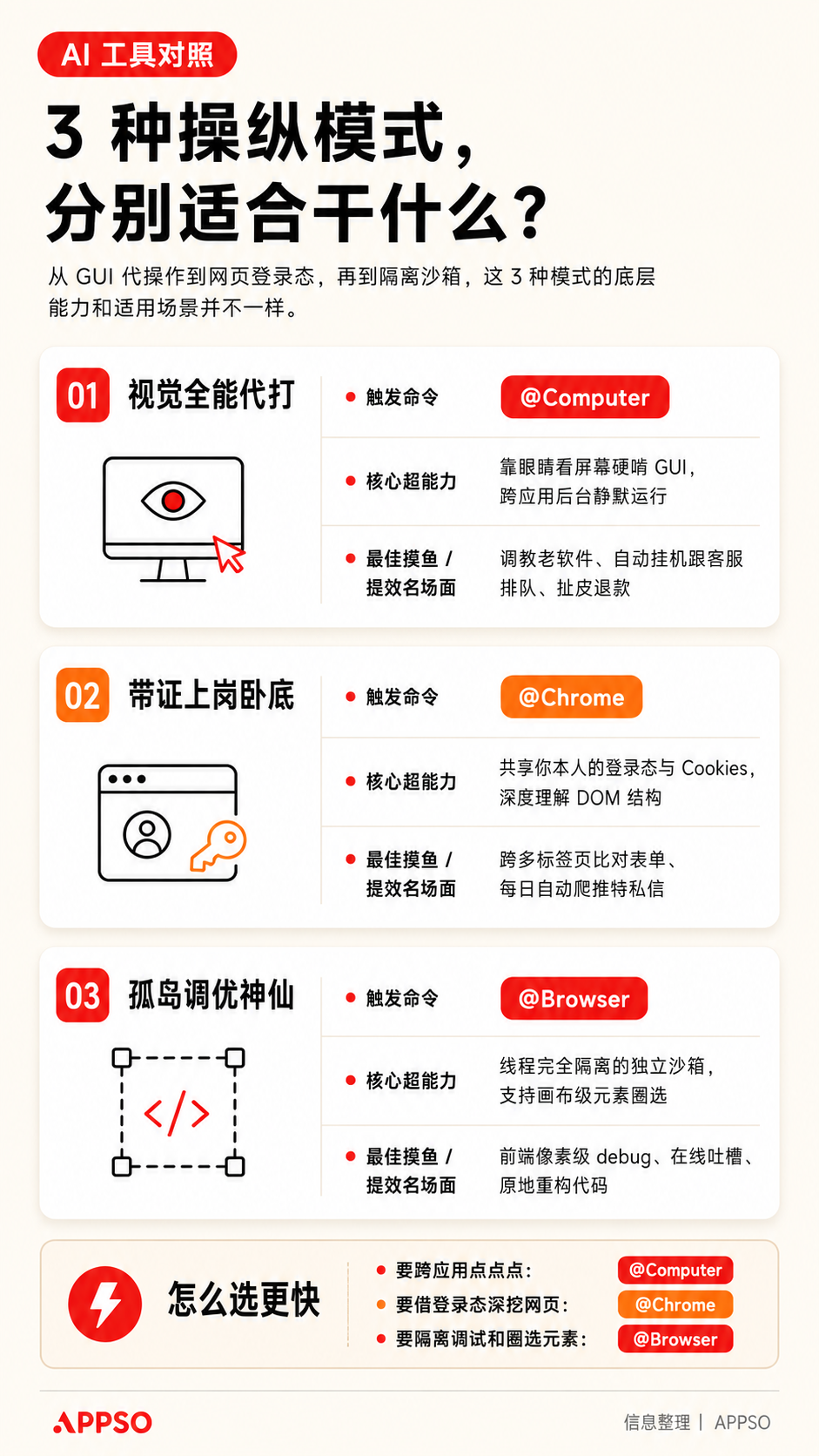
What the three modes are
All three modes let Codex take over the computer, but their permission scopes and use cases are entirely different. Rule of thumb: if an extension can do it, don't click around the web page; if an API can be called directly, don't have the AI operate the interface by reading the screen.
Computer Use: the widest door
The most capable mode. It can see the screen, operate almost any graphical interface, use the keyboard and menus, and work with apps you've authorized. Software with no API is still fair game — it relies entirely on "looking at the screen and judging where to click."
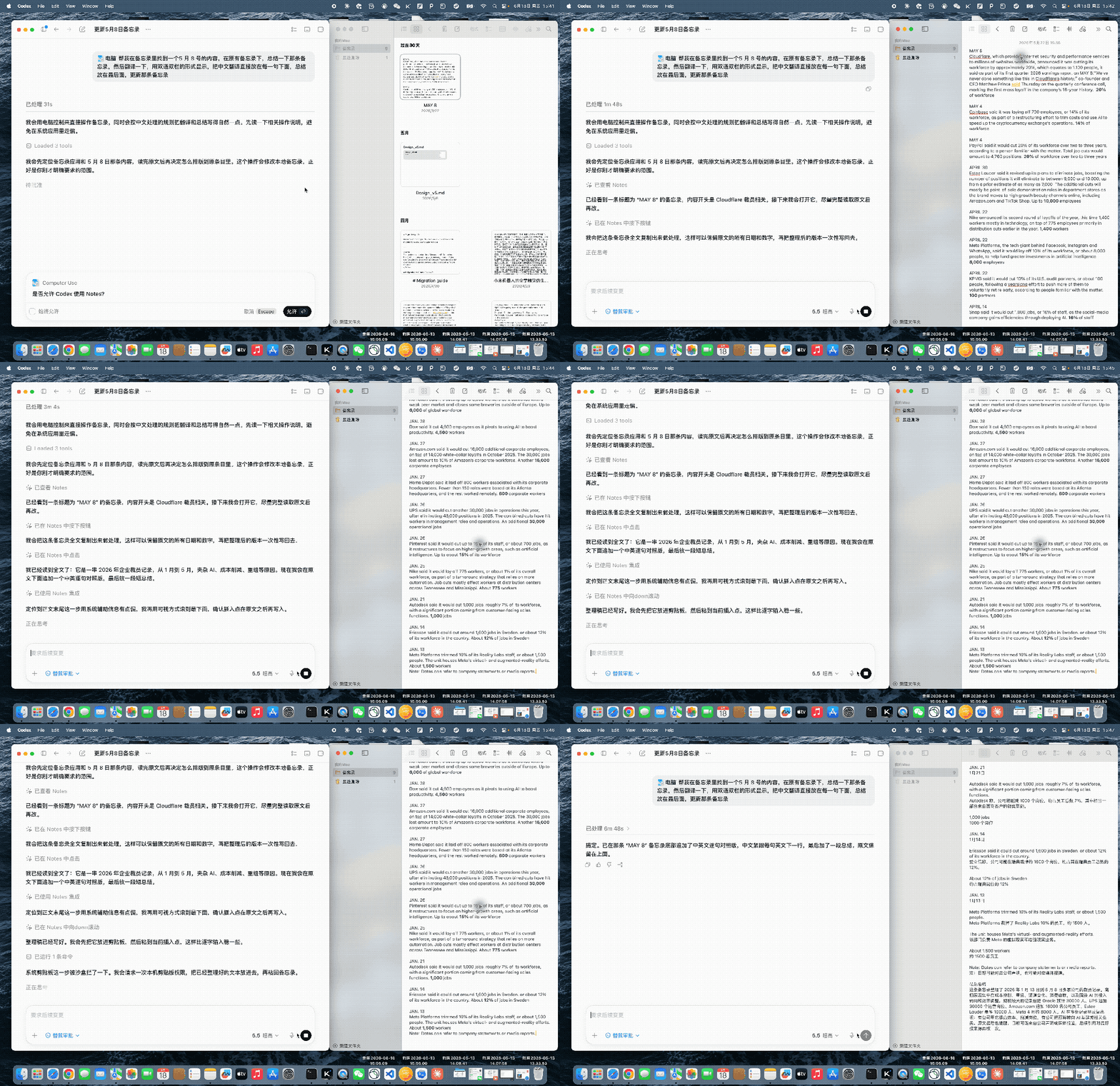
The cost is speed. A structured extension can call one endpoint directly; Computer Use has to read the interface, decide where to click, wait for the app to respond, then read the next screen — that visual loop wastes a lot of time.
When to use it:
- Native desktop applications like Spotify, or financial applications
- The iOS Simulator, iPhone mirroring, or other pure-GUI flows
- System or application settings
- Data sources with no extension or API
- Workflows that switch between multiple applications
- Filling the gap when one step is missing from other structured integrations
💡 Tip: give it one clear app or workflow at a time. For anything touching money, accounts, passwords, privacy, or system security, stay close by.
Chrome extension: the door with your identity
This one takes over a browser you've already logged into. Your cookies, settings, login state, and open tabs are all at its disposal. Gmail, LinkedIn, Salesforce, internal company admin panels — web information that requires login can be handed to Chrome to handle.
The key difference: because Chrome acts with your identity, websites treat its clicks, submissions, and messages as you operating in person. More capable — and riskier.
When to use it:
- Gmail or LinkedIn
- Salesforce or a support console
- Internal dashboards
- Authoritative research across multiple websites
- Forms that depend on your account or browser extensions
In-app browser: the clean, isolated door
Inside Codex's conversation, you and it are looking at the same rendered page. It doesn't use your usual browser profile, carries no cookies, has no extensions, and has no login state.
When to use it:
- Local development servers
- File-backed previews
- Public pages that need no login
- Reproducing visual bugs
- Checking responsive layouts
- Leaving element-level design feedback
The most interesting part is the annotation feature: while reviewing a local page, you click an element or circle an area and leave a note like "this hierarchy is inverted" or "don't make this block a card." Codex receives the comment with the screenshot and element context, edits the files, then reopens the same page to show you the next version.
Best practices
OpenAI's own best practices point in a counterintuitive direction: clicking like a human is the slowest, most fragile, highest-trust-cost path. What you really want is to give the agent structured enough interfaces that it can get by without clicking at all.
| Scenario | Recommended mode | Why |
|---|---|---|
| Operating a native desktop app | Computer Use | No API — visual operation is the only option |
| Logged-in web tasks | Chrome extension | Carries your login state; sites treat it as you |
| Local development and debugging | In-app browser | Clean and isolated; supports annotations |
| Switching across multiple apps | Computer Use | The only mode that crosses applications |
| A missing step in a structured integration | Computer Use | Gap-filler — click that one "add file" button |
Bonus: Appshots
A fourth related feature is Appshots. On macOS, in any app, pressing both Command keys — the ones on either side of the spacebar — at the same time automatically sends a screenshot of the window plus its context information to Codex.
Appshots points; Browser, Chrome, and Computer Use act. You use Appshots to tell Codex "look here," then let the right control mode do the executing.
FAQ
- Can all three modes be used at the same time: yes. Within one task, Codex can first read email with Chrome, then operate a local app with Computer Use, and finally preview the result in the in-app browser — switching automatically as the task moves through its stages.
- Is Chrome mode safe: because it carries your login state, it's the riskiest of the three. Best to use it only for reading and organizing information; for anything involving sending or submitting, have Codex draft first and execute only after you confirm.
- Can the in-app browser log into Google: practically not. It carries no cookies or login state, so it fails on Google sign-ins, passkeys, and sites that depend on browser extensions.
Related articles

VLA-JEPA: Teaching Robots How Actions Change the World
Zhongguancun Academy × USTC × SJTU × EIT propose VLA-JEPA, fusing VLA models and world models in latent space: assembly tasks completed with just 13 trajectories, 97.2% on LIBERO, shared by LeCun and Saining Xie.

AutoControl-Arena: Auto-Generated, Actually Runnable Agent Risk Testbeds
Fudan × Shanghai Innovation Institute × Oxford publish the ICML 2026 paper AutoControl-Arena, which auto-synthesizes executable test environments to surface latent Agent risks in long-tail scenarios, reproducing Anthropic/OpenAI safety-report behaviors with a 0.87 correlation.
Nvidia Halos: An Open-Source Safety OS for Robots
At Automate 2026, Nvidia launched Halos for Robotics, a full-stack robot safety system that opens 18,600 engineering-years of autonomous-driving safety know-how to the embodied AI industry — the core safety framework is already open, with 43 companies on board.

PerfEvolve: Teaching Agents to Tune Databases Like a Senior DBA
ISCAS open-sources the PerfEvolve framework, converting static tuning docs into executable procedural skills for Agents and delivering up to 58.9% performance gains on PostgreSQL v16 — a direct fix for LLM tuning failures.
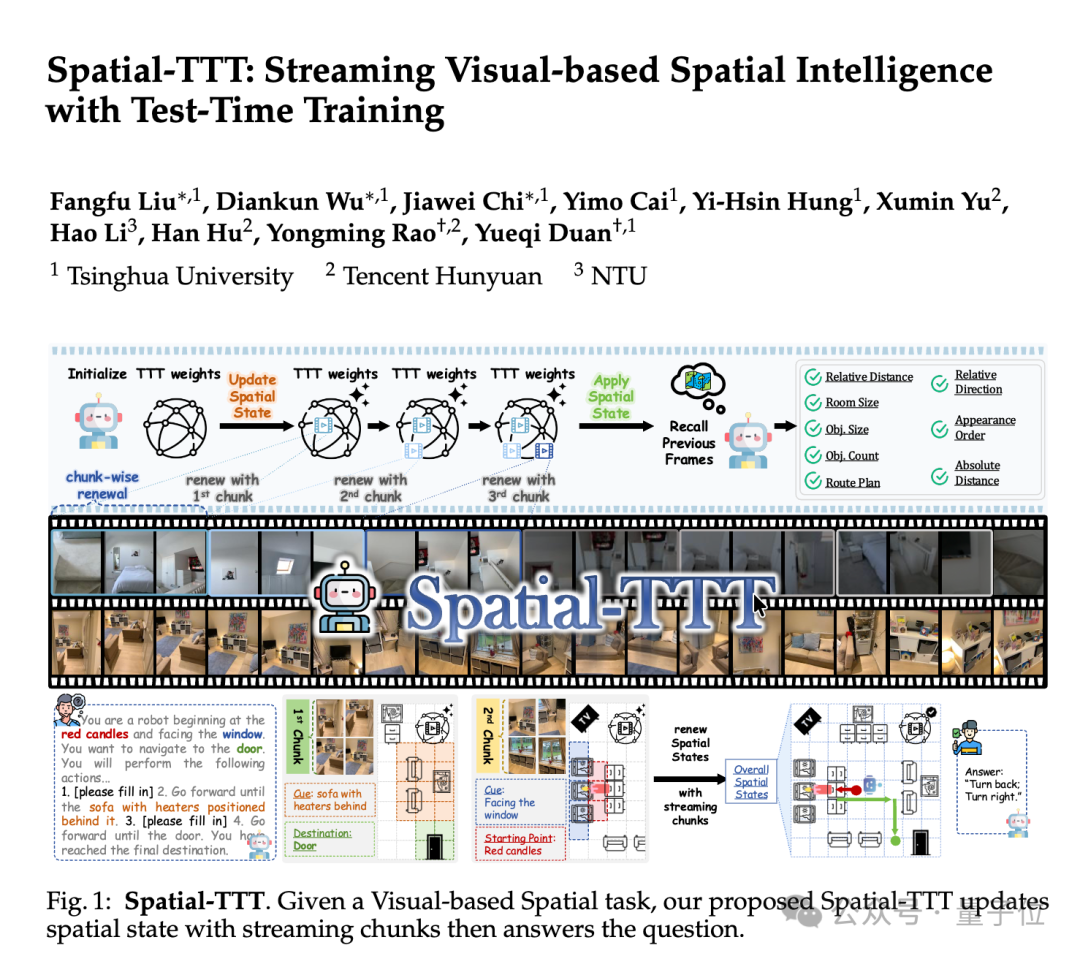
Spatial-TTT: An Open-Source Spatial Intelligence Model at 2B Parameters
Tsinghua's open-source Spatial-TTT makes ECCV 2026: at just 2B parameters it beats GPT-5 and Gemini-3-pro on multiple spatial intelligence benchmarks, handling 120-minute streaming video while updating its spatial memory as it watches.

TerminalWorld: The First Agent Benchmark Built on Real CLI Workflows
A 1,530-task benchmark distilled from 80,000 human terminal recordings, spanning 18 workflow categories and 1,280 command tools — a cure for Agents that rack up leaderboard points yet fall apart in real terminal scenarios.