
Seko Infinite Canvas Hands-On: Drop in One Idea, and the Agent Finishes a Whole AI Video for You
A hands-on guide to the Seko infinite canvas + Seedance 2.0: 720P cost down 50% and 1080P down 80%, letting even beginners produce multi-episode AI video epics in 10 minutes.
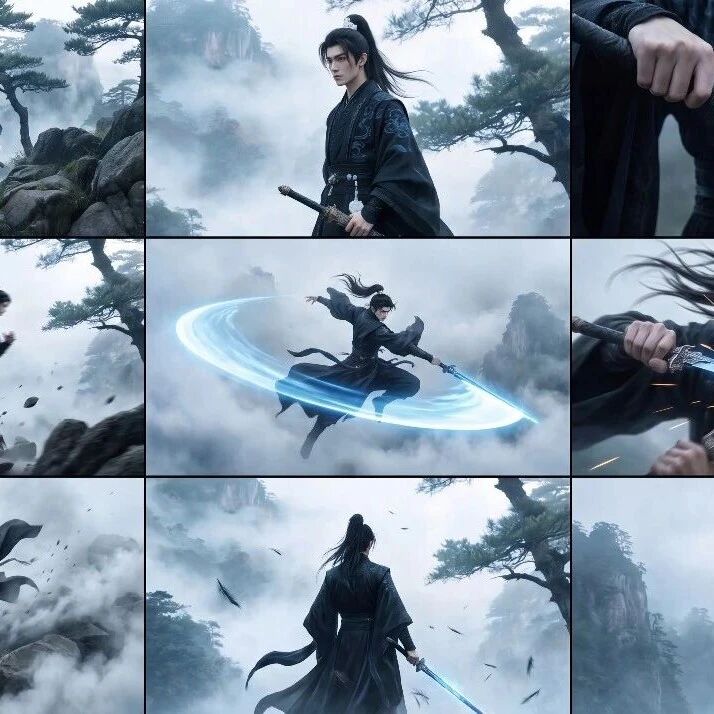
Seko Infinite Canvas Hands-On: Drop in One Idea, and the Agent Finishes a Whole AI Video for You
A hands-on guide to the Seko infinite canvas + Seedance 2.0: 720P cost down 50% and 1080P down 80%, letting even beginners produce multi-episode AI video epics in 10 minutes.
The real headache of AI video has never been that the models aren't good enough — it's that it's expensive + the workflow is fragmented. Seedance 2.0 is spectacular, but at 12 credits per second for 720P and 40 credits per second for 1080P, credits pour out like water the moment you make a one-minute video; and when the output goes "dumb" you have to re-roll, burning another wave of money.
This tutorial walks you through the full pipeline with Seko, an AI video agent tool in infinite-canvas form: drop one idea in, and the agent automatically handles script, characters, scenes, camera moves, dialogue, and music, outputting a finished cut. The full-power Seedance 2.0 it carries also slashes the cost — as low as 6 credits/second for 720P (down 50%) and 8 credits/second for 1080P (down 80%). In testing, a one-minute AI video cost under 800 credits.
This suits beginners who want into AI video but were scared off by prompts and cost, and creators who want to batch-produce story-driven or ad-style shorts.
Before You Start
- Account: open the Seko official site and register (desktop recommended — canvas work feels better)
- Credits: your account needs some credits (new users usually get a free allowance)
- Expected time: for a 1-minute video, roughly 10 minutes from idea to finished cut
- No skills needed: no prompt-writing, no editing — the agent leads the whole way
Step One: Enter Your Story Idea
Open the Seko site and type your story outline into the dialog box. No complex prompts needed — just say clearly "what story I want to tell."
Using a wuxia short as the example, enter this prompt:
A male swordsman and a female swordsman duel for first place on the arena leaderboard; select the female swordsman and the male swordsman as characters (pick them from the character library yourself, or have the AI generate one)
Key points:
- Turn on Seedance 2.0's Omni mode
- Choose "Dialogue Story"
- For multi-episode plots, switch on Multi-Episode mode in the bottom-right corner (single-episode shorts can skip it)
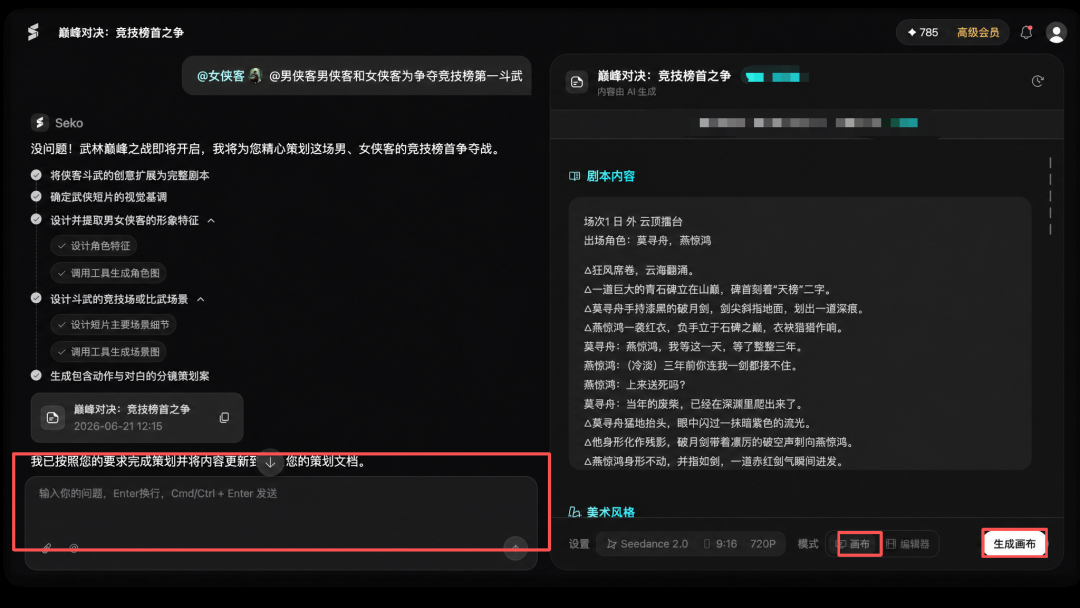
💡 Tip: Anything you're not happy with can be revised in the left dialog box at any time; after editing, click "Generate Canvas" and move on. Changes are cheapest at the script-planning stage.
Step Two: Enter the Infinite Canvas and Review the Auto-Generated Storyboard
Click the "Generate Canvas" button on the right to enter Seko's core infinite canvas. All the material freely forms a workflow on one canvas, and every node on the canvas is AI-generated — you don't make the assets and you don't assemble them.
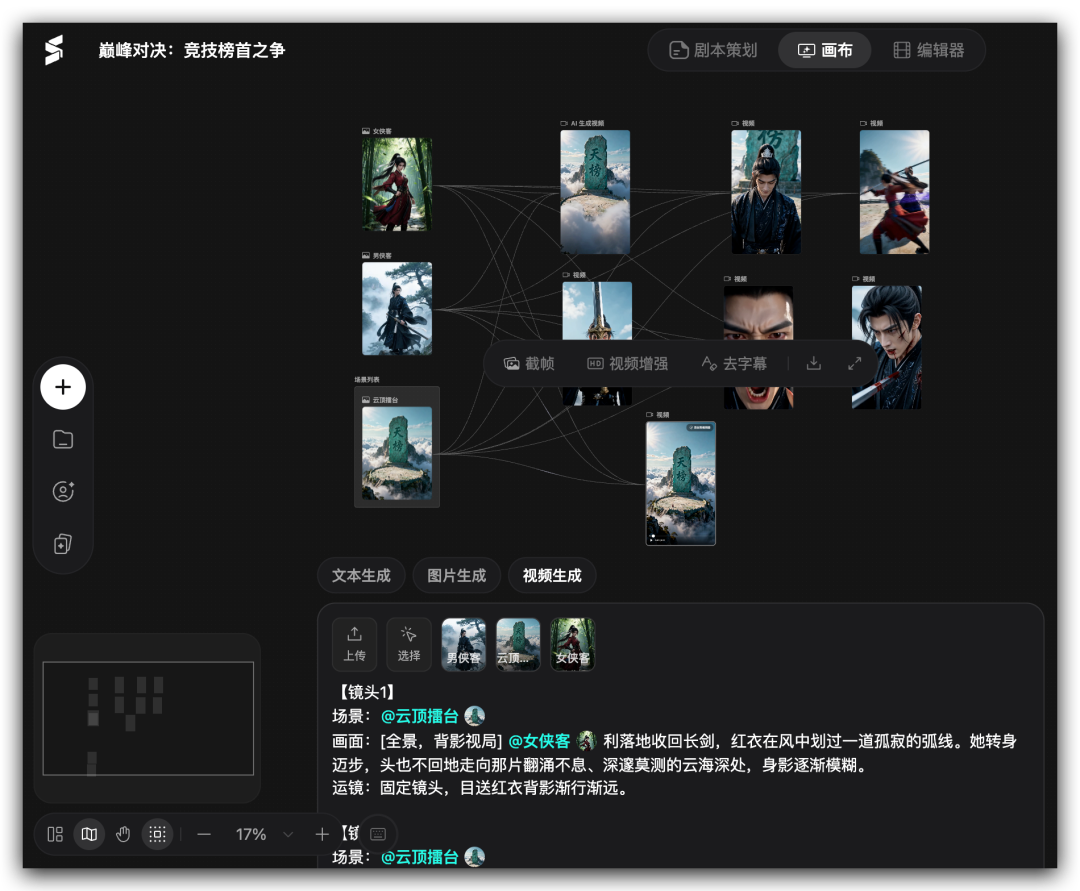
How the canvas is laid out:
- Left: the character and scene lists
- Right: the storyboard
- Click any storyboard panel to see every shot it contains
- Each shot's scene, frame, camera move, and dialogue dubbing are all laid out clearly
- Unhappy with a shot? Edit its description directly and regenerate the video
Step Three: Polish the Assets with the Image Tools
Above the canvas sits a set of practical image tools; two are the most fun:
720° panorama tool: pick a scene image (say, "Cloud-Top Arena"), click 720° panorama, and you get a rotating, orbiting panoramic motion shot — great for scene-establishing frames.
Nine-grid tool: three modes —
- Inspiration Storm: type "random" and get a set of concept images
- Story Narration: lays out the storyboard following the plot logic
- Fight Storyboard: generates combat shots with action tension directly — "it's got the flavor"
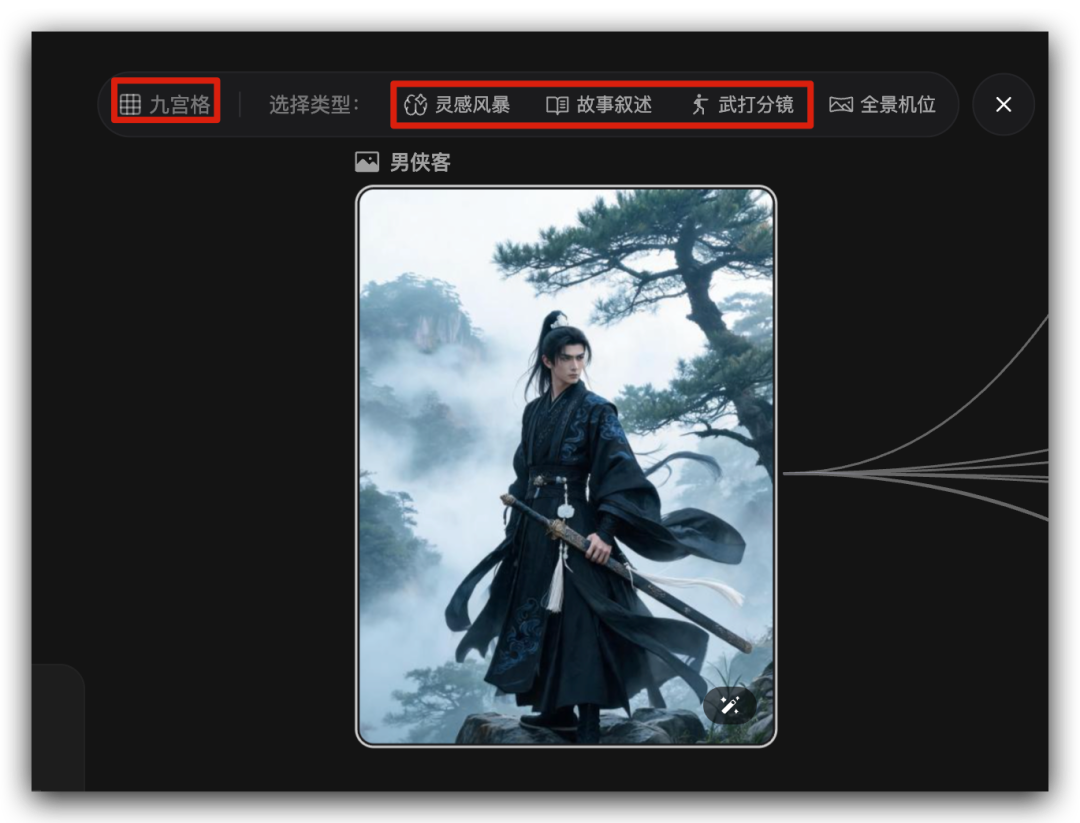
With these image tools in hand, storyboard video generation becomes far more controllable and precise, instead of a pure gamble on luck.
Step Four: Edit the Storyboard and Export
Select the storyboard on the right and click "Add to Editor" to enter the editor view. Here you can:
- Rearrange the order of the storyboard panels
- Regenerate any single panel you dislike
- Adjust the style across the board
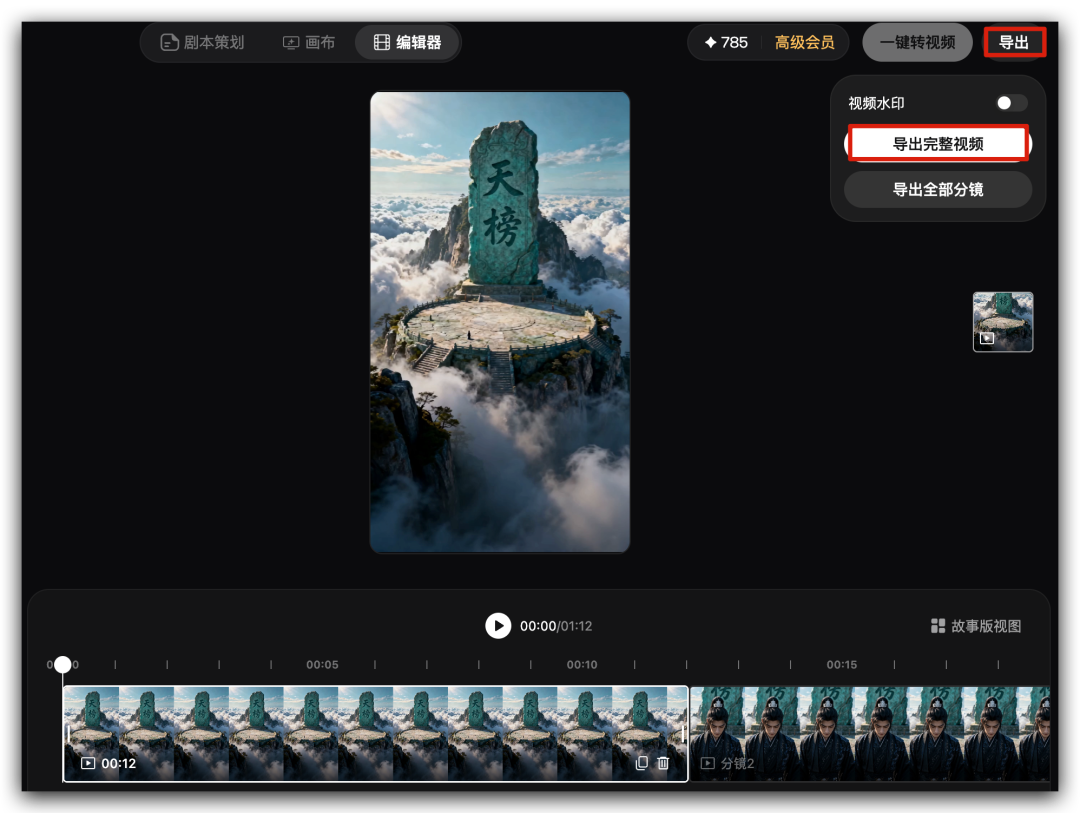
Finally click "Export" in the top-right corner, with two options:
- Export the complete video (the composited finished cut)
- Export all storyboard panels (an asset pack for further editing downstream)
The Multi-Episode Trick: the Canvas "Inherits" the Previous Episodes' Assets
When making a series, Seko's smartest trait is automatic inheritance of character and scene assets.
While producing a series called "The Afternoon After the Gaokao," we made episodes 1–3 first, felt they were a bit hollow, then typed a rough script for episode 4. The canvas automatically carried the character assets and scene assets from the first three episodes into the fourth; the resulting video had no breakdowns, no eerie style shifts, and character consistency held up very well.
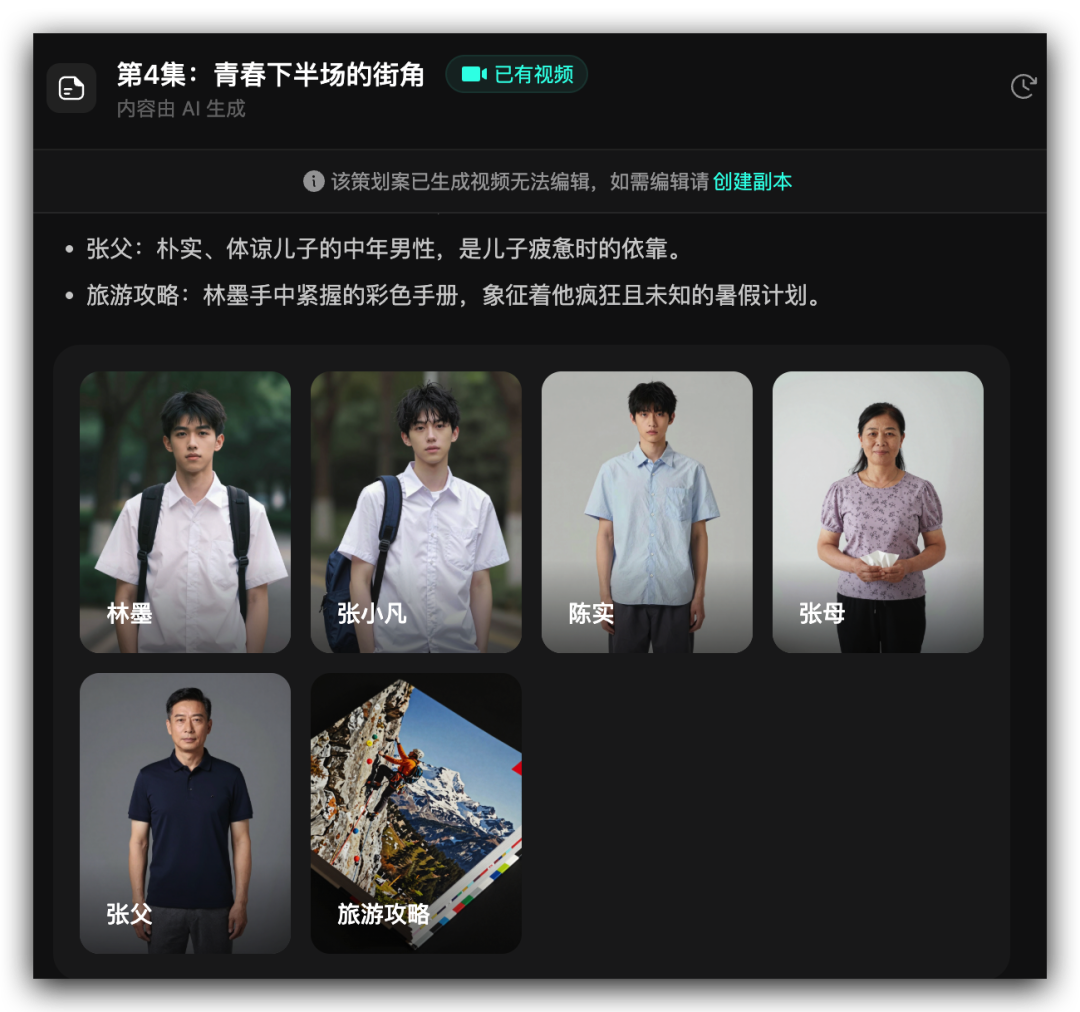
For creators making brand story ads, serialized content, or IP short series, this saves a huge amount of re-defining characters over and over.
Verification Results
Running this full pipeline, from idea to a 1-minute finished cut:
- Took about 10 minutes
- Cost under 800 credits (far cheaper than hitting Seedance 2.0 directly)
- Output quality was stable, with no eerie style shifts, and character consistency was fine
FAQ
- Q: Why is my visual style inconsistent? A: Check whether Multi-Episode mode's asset inheritance is enabled; for single-episode shorts, pin the same character in the character library to keep the AI from re-rolling the face.
- Q: Did the 720° panorama / nine-grid generation fail? A: Switch to a more concrete scene description; avoid purely abstract words (like "the atmosphere of battle") and use concrete scenes such as "Cloud-Top Arena" or "bamboo forest path."
- Q: Can I export to CapCut for further editing? A: Yes — choose "Export all storyboard panels" to get the asset pack, then import it into any editing software.
- Q: What if I run out of credits? A: 720P is far cheaper than 1080P; run the storyboard through in 720P first, and only re-render the final cut in 1080P once you're satisfied.
💡 Tip: Seko is essentially wrapping Seedance 2.0 and other underlying models into an agent workflow of "drop an idea → get a finished cut." If cost and the prompt barrier previously scared you off Seedance, this canvas-style workflow is one of the easiest ways in today.