
Hands-On Tutorial: Generate an AI Comic Story from a Single Sentence (Open Source)
A step-by-step guide to using an open-source AI comic platform to create high-quality comics in one place, from script generation and character locking to panel drawing.
Hands-On Tutorial: Generate an AI Comic Story from a Single Sentence (Open Source)
A step-by-step guide to using an open-source AI comic platform to create high-quality comics in one place, from script generation and character locking to panel drawing.
💡 Tutorial Goal
Learn how to use a recently viral open-source AI comic platform (available on Web and app) to solve the biggest headaches in comic creation, character consistency and panel coherence, so that even complete beginners can produce a complete comic story.
🛠️ What You Need
- Tool: AI comic platform (open source)
- GitHub: View project (Note: this is a sample link; search for the project mentioned in the article to find the real one)
- Cost: Free (open source, can be self-hosted) / minor API fees (if you use cloud models)
🚀 Step-by-Step Walkthrough
Step 1: Import the Script and Create Characters
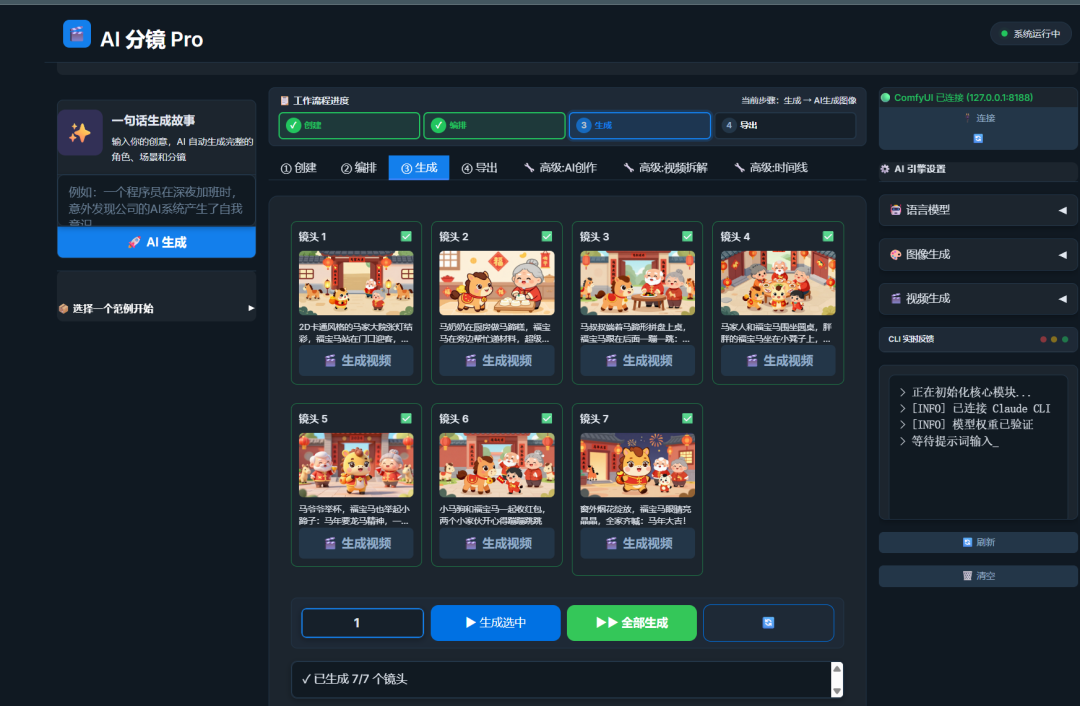
You can type a single sentence and let the AI generate the story, or use a built-in template (such as the "Instant Success Horse Blessing"). The most critical part is creating your characters. To ensure consistency, use detailed descriptive prompts.
- Recommended format:
Gender + Age + Hairstyle + Hair Color + Eyes + Clothing + Distinguishing Features - Example: "25-year-old female, long straight black hair, large brown eyes, wearing a white shirt and a black suit dress, thin-framed glasses"
💡 Tips: The platform has been deeply optimized under the hood and supports a "lock seed" feature. Once you are happy with the first image, lock the seed, and every subsequent panel featuring that character will maintain extremely high consistency.
Step 2: Arrange Panels and Camera Shots
This is the most powerful part of the platform. Like a director, you can control the camera language of every single panel. The platform ships with 9 standard shot templates (long shot, medium shot, close-up, and more).
- Long Shot: Used to establish the environment.
- Close Up: Used to show emotions or important objects.
- Over-the-Shoulder Shot: Used for dialogue scenes.
Step 3: Batch Generation and Fine-Tuning
Once the panels are set, click one-click generate. The platform will call the AI (such as ComfyUI or a cloud API) to generate images in batch. If a particular image is unsatisfactory, you can edit that panel's prompt or camera parameters individually and redraw it.
🎯 Expected Results
After completing the steps above, you will get a set of comic images or videos with a unified art style and a coherent narrative. You can export them directly for social media publishing.
Related articles

6 Must-Install Claude Skills: Double Your AI Agent's Capabilities
A curated list of 6 high-value Claude Skills covering frontend aesthetics, office document handling, web search, and persistent memory, with install links and use cases — ideal for Claude Code and OpenClaw users.

WeCom Open-Sources a CLI: AI Agents Directly Control Messages, Schedules, and Docs
WeCom has open-sourced wecom-cli, letting mainstream AI Agents such as Claude Code, Codex, and QClaw call 7 major categories of office capabilities. Setup takes 3 steps, with complete command examples included.

Feishu CLI Hands-On: Let AI Directly Manage Your Feishu Docs, Calendar, and Base Tables
Feishu CLI is now open source. Paired with AI tools like Claude Code, it can read and write Feishu docs, query your calendar, and create Base tables directly — no manual copy-pasting. This article walks through the full setup process step by step.