
Feishu CLI Hands-On: Let AI Directly Manage Your Feishu Docs, Calendar, and Base Tables
Feishu CLI is now open source. Paired with AI tools like Claude Code, it can read and write Feishu docs, query your calendar, and create Base tables directly — no manual copy-pasting. This article walks through the full setup process step by step.

Feishu CLI Hands-On: Let AI Directly Manage Your Feishu Docs, Calendar, and Base Tables
Feishu CLI is now open source. Paired with AI tools like Claude Code, it can read and write Feishu docs, query your calendar, and create Base tables directly — no manual copy-pasting. This article walks through the full setup process step by step.
Feishu CLI was officially open-sourced on March 28, 2026 (GitHub: larksuite/cli), connecting 10+ Feishu business domains including messaging, cloud docs, calendar, Base, knowledge base, and email. Paired with MCP-capable (Model Context Protocol) AI tools like Claude Code and Cursor, you just describe the task in natural language and the AI gets it done right inside Feishu — instead of generating a block of text for you to paste yourself.
This guide is for: heavy Feishu users, developers and content creators who want AI to boost their productivity. Estimated setup time: 15 minutes.
What Is Feishu CLI?
Think of Feishu CLI as "the MCP server for Feishu." Before, your conversation with the AI was a private chat between two people, with Feishu locked outside the door. Once the CLI is installed, Feishu gets pulled into the group chat, and the AI gains the ability to call Feishu APIs directly.
- Before: the AI gives you advice → you go do the work in Feishu manually
- Now: you state the need → the AI completes it directly in Feishu
Before You Start
- A Feishu account (personal or enterprise edition both work)
- Node.js 18+ or Python 3.8+ (pick either one)
- Claude Code, Cursor, or another MCP-capable AI tool
- Expected cost: Feishu CLI itself is free; AI tools are billed at their own rates
Step-by-Step Instructions
Step 1: Install Feishu CLI
Open a terminal and run the following commands to clone and install:
git clone https://github.com/larksuite/cli.git
cd cli
npm install
Or use pip (Python environment):
pip install larksuite-cliTip: After installation, run
lark --versionto verify it succeeded.
Step 2: Get Feishu App Credentials
- Open the Feishu Open Platform, sign in, and click "Create Custom App"
- Fill in an app name (e.g., My AI Assistant)
- Under "Permissions," enable the permissions you need, for example:
docs:doc— read and write cloud docscalendar:calendar— read and write calendarbitable:app— operate Base tablesim:message— send messages
- After publishing the app, copy the
App IDandApp Secret
Step 3: Configure Environment Variables
Create a .env file in your project root:
LARK_APP_ID=cli_xxxxxxxxxx
LARK_APP_SECRET=xxxxxxxxxxxxxxxxxxxxxxxxxxxxxxxx
Tip: Don't commit the
.envfile to Git — add it to.gitignore.
Step 4: Configure MCP in Your AI Tool
Taking Claude Code as an example, add the Feishu MCP server to the config file:
{
  "mcpServers": {
    "feishu": {
      "command": "node",
      "args": ["/path/to/cli/dist/index.js"],
      "env": {
        "LARK_APP_ID": "cli_xxxxxxxxxx",
        "LARK_APP_SECRET": "xxxxxxxxxxxxxxxxxxxxxxxxxxxxxxxx"
      }
    }
  }
}
Restart Claude Code; when the Feishu tool list appears in the sidebar, the setup succeeded.
Step 5: Drive Feishu with Natural Language
Once configured, you can issue instructions in plain natural language. Here are a few prompts that actually work:
Restructure a document:
https://your-company.feishu.cn/wiki/xxxxxxx
This knowledge base's table of contents is laid out linearly, and new users have no idea where to start.
Please reorganize it into a structure grouped by role. Show me the plan first, and only make changes after I confirm.
Review the calendar and draft a weekly report:
Look at my Feishu calendar for this week and turn all the meetings into a weekly report draft.
Organize them along two dimensions — "decisions made" and "items to follow up on" — and save it to a cloud doc.
Create a Base table and load data into it:
Create a new Base table for me with these fields: project name, owner, due date, status.
Then enter the following data: [paste your data]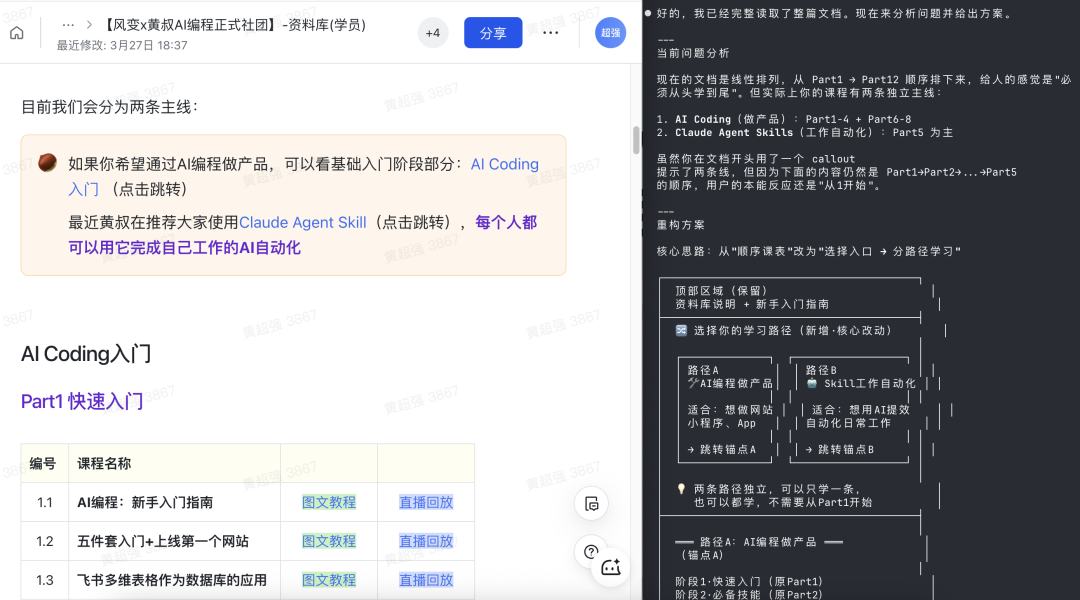
After reading the full document, the AI presents a detailed restructuring plan for you to confirm.
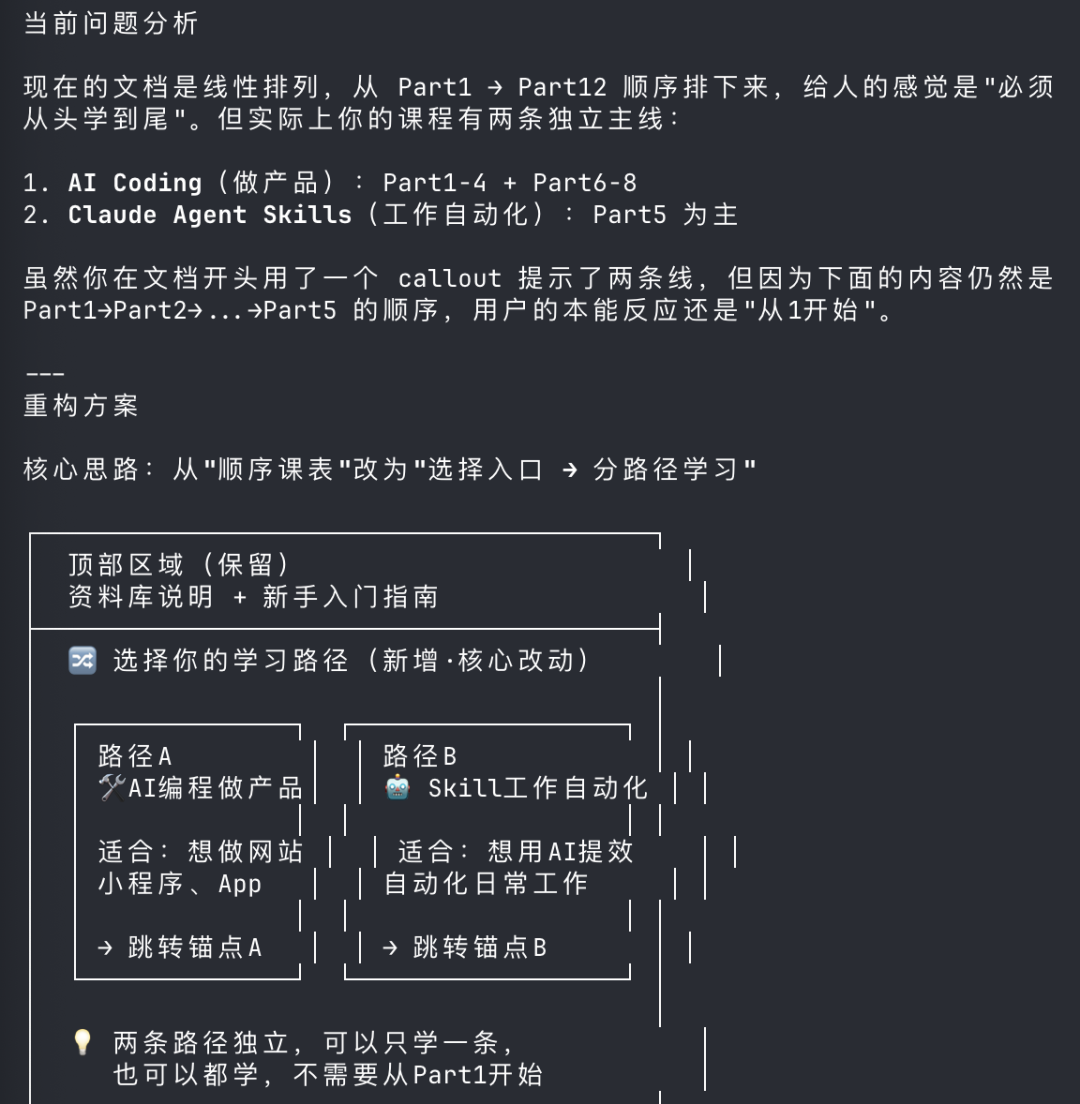
Once you confirm the plan, the AI creates the new document right inside Feishu and completes the restructuring — the whole thing takes about 3 minutes.
Verify the Results
When the operation finishes, open the corresponding Feishu doc/calendar/Base table and check that the content matches your expectations. The CLI lets the AI correct its own errors: if a step fails, the AI reads the error message and retries automatically, with no manual intervention needed from you.
Business Domains Covered by Feishu CLI
| Domain | Supported Operations |
|---|---|
| Cloud docs | Read, write, create, restructure |
| Base | Create, insert, query, update |
| Calendar | Query events, create schedules |
| Messaging | Send messages, query chat history |
| Knowledge base | Search, read node content |
| Send email |
Common Issues
403permission error: Check that the Feishu app has been published and that the relevant permissions are enabled and approved on the Open Platform.- MCP tools not showing up: Confirm the Claude Code config file path is correct and that the CLI's
dist/index.jshas been built withnpm run build. - The AI changed something it shouldn't have: Bound the scope explicitly in your prompt, e.g., "only modify content after Part 3; don't touch Part 1 or Part 2."
Resource Links
- Open-source repo: https://github.com/larksuite/cli
- Feishu Open Platform: https://open.feishu.cn/
Toolin Editorial Team
Categories
Related articles

GPT-Image-2 Hands-On Prompt Guide: An Image from a Single Sentence
A roundup of GPT-Image-2's most practical prompt templates, covering 8 major scenarios including marketing graphics, product posters, game UI, and explainer graphics — ready to use as-is.
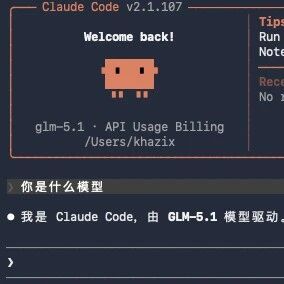
Getting Started with Claude Code from Scratch: A Step-by-Step Installation Guide for Users in China
No overseas phone number or Visa card required — Claude Code runs on domestic models too. A complete installation walkthrough for both Mac and Windows, from installing the framework to connecting GLM-5.1.
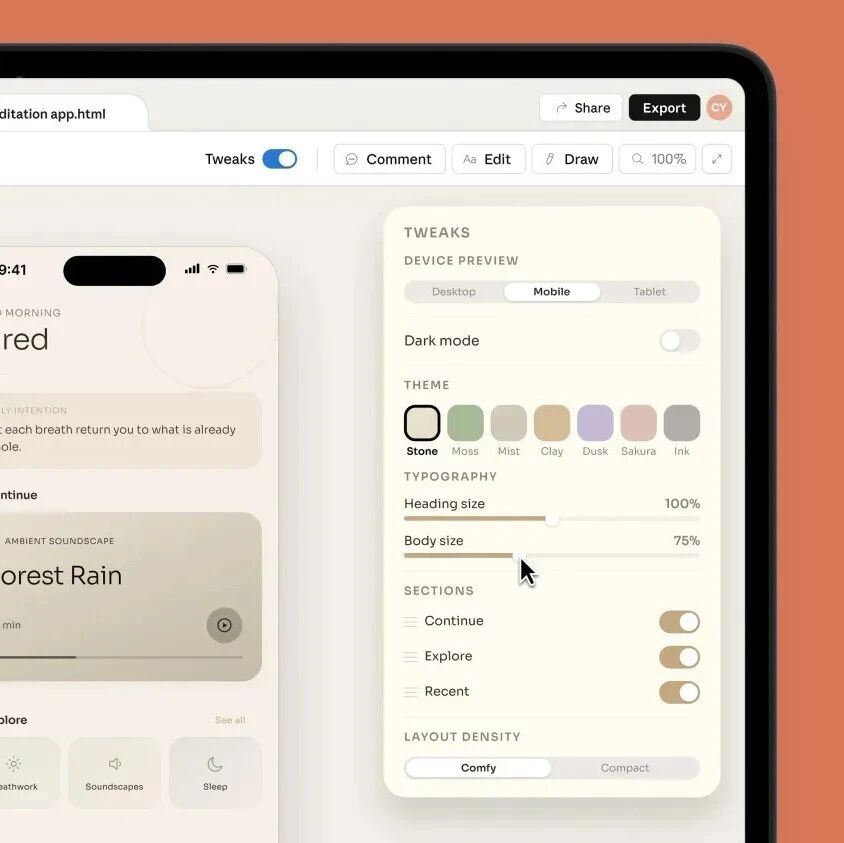
Claude Design Hands-On: Professional-Grade Design from a Single Prompt
Claude Design can build web pages, PPTs, prototypes, and even animated videos. This article collects the full set of use cases plus official practical tips, with the access URL and example prompts.