
Codex Record & Replay: Do It Once, and the AI Learns to Do It for You
OpenAI launches Record & Replay for Codex — record your workflow on your Mac and it automatically becomes a reusable Skill. Time to rethink automation.
Codex Record & Replay: Do It Once, and the AI Learns to Do It for You
OpenAI launches Record & Replay for Codex — record your workflow on your Mac and it automatically becomes a reusable Skill. Time to rethink automation.
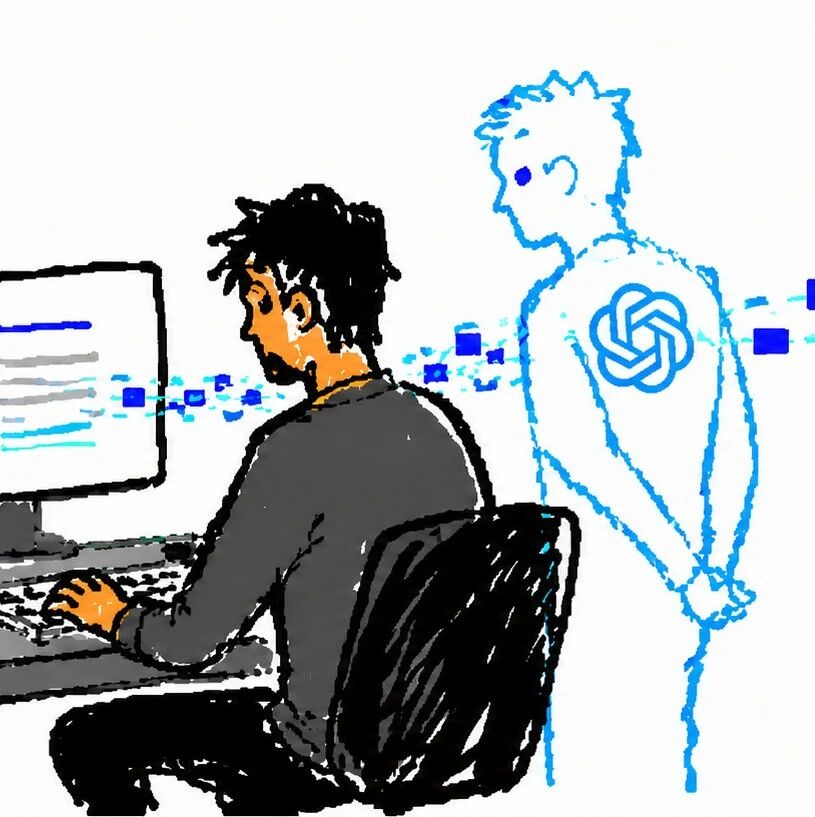
You're sitting at your computer working, and next to you someone is silently watching. Where you click, it looks; what you type, it remembers. When you're done, it says: next time, this one's on me.
That's Record & Replay, the major new feature OpenAI shipped for Codex. You demonstrate a workflow once, top to bottom; Codex observes and learns alongside you, then packages the whole process into a Skill. Next time the same job comes up, open a new conversation, have it invoke that Skill, tell it what's different this time — and it handles the rest.
This article covers Record & Replay's use cases, steps, mechanics, and limitations in one pass.
What Kinds of Tasks Fit
Not every task is worth recording. Record & Replay targets the kind of work that is repetitive, driven by personal preferences, and hard to explain in words but obvious once demonstrated:
- Expense reimbursement flows
- Booking a parking spot
- Creating a properly configured issue
- Posting a video (uploading to YouTube Studio)
- Pulling periodic reports
What these have in common: either the steps are fixed yet tedious, or they're laced with implicit rules only you know — like how files should be named, what a certain field defaults to, or which way to go at a particular fork. Writing all of that out for AI, line by line, is extremely costly — far better to just do it once and let it watch.
Before You Start
- Operating system: currently available on macOS only (Windows not yet supported)
- Feature dependency: the Computer Use feature must be enabled first
- Regional restriction: the initial launch does not cover the EU, the UK, or Switzerland
- Codex app: requires the Codex desktop app installed and signed in
- Admins note: if you manage Codex centrally with requirements.toml, the
[features].computer_usesetting governs Record & Replay along with it. Flipcomputer_useto false one day, and both features disappear together
Step by Step
Step 1: Add the Record & Replay Plugin
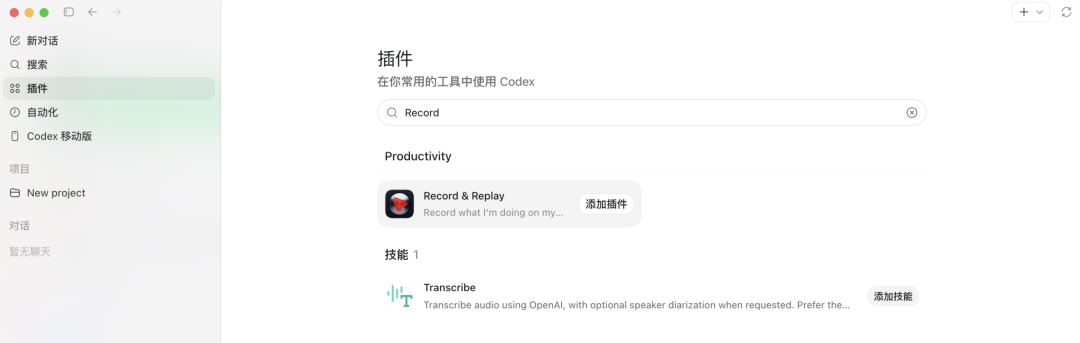
In the Codex app, open Plugins, search for the Record & Replay plugin, and add it.
Step 2: Grant Recording Permission
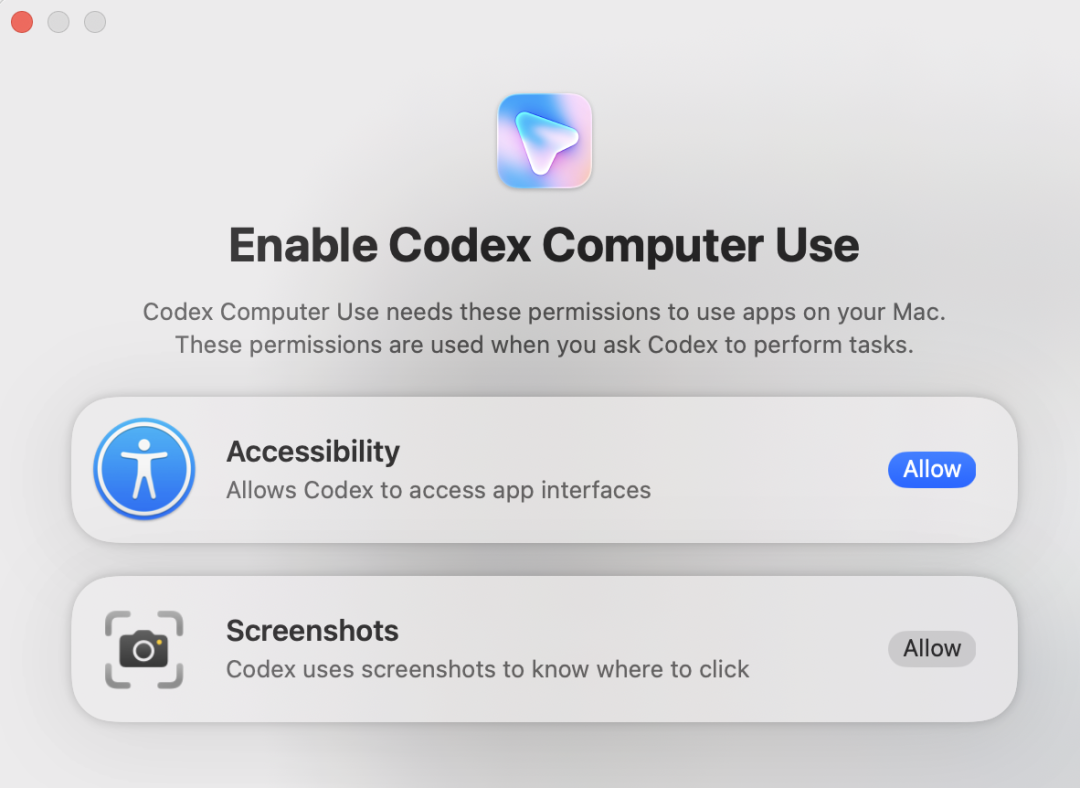
It will request recording permission — when you're ready, approve it.
Step 3: Do the Task Once on Your Mac
From there, just do the job normally on your Mac. The whole time, Codex watches, learning what to click, what to type, and which window contents matter.

Tip: Recording stays on until you stop it yourself. Focus on that one task — don't drift into doing something else mid-recording.
Step 4: Stop Recording
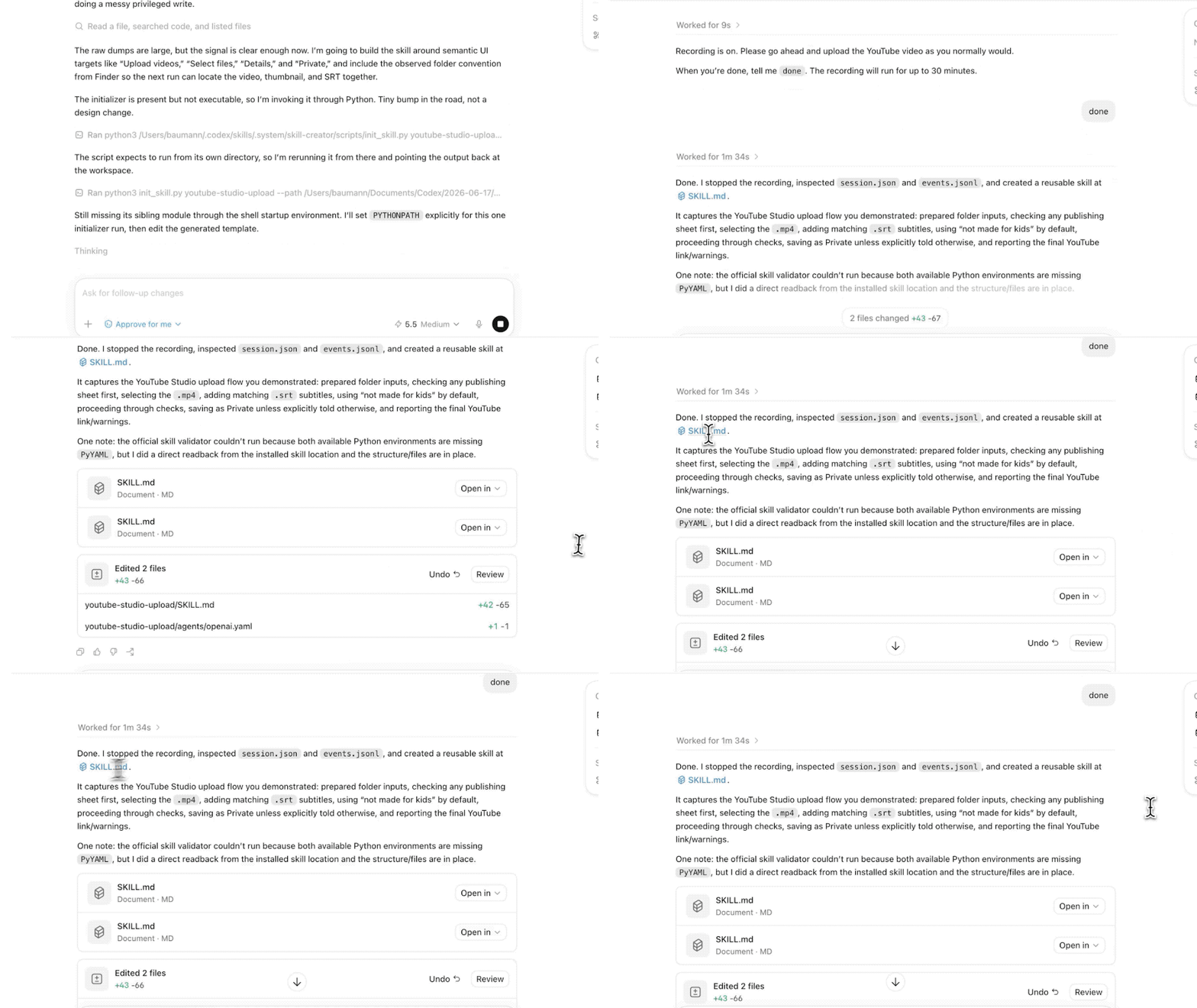
Stop from the menu bar or the floating layer, or simply tell Codex you're done recording.
Step 5: Codex Generates the Skill Automatically
After recording, Codex reviews the process it just captured and drafts a Skill on its own. The Skill spells out clearly:
- When this workflow should be used
- What inputs it requires
- Which steps to follow
- How to verify the result afterward
If you don't think the draft is good enough, you can have it polish it further.
Tip: A few recording guidelines are worth following — keep the demo short but complete; before recording, tell Codex the goal and the inputs that change each time; use real inputs, but never record passwords or sensitive data; after recording, add the important implicit preferences (naming conventions, field defaults, how to choose at decision points); stop as soon as the task is done — don't trail off into unrelated wrap-up actions.
Step 6: Reuse It Next Time
Open a new conversation, have it invoke the Skill, and feed it the specific values for this run — which file to upload, which issue to create, which date range the report should cover.
How Codex "Uses a Computer": Three Paths
To understand how it can possibly reproduce what you did, you first need to see how Codex actually operates a computer. OpenAI engineer Jason laid out three paths:

Computer Use (the broadest coverage): it can see and operate graphical interfaces on macOS and Windows, working authorized apps through windows, menus, keyboard, and clipboard. The cost is speed — look at the screen, judge where to click, wait for a response, confirm the state, checking back at every step. The upside: it can handle apps with no API at all, like Spotify, Xcode, System Settings, and the iOS Simulator, and it can even operate an iPhone through iPhone Mirroring. Replaying what Record & Replay captures relies entirely on this Computer Use layer.
Chrome extension: it takes over a Chrome where you're already signed in, suited to tasks that rely on accounts, cookies, and authenticated tabs (Gmail, Salesforce, internal dashboards). The catch: it moves with your identity, so steps like sending, publishing, or purchasing generally need your review first.
In-app browser: it lives inside the Codex conversation, sharing the same rendered page with you — especially good for developing and debugging web apps. Its defining trait is isolation — it doesn't touch your browser profile, cookies, extensions, or login sessions.
The Real Rival to Traditional RPA
Traditional RPA records actions: click here, fill that, go to the next screen. Codex learns the process: when this task gets triggered, what inputs it needs, which steps to follow, how to verify the result. The same Skill works whether you upload file A this time or file B next time.
This means AI's working surface is starting to expand from APIs to the entire graphical interface. In the past, the foundation of automation was the API — software had to expose an interface first. Now OpenAI is trying to route around that constraint: no longer requiring software to build interfaces specifically for AI, and instead letting AI learn the way humans use software.
Put another way, humans are shifting from being software's direct operators to being trainers of software's capabilities.
Limitations and Notes
- Platform: currently macOS only
- Region: the initial launch does not cover the EU, the UK, or Switzerland
- Dependency: the Computer Use feature must be enabled first
- Admin configuration:
[features].computer_usegoverns both features at once - Scope boundary: if you need to push a stable workflow out to a whole team, bundle multiple Skills, add app integrations or MCP servers, or manage installation metadata — don't stop at recording; package it properly as a standalone plugin
Use Cases
- Content creators: batch-uploading videos to YouTube Studio, including picking files, filling in titles, uploading thumbnails, adding subtitles, setting privacy
- Ops/admin staff: expense reports, booking parking spots, pulling periodic reports
- Project managers: creating properly configured issues
- Anyone with repetitive computer work: as long as your task can be completed once on a Mac, it's worth recording as a Skill
Reference link: https://developers.openai.com/codex/record-and-replay
Toolin Editorial Team
Categories
Related articles

Claude Code Agentic Loops: 4 Engineering Practices for Moving from Writing Prompts to Designing Loops
Upgrade one-shot prompts into repeatable automated loops with stop conditions. Anthropic's official Claude Code guidance defines 4 loop patterns; this piece breaks down each pattern's trigger, acceptance criteria, and token-saving tricks.
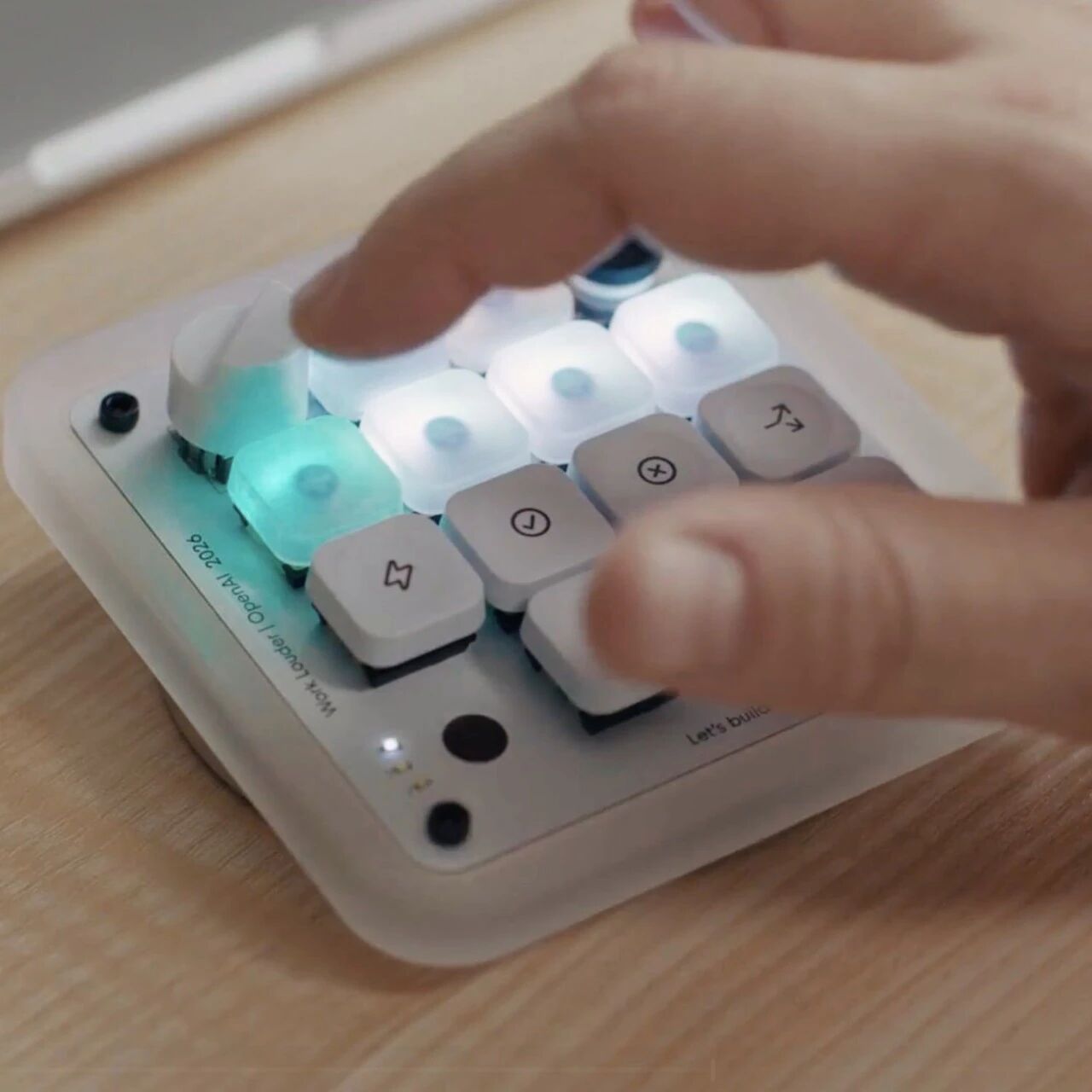
Codex Micro: OpenAI's First Hardware Is a $230 AI Supervisor Peripheral
OpenAI and Work Louder jointly launch Codex Micro, their first branded hardware: 13 keys + knob + joystick, purpose-built for physically controlling multiple Codex agents, aimed at power users.
MiniMax Code 2.0: A Ground-Up Rebuild on Pi Agent, With a Desktop Client at Launch
MiniMax's agentic coding product MiniMax Code hits major version 2.0: rebuilt on the open-source Pi Agent framework, with broad upgrades to session startup, long-task stability, and tool-call continuity, plus a desktop client.

WPS Lingxi Pro: First Hands-On With Kingsoft Office's Standalone AI Office Agent
Kingsoft Office (WPS) launches Lingxi Pro, a standalone AI-native office agent debuting on PC. Headline feature: it calls WPS's document kernel to generate native, editable PPTX/DOCX/XLSX directly, benchmarked against Claude Cowork.

Put Your Agents to Work From Anywhere: Controlling Your Computer From Your Phone
Keep your main machine at home running agents and command it from your phone wherever you are. Two practical paths — native macOS and OpenClaw-style remote agent tools — plus typical remote agent capabilities and general remote-desktop picks.

CAD Modeling Through Conversation: A Hands-On Guide to Zhejiang University's Open-Source CADDesigner
Type one sentence or sketch an outline and CADDesigner generates the 3D model. Zhejiang University's open-source LLM-driven CAD agent, with a workflow guide and pitfalls to avoid.