TRAE SOLO Mobile Getting Started Guide
ByteDance's TRAE SOLO mobile app is now fully open with three-way sync across devices—direct AI Agents from your phone for data analysis, document generation, and automated tasks

TRAE SOLO Mobile Getting Started Guide
ByteDance's TRAE SOLO mobile app is now fully open with three-way sync across devices—direct AI Agents from your phone for data analysis, document generation, and automated tasks
TRAE SOLO Mobile is a mobile AI Agent app from ByteDance that lets you direct the AI Agent on your computer to complete tasks right from your phone. Its biggest feature is that all three platforms (mobile app, Web, and desktop) are now fully open—no invitation code required—and projects and sessions under the same account sync in real time across all devices.
It's a great fit for developers and creators who often work away from their desk and want to use fragments of time to have AI do work for them.
Preparation Before You Start
- A Mac or Windows computer (to run the desktop app)
- An iOS or Android phone
- The same account signed in on all devices
- Estimated setup time: 5 minutes
Step 1: Download and Install the Desktop and Mobile Apps
Desktop download links:
- China: https://www.trae.cn/ide/download
- International: https://www.trae.ai/download
For mobile, just search for "TRAE" in the App Store or your app store and download it.
Step 2: Complete Device Pairing
- Sign in with the same account on both the computer and the phone
- On the desktop app, click the avatar in the bottom-left corner -> Settings -> SOLO Mobile
- Scan the code to install, then turn on both toggles
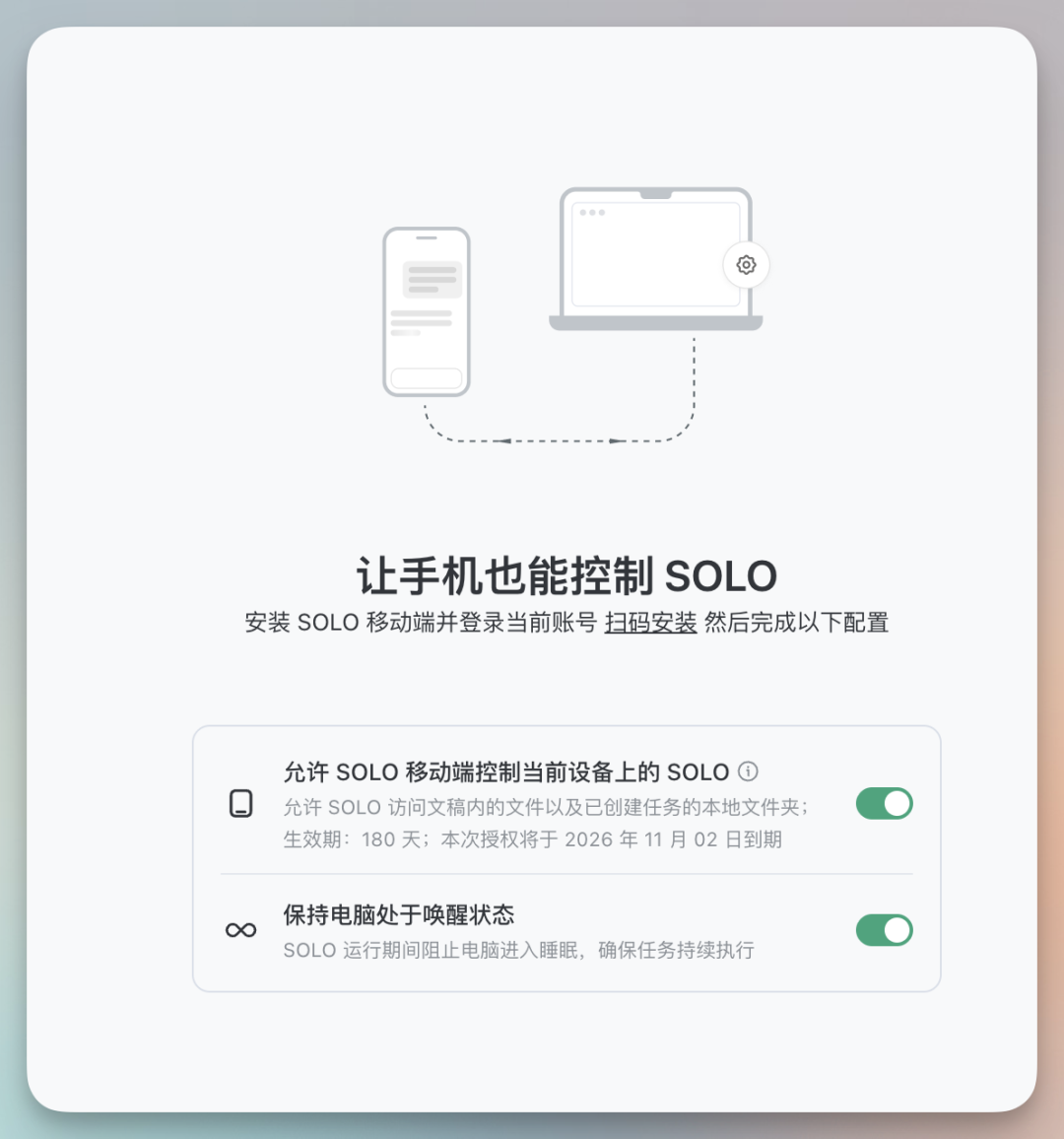
Once pairing is complete, your phone can access the projects created on your computer. Even if you leave home without your computer, you can stay connected and keep working.
Core Features: Code Mode and MTC Mode
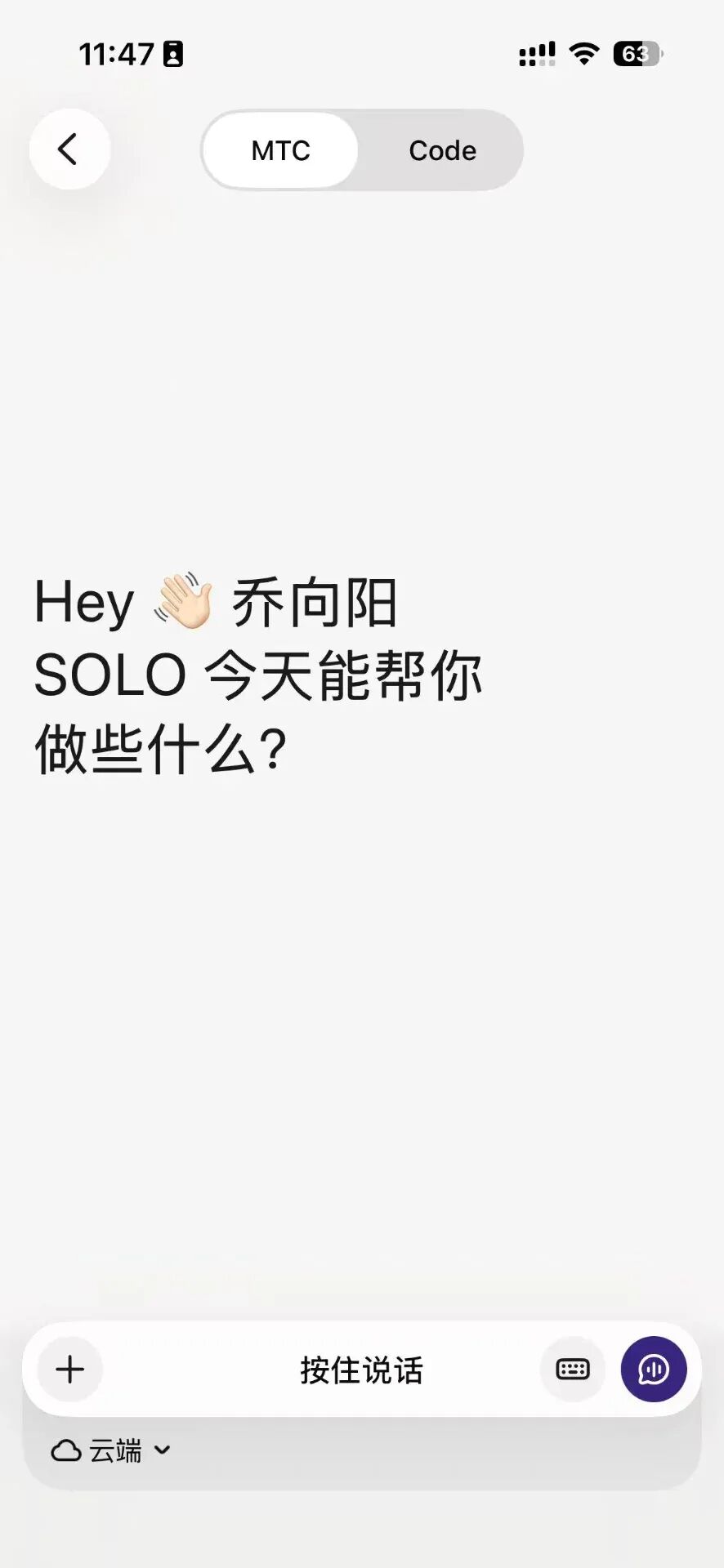
When you open TRAE SOLO, the home screen asks you to choose a mode:
- Code Mode: writing code, running Git, viewing Diffs—built for developers
- MTC Mode (More Than Coding): built for everyday office scenarios like document generation, data analysis, and report production
MTC Mode is the highlight of this release. It turns the AI Agent from a coding tool into a general-purpose work assistant.
Step 3: Install and Use Skills
Skills are the core capability extension mechanism of TRAE SOLO. Skills installed on the desktop app can also be invoked from mobile.
- Click "Skills" in the top-left corner of the interface to enter the skills marketplace
- Search for the skill you need and click add (for example, search "data-analysis" to add the data analysis skill)
- Once installed, use it directly
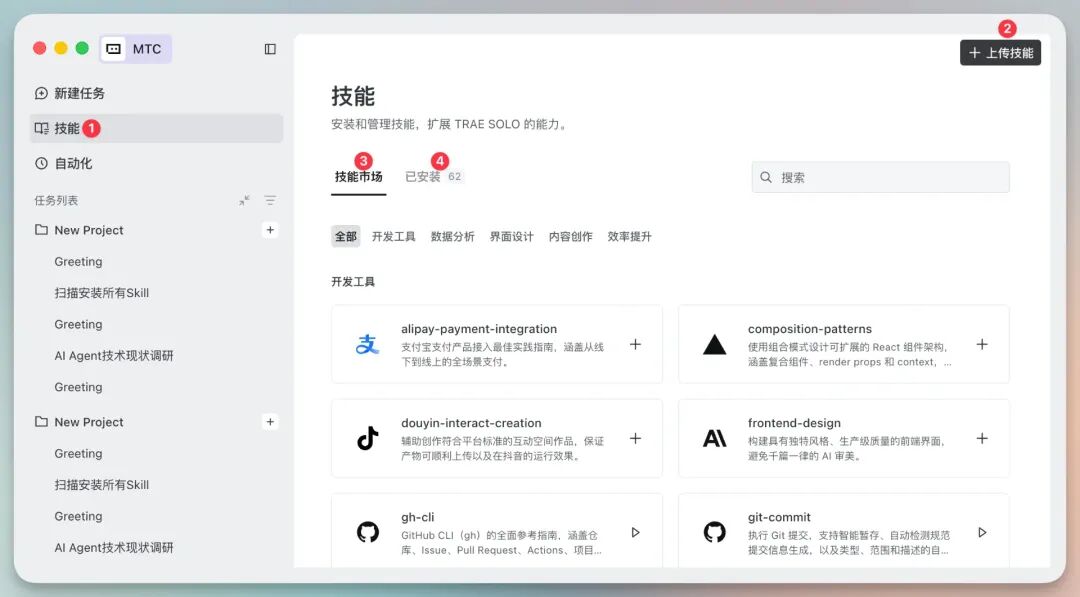
You can also just throw a GitHub link at TRAE SOLO and say "install this for me"—it will handle the installation and configuration automatically.
Step 4: Connect the Feishu CLI
Configuring the Feishu CLI is highly recommended—it lets TRAE SOLO directly create Feishu docs, Base (multidimensional tables), calendar events, and more.
On the desktop app, go to Settings -> External App Authorization -> Feishu (Lark available overseas) and complete the authorization as prompted.
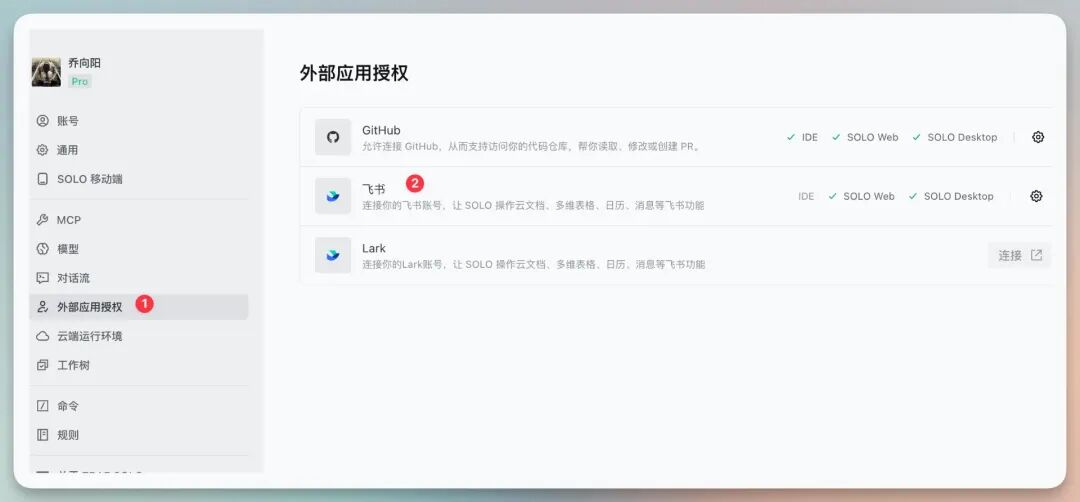
Once configured, you can have a voice conversation on your phone and have TRAE SOLO create Feishu docs, calendar events, and more in one step.
Step 5: Set Up Automated Tasks
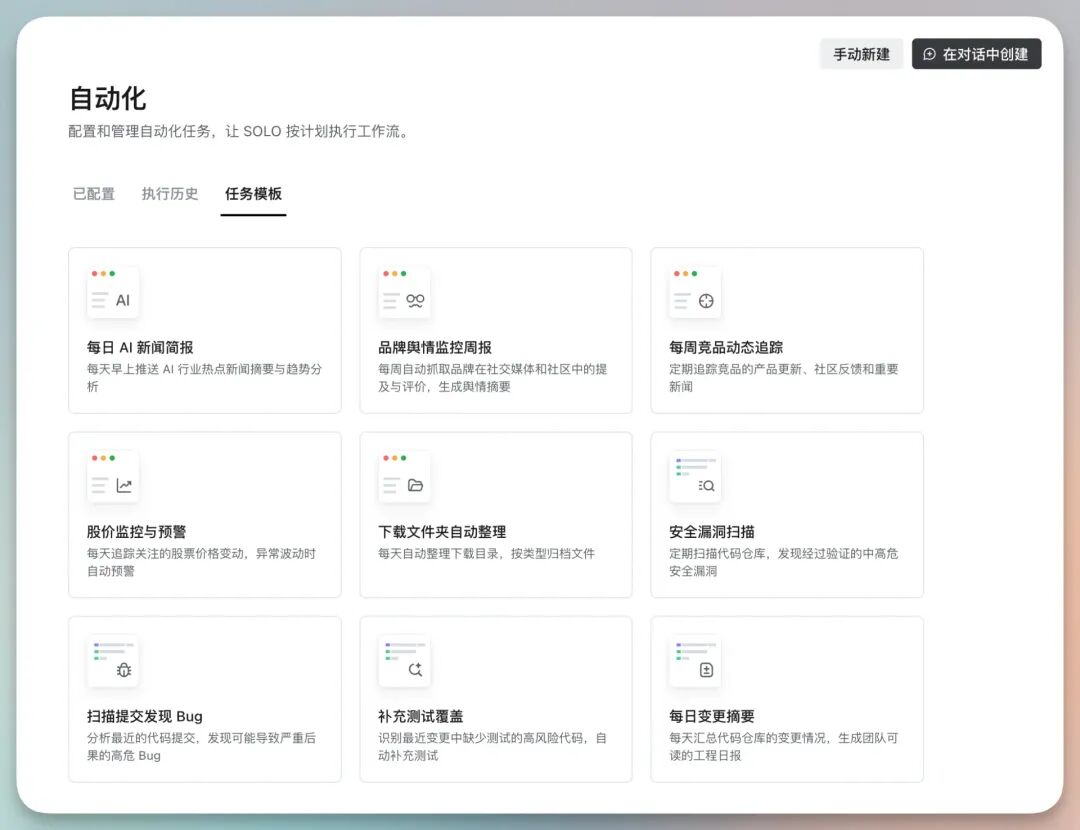
Click "Automation" in the top-left corner of the interface -> Task Templates, where you can set up tasks that run on a schedule:
- Send a curated AI news digest every morning at 10
- Periodically monitor GitHub Issues
- Automatically track changes in specific data
Real-World Use Cases
Here are some usage patterns proven in hands-on testing:
Data analysis: Upload a CSV file and have TRAE SOLO run a full data insight analysis, generating a detailed Markdown report.
Information curation: Talk to TRAE SOLO by voice and have it research and organize material on a topic, then write it into a Feishu doc. For example, "compile Naval's podcast takeaways from the past year" or "compile last week's Top 10 papers on Hugging Face."
Learning support: Have it organize study materials, explain papers, or generate a study plan.
Remote workflow: Send tasks to TRAE SOLO from your phone while you're out; the computer at home executes them automatically. By the time you get home, the results are already waiting on your desktop.
Configuring Third-Party Models
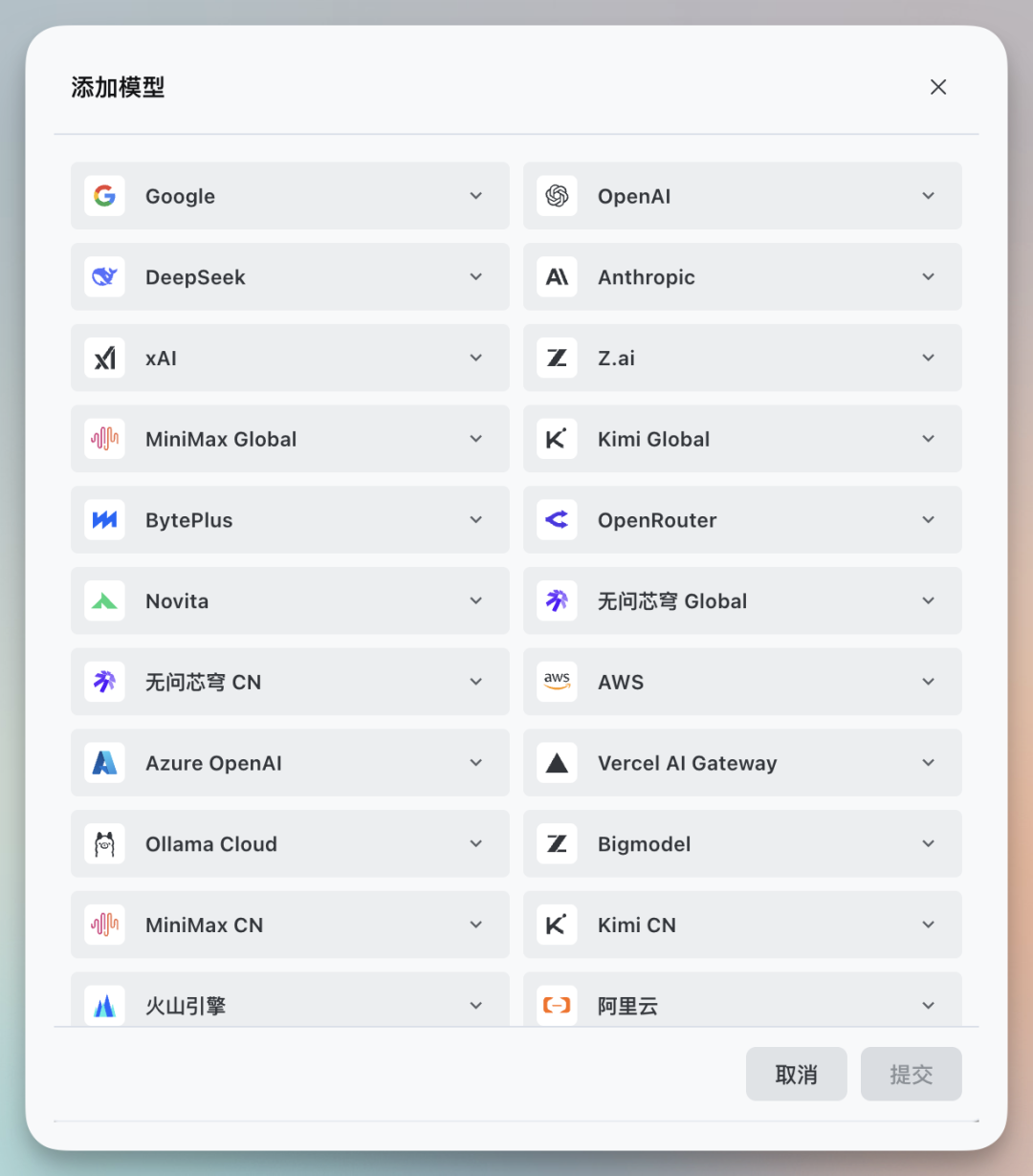
If you need to use other AI models, the TRAE SOLO desktop version supports configuring nearly all third-party models. Just add an API Key in settings to connect models like DeepSeek and Volcano Engine.
FAQ
- Can the phone see the projects on my computer? Yes. As long as device pairing is enabled on the desktop app, the phone can access all projects on the computer.
- Do both devices need to be online at the same time? No. Tasks run remotely and their status syncs in real time. Even if the computer is shut down, cloud tasks can keep running.
- Is Windows supported? Yes. TRAE SOLO offers both Mac and Windows clients.
- Do I need to pay? All three platforms are currently fully open—no invitation code and no extra subscription required.