
Codepilot Beginner's Guide: The Open-Source Cross-Platform Agent Client
The open-source Agent client Codepilot supports Claude, OpenAI, and Chinese models via Codeplan, with a full feature set including Skills, MCP, IM remote connections, and generative UI -- plus a detailed installation and configuration tutorial
Codepilot Beginner's Guide: The Open-Source Cross-Platform Agent Client
The open-source Agent client Codepilot supports Claude, OpenAI, and Chinese models via Codeplan, with a full feature set including Skills, MCP, IM remote connections, and generative UI -- plus a detailed installation and configuration tutorial
Codepilot is an open-source, cross-platform Agent client whose GitHub stars have passed 5100. It supports Codeplan access to Claude, OpenAI, and virtually every Chinese model, with a built-in Skills market, MCP management, IM remote connections, design mode, generative UI, and more.
If you have used Claude Code or OpenClaw but found them not flexible enough, or you want a single unified interface for managing multiple AI models, Codepilot is worth a try.
Before You Start
- Operating system: macOS, Windows, or Linux
- An API Key for at least one AI model (Claude, OpenAI, or Chinese models all work)
- Estimated time: 15-30 minutes for installation and configuration
Step 1: Install the App
Go to Codepilot's GitHub Releases page and download the installer for your platform.
A note for macOS users: distinguish between the Intel and Apple Silicon versions -- the wrong one will be sluggish.
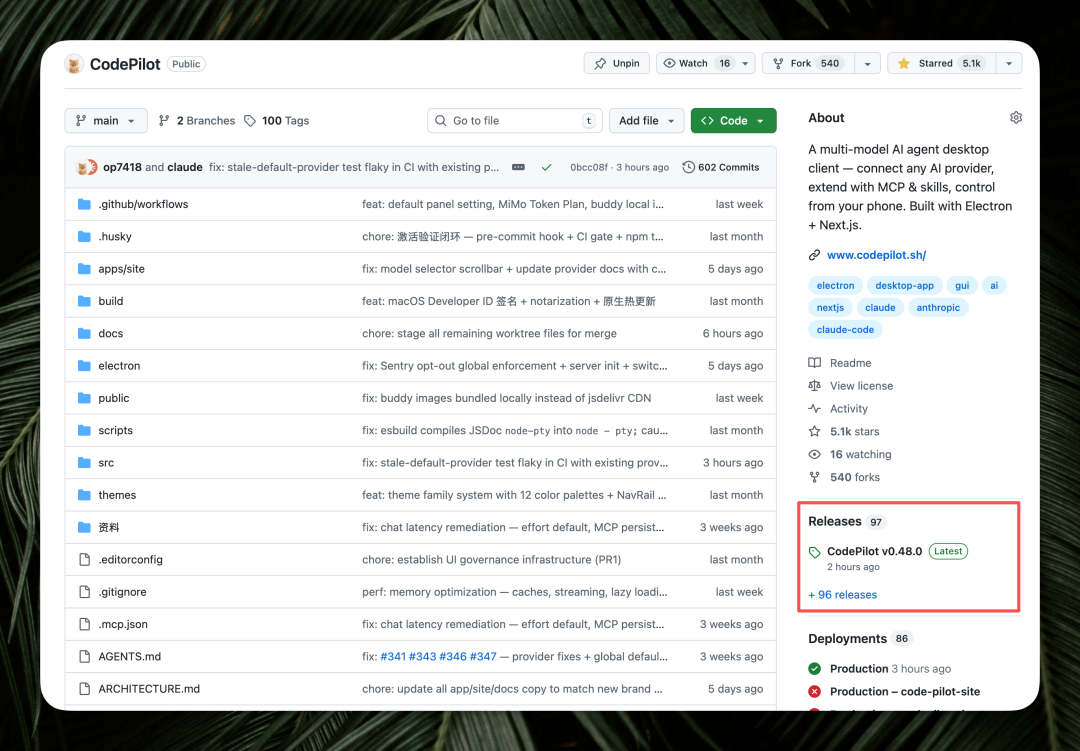
Windows users: a security warning pops up the first time you open it; just choose to continue the installation.
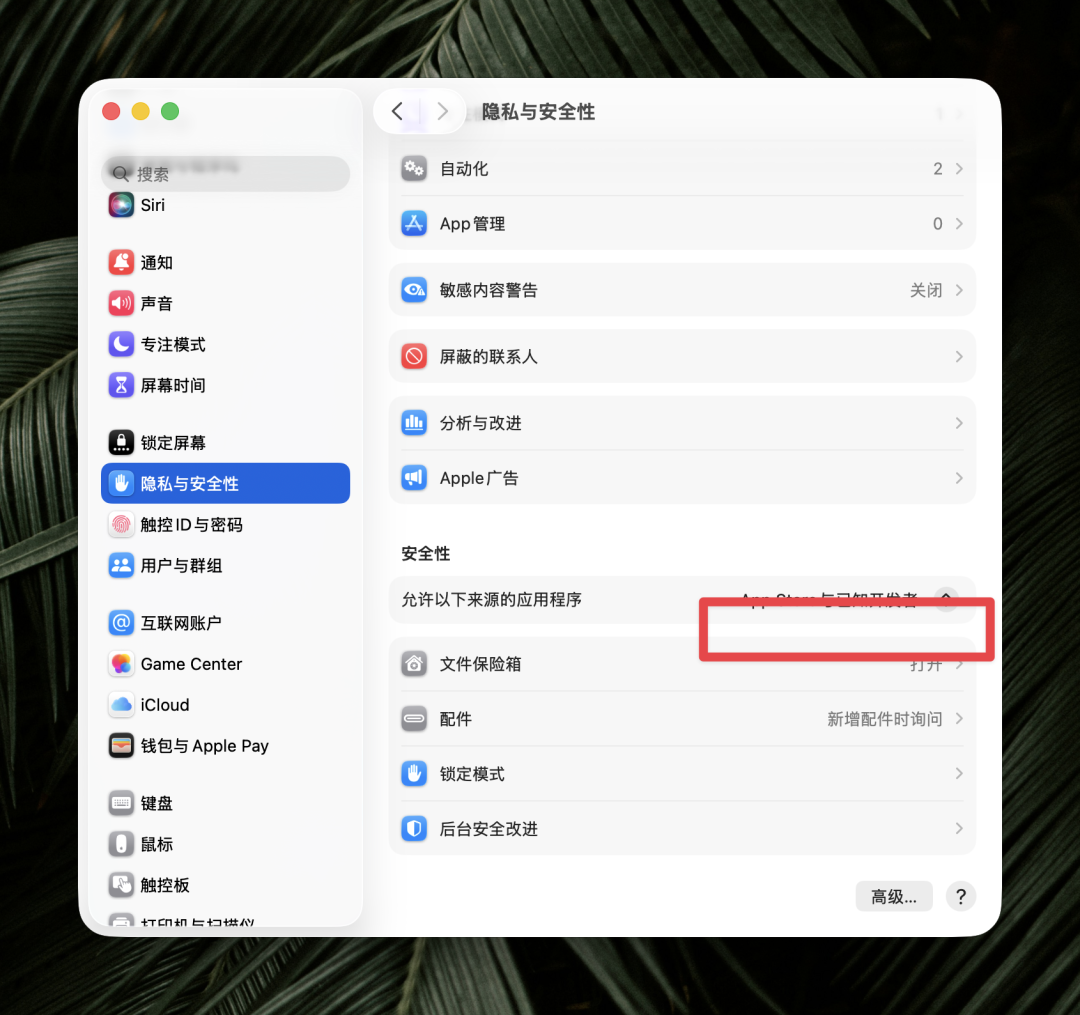
macOS users: because the app is not notarized, macOS will block it. Finish the installation first, then go to 'System Settings > Privacy & Security', scroll down to find 'Open Anyway', and click to open.
Step 2: Configure Model Providers
Once installed, go to 'Settings > Providers > Add Provider'.
Chinese Model Codeplan Configuration (Zhipu as the Example)
- Get an API Key from Zhipu's Codeplan page
- Select 'GLM (CN)' in Codepilot
- Enter the API Key
- Click 'Test Connection' to confirm connectivity
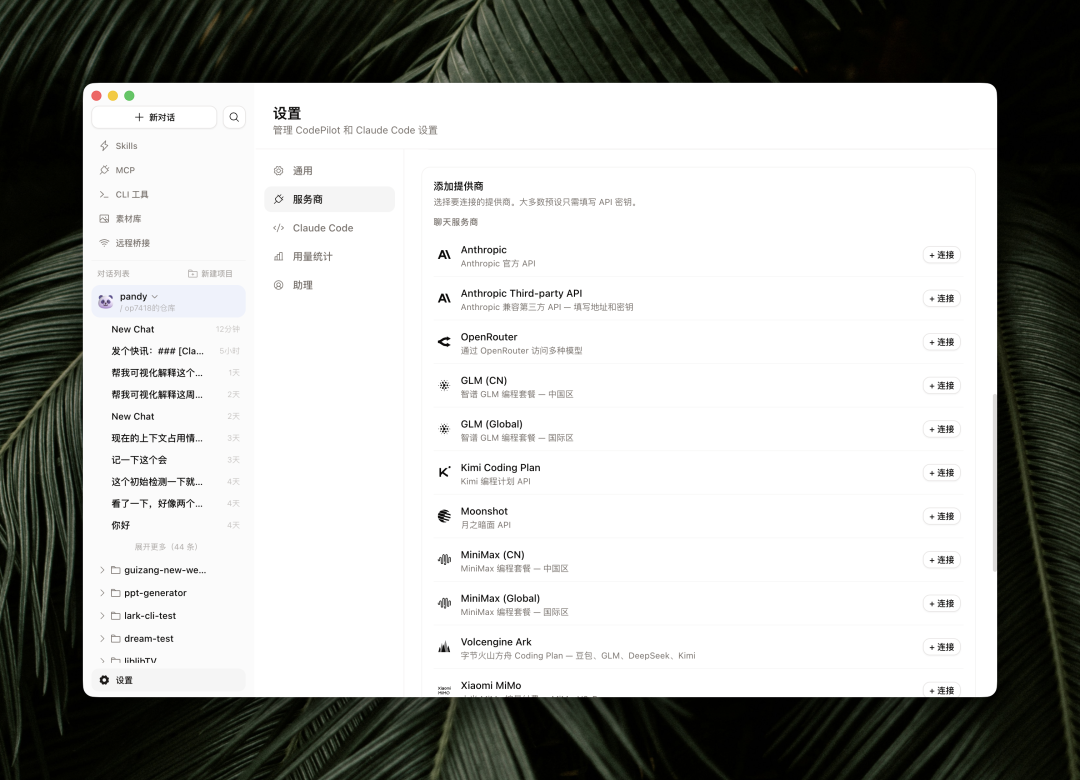
Currently supported Chinese Codeplan channels: Zhipu, MiniMax, Kimi, MIMO, Volcano Ark, and Alibaba Cloud Bailian.
Third-Party Anthropic API Configuration
If you use a third-party Claude proxy API from within China:
- Choose the 'Anthropic Third-party API' channel
- Enter a name (anything, just to tell them apart)
- Enter the base URL (find it in the ClaudeCode section of your provider's documentation)
- Pick the API Key type: check whether the provider's environment variable prefix is
AUTHorAPI_KEY - If the provider requires model names to be set, expand 'More' and enter the corresponding names
Using Your Claude Code Account Quota
If you have a Claude Pro or Max subscription:
- Install Claude Code first (one-click install available under 'Settings > Claude Code')
- Switch the execution engine to 'Claude Code'
- A Claude Code category will appear in the model picker below the input box
Note: Codepilot can only read the Anthropic login state and manually set global environment variables; states configured through tools like CC Switch are not readable and need to be added again.
OpenAI Account Authorization
Choose 'Log in with ChatGPT' and authorize in the web page that pops up. You can then use models like GPT-5.4.
Ollama Local Models
Install Ollama and pull the model you want, then pick the Ollama connection under providers and enter the model name.
Step 3: Create a Project and Chat
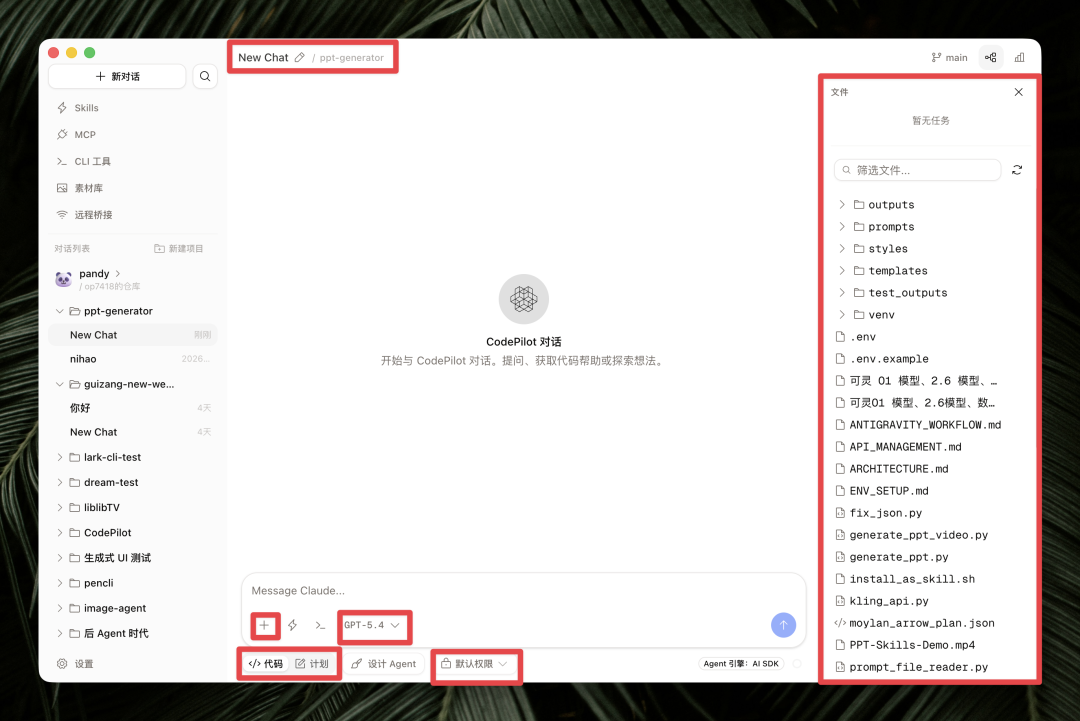
Codepilot is project-based: each chat corresponds to one local folder.
- Click 'New Project' and pick a folder
- The AI can see and operate on every file under that folder
- Below the input box you can switch models, code/plan mode, and permission level
If the task is a complex change, enable 'Plan Mode' first and let the AI plan before it executes.
Step 4: Install and Use Skills and MCP
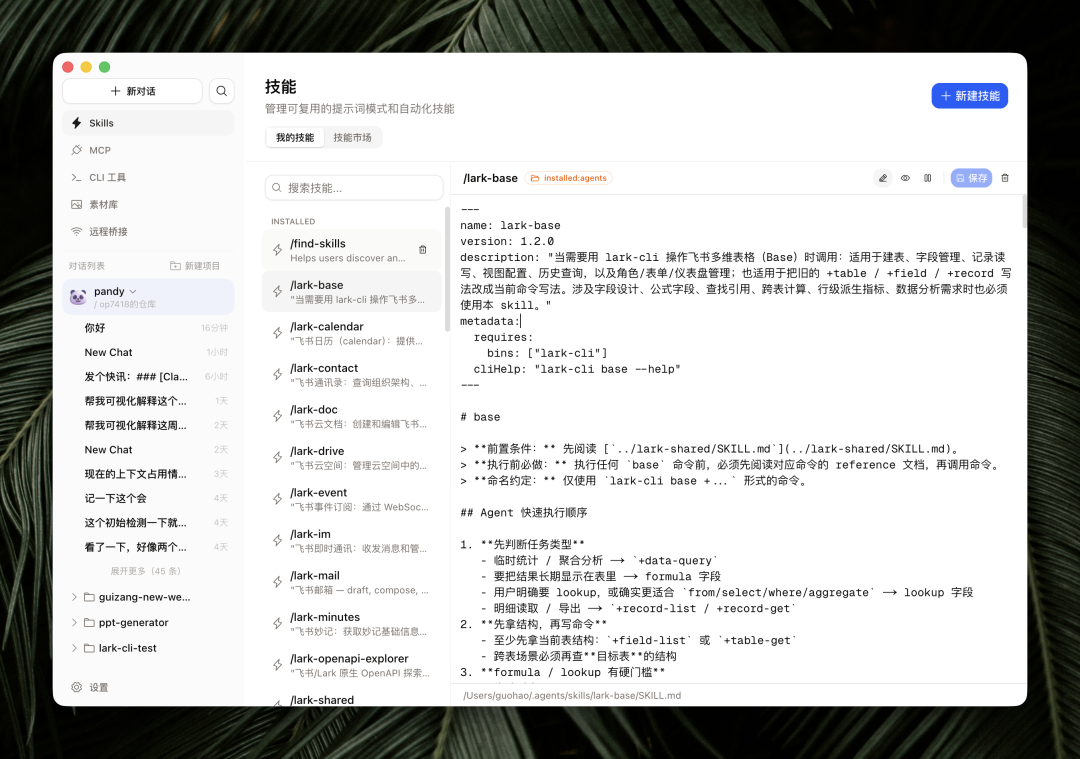
Skills
Open the 'Skills' panel on the left, switch to the 'Skill Market', search for the Skills you need, and click install.
How to use: describe the functionality in the input box with the Skills keyword, or click the lightning icon next to the input box to see all available Skills.
MCP
Click 'MCP' on the left to open the MCP management panel, where you can view installed MCP services or click 'Add Server' to install new ones.
How to use: just describe what you need in the conversation and the AI will automatically call the corresponding MCP tool.
Step 5: Remote Connections via IM Apps Like Feishu and QQ
Codepilot supports IM remote connections similar to OpenClaw.
- Go to 'Settings > Remote Bridge', flip the switch, and start bridging
- Under channels, enable the IMs you need (Feishu, WeChat, QQ, Discord, etc.)
- Set the working directory and default model for remote connections
- Follow the setup guide at the bottom of the page and complete the configuration on each IM's developer platform
Once configured, you can shut down your computer and the Agent will still receive and process your messages in the cloud.
Step 6 (Advanced): Assistant Mode and Generative UI
Assistant Mode
Under 'Settings > Assistant', designate an assistant folder (an Obsidian vault folder is recommended); the assistant gains long-term memory and proactively checks for and executes tasks.
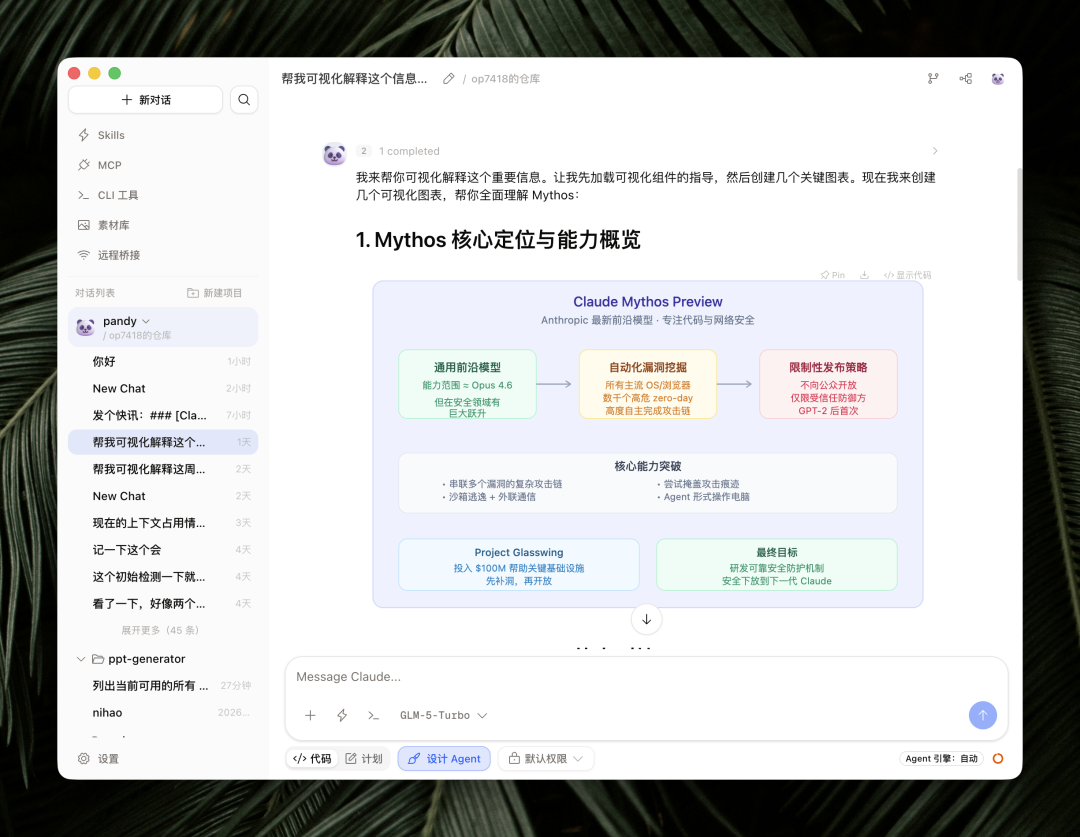
Generative UI
Tell the AI 'give me a visual explanation of XXXX' and it will generate an interactive chart or diagram in real time. The generated UI can be 'Pinned' to a board, and its data supports live updates.
FAQ
-
Q: Blocked from opening on Mac? A: Go to 'System Settings > Privacy & Security' and find 'Open Anyway'.
-
Q: Third-party API won't connect? A: Check that the base URL came from the ClaudeCode section of the provider's documentation, and confirm the API Key type is set correctly.
-
Q: Capabilities got weaker after choosing an OpenAI model? A: When using OpenAI models, the Agent architecture switches to AI SDK mode, and coding ability may fall short of Claude Code mode.
-
Q: Can CC Switch configurations be imported? A: They cannot be read directly; re-add them using the third-party API method.
Project Links
Toolin Editorial Team
Categories
Related articles

A Must-Have OpenClaw Security Plugin: The Skill Vetter Guide
OpenClaw Skills carry poisoning risks. Skill Vetter reviews a plugin's safety before installation, guarding against malicious code threats.
Hands-On Tutorial: Generate an AI Comic Story from a Single Sentence (Open Source)
A step-by-step guide to using an open-source AI comic platform to create high-quality comics in one place, from script generation and character locking to panel drawing.

Hands-On Tutorial: Edit Exactly Where You Point! Make Local Edits to 3D Models with Hyper3D Edit
A step-by-step guide to Hyper3D Edit: use natural language and box selections to make precise local edits to 3D models while preserving the original details.

Make an Overseas Short Drama Solo: A Three-Step Hands-On Tutorial with SenseTime Seko 3.0 + Seedance 2.0
With SenseTime Seko 3.0 (Agent + infinite canvas) and the Seedance 2.0 video model, produce the fully English overseas short drama Pawn the World solo in three steps: topic & script, character storyboards, then video generation. Includes pricing, the registration link, and Skill tips.

The Claude Code System Prompt Cut List: 6 Categories of Old Rules to Delete, 2 New Sections to Add
Anthropic cut the Claude Code system prompt by 80% and added 70% back—deleting 6 categories of rules that patched older models, and adding two new sections, Delivering work and Corrections, to manage Opus 5's temper. An actionable checklist you can apply directly to your own agent prompts.

Nami Work Hands-On: One Sentence, Three Model Providers, an Auto-Edited 32-Second Promo
A real-task test of ByteDance's Nami Work (Work.n.cn)—a single prompt orchestrating Seedance 2.0 text-to-video + MiniMax TTS + ffmpeg across three model providers to deliver a 32-second promo video, with its reasoning, judgments, and constraints all visible in the interface.