
Codex from Install to Real-World Use: A Complete Beginner's Guide for Non-Programmers
A step-by-step tutorial for mastering the OpenAI Codex desktop app from scratch, covering installation and setup, a tour of the interface, creating projects, using skills and plugins, and remote control from your phone.

Codex from Install to Real-World Use: A Complete Beginner's Guide for Non-Programmers
A step-by-step tutorial for mastering the OpenAI Codex desktop app from scratch, covering installation and setup, a tour of the interface, creating projects, using skills and plugins, and remote control from your phone.
If you still think Codex is just a tool programmers use to write code, you're missing out.
At its core, Codex is a desktop AI agent. It doesn't just answer questions — it actually rolls up its sleeves and does the work for you: building websites, designing prototypes, processing data, generating slide decks, even driving your browser. Over 5 million people use Codex every week, non-programmers already make up more than 20% of them, and that segment is growing three times as fast as programmers.
This tutorial is aimed at ordinary users with zero programming background, taking you from installation to hands-on use and a full grasp of Codex's core features. Budget about 20 minutes.
Before You Start
- Account needed: a ChatGPT account (Plus/Pro/Team/Enterprise all work); Codex usage is included in your ChatGPT plan
- Network: you need network access to OpenAI services
- Supported systems: Windows, macOS (both Intel and Apple Silicon)
- Download: openai.com/codex/get-started
Step 1: Download, Install, and Sign In
Go to the download page and pick the version for your system. Once the download finishes, open the app — you can sign in directly with your ChatGPT account, or with an OpenAI API key.

Signing in with your ChatGPT account is all it takes to start. Note that some features are unavailable with API-key sign-in, so account sign-in is the recommended route.

Step 2: Getting to Know the Codex Interface
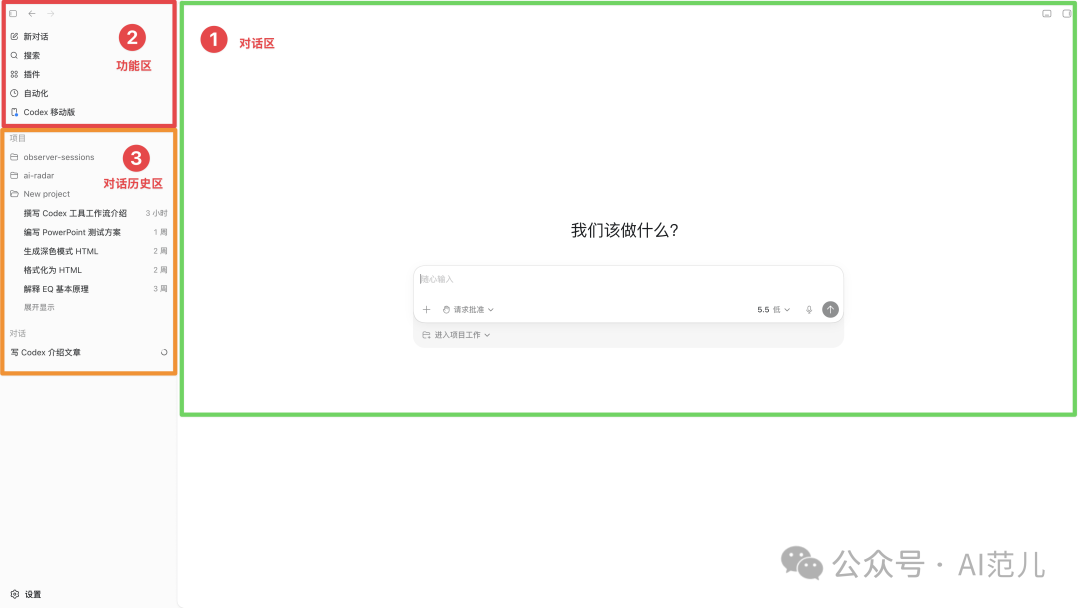
The first time you open Codex, the layout looks a bit different from ChatGPT. The core area has three parts:
- Upper left (action area): new chat, search, plugins, automations, mobile entry point
- Lower left (history area): all your project folders and chat history
- Right (chat area): the chat box, but with model selection, reasoning effort, and speed options added at the bottom
Choosing a Reasoning Level
At the bottom of the chat area you can set the "reasoning" level, which decides how deeply Codex thinks while executing a task:
| Level | Best for |
|---|---|
| Low | Data analysis, drafting text, execution-style coding — speed and cost first |
| Medium - default | Writing code, doing research, working with spreadsheets and slides — a quality/speed balance |
| High | Complex agent tasks, deep debugging, long-horizon research |
| Extra high (xhigh) | Deep tasks like security review and code review |
For everyday use, "Medium" is fine. There's also a "Speed" option that runs things 1.5x faster without making the model dumber, but it consumes more tokens.
Permission Settings
Codex needs to operate on your files, so permissions come into play. The recommended choice is "Approve for me" mode, which balances efficiency and safety. Its hard safety lines: it will never enter system passwords for you, never approve security or privacy pop-ups, and never automate terminal operations.
Step 3: Create Your First Project with Plan Mode
We'll use building a coffee-shop website as the example to walk through the whole flow.
3.1 Create a Project
Start by creating a project folder; every file generated afterward will be saved there.
3.2 Turn On Plan Mode
Key step: after creating the project, don't let it start working right away — switch on "Plan Mode" first. That way it lays out a complete execution plan and waits for your confirmation before touching anything.

3.3 Submit Your Requirements and Confirm
Type in what you want, Codex walks you through the details step by step, and finally produces a complete requirements document. Once you confirm, choose "Execute per plan."
3.4 "Point-and-Change" Comment Mode
After the website is generated, there's a plus button in the top-right corner that enters comment mode. Hover over any page element, click anywhere, and add your change request right there. You can also use the settings panel on the left to quickly change fonts and colors, with instant preview of every edit.
Tip: There's also a screenshot button in the top-left corner — one click captures the current design, handy for sharing with colleagues or clients.
Step 4: Extend Capabilities with Skills and Plugins
Generating pages alone is nothing special. Where Codex gets really powerful is its plugin and skill system, which gives it control over your computer, your browser, and your office software.
4.1 Skills
Skills work like the Skills concept in OpenClaw: you wrap a repeated workflow into a reusable instruction pack. Click the "Skills" tab in the plugin area and you'll find a large library of prebuilt skills.
Creating a custom skill is simple: just tell the chat box "create a skill that generates 21:9 WeChat official account cover images," and it will automatically invoke Skill Creator to build one for you. To use skills, type / in the chat box to pull up the full skill list.
4.2 Plugin Packs: Ready-Made Capability Bundles
OpenAI recently released 6 role-specific plugin packs in one go, bundling 62 common apps and 110 preset skills:
| Plugin pack | Core capabilities |
|---|---|
| Data analysis | Connects to Google Drive, Gmail, and other data sources; cleans data and generates reports automatically |
| Product design | 11 preset skills for fast prototyping and multi-option comparisons |
| Creative production | Posters, copy, and visual design in one place |
| Sales | Customer management, sales data analysis |
| Stock investing | Market analysis, portfolio management |
| Investment banking | Investment research reports, financial modeling |
Take product prototyping as an example: after installing the "Product design" pack, just tell Codex what product you want to build. It first confirms your requirements, then hands you three demos in three different design directions to choose from.
Step 5: Three Core Features That Give Codex "Hands and Feet"
These three features are what turn Codex from a chat tool into a true agent.
Computer Use: Driving Your Computer
Once installed, Codex can see your screen and click the mouse, type on the keyboard, and operate software like a human would. Good for testing apps, changing software settings, reproducing UI bugs, and similar jobs. It asks for your consent before every action, and it cannot enter passwords or handle security pop-ups on your behalf.
macOS only for now; unavailable in Europe, the UK, and Switzerland for the moment.
Appshots: One-Keystroke Screenshot Feeding
Press the shortcut (both Command keys at once) and Codex screenshots whichever window is frontmost and reads its content. Error screens, English-language pages, anything you'd want AI help with — one keystroke screenshots it and hands it over.

Chrome Extension: Driving Your Browser
With it installed, Codex can operate the Chrome browser for you — flipping through pages, clicking buttons, filling out forms. Caveat: it operates the browser you're already logged into, so watch every step it takes.
Step 6: Control Codex Remotely from Your Phone
When you're out, you can hand tasks to your home computer from your phone. The phone is just the "remote control" — the actual work is still done by Codex on the computer.
Setup:
- In the action area of desktop Codex, choose "Mobile" > "Get started"
- Grant device-control permission
- Open the latest ChatGPT app on your phone and pair by following the steps
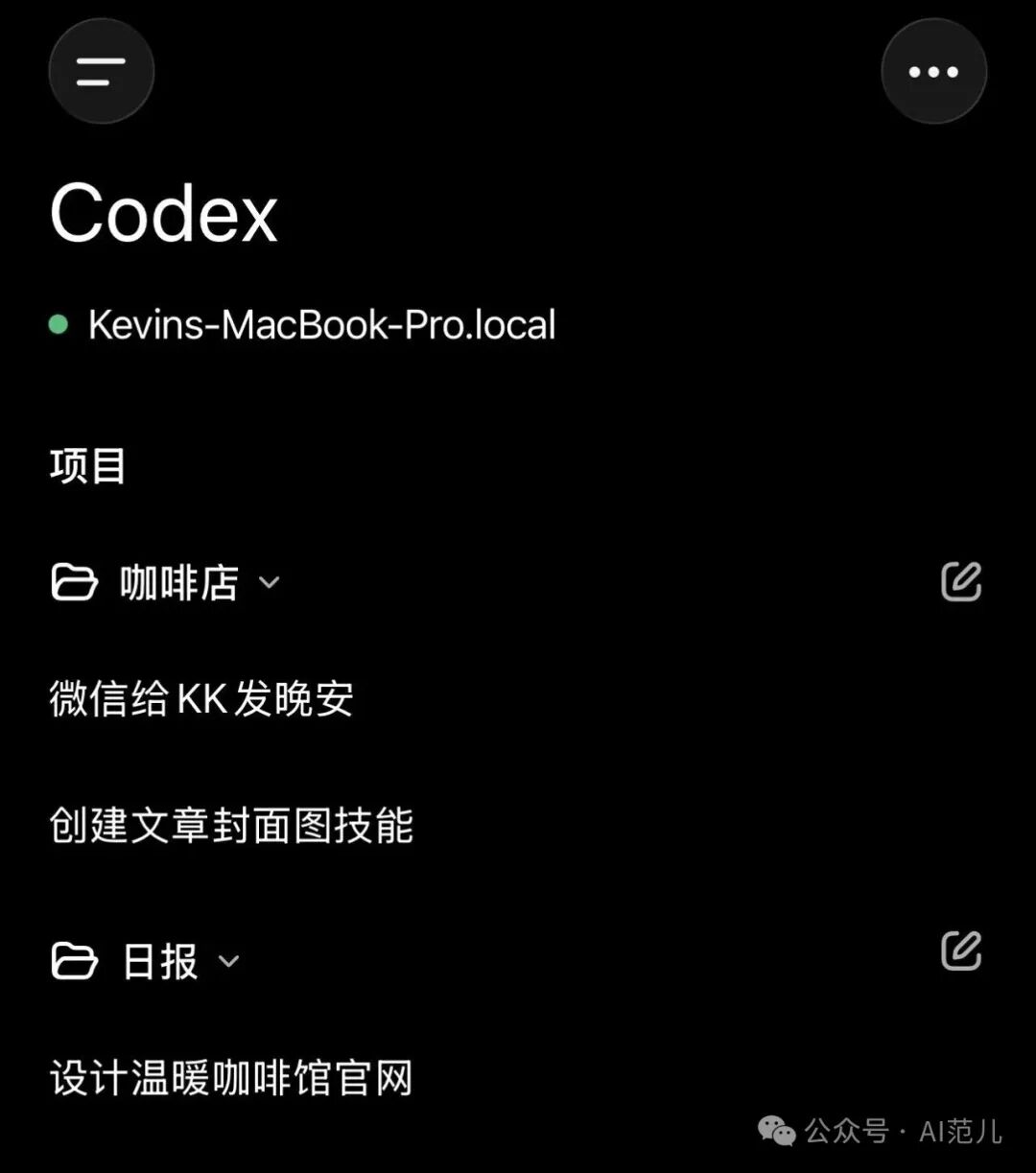
Tip: The computer must stay powered on, online, and signed in to be remotely controlled. Consider dedicating one machine (say, a Mac mini) to stand by 24 hours a day.
Recommended Initial Settings
After installation, two settings are worth adjusting first:
- Set follow-up behavior to "guide": this lets you append instructions mid-task at any time instead of waiting for the previous task to finish
- Personalization instructions: the Karpathy guide is recommended (160,000 stars on GitHub), at github.com/multica-ai/andrej-karpathy-skills
FAQ
- How is Codex different from ChatGPT? ChatGPT is the "mouthpiece" (it only talks); Codex is the "hands" (it does the work for you). Codex can directly operate your computer to complete real tasks.
- Does it cost extra? Codex usage is included in your ChatGPT plan (Plus/Pro/Team/Enterprise) — no separate payment.
- Can I use it without knowing how to code? Absolutely. 20% of Codex users are non-programmers, growing three times as fast as programmers. The plugin packs were designed from the start to get non-technical users up and running with zero friction.
- Codex or Claude Code? The two are similar in function. Codex rides on the OpenAI ecosystem with more generous plan quotas; Claude Code has a reputation for code quality but stricter usage limits and a higher ban risk.
- Where are the official docs? developers.openai.com/codex
Toolin Editorial Team
Categories
Related articles

Hands-On with Doubao Pro: An Agent Office Mode for 200 Million People
Doubao has launched a Pro tier with an agent-driven office task mode powered by Doubao 2.1 Pro — it can operate your local computer, analyze earnings reports, and build its own Skills; hands-on delivery quality benchmarks against Claude Opus.

Netflix Open-Sources Headroom: Cutting 90% of Wasted Tokens and Saving $700,000
Headroom, an open-source tool built by a senior Netflix engineer, trims redundant tokens before prompts ever reach the LLM — reversible compression, lossless context — and has already saved users $700,000.

Running LLMs Locally, Hands-On: Building an Agent Coding Environment with Pi + LM Studio
Use the Pi agent framework with the LM Studio inference engine to run Gemma 4 on a local Mac for agent coding tasks, with the complete Docker configuration and a models.json example included.

STAR-PólyaMath: The Open-Source Reasoning Framework That Teaches LLMs to Correct Their Mistakes
A multi-agent reasoning framework open-sourced jointly by Tsinghua and Microsoft, where the Reasoner, Verifier, and Meta-Strategist roles make long-horizon reasoning verifiable and traceable — beating GPT-5.5 on the Apex benchmark by 13.5%.

Baidu Open-Sources Unlimited OCR: Reading an Entire Book in One Forward Pass
Unlimited OCR, Baidu's model built on DeepSeek OCR, achieves 32K-context long-document parsing through the R-SWA mechanism, with an end-to-end SOTA of 93.23% on OmniDocBench v1.5.

FineVLA Goes Open Source: One Sentence Tells the Robot Which Hand to Use and Where to Grab
HKU and Alibaba jointly open-source FineVLA, a controllable VLA framework that lets language specify the executing arm, contact region, and other details, with an 86.8% success rate in RoboTwin simulation.