
The Complete Guide to Codex on Mobile: Remote Coding Anytime, Anywhere
OpenAI Codex has officially arrived in the ChatGPT mobile app on iOS and Android — even free users can remotely control desktop Codex from their phone to run coding tasks.
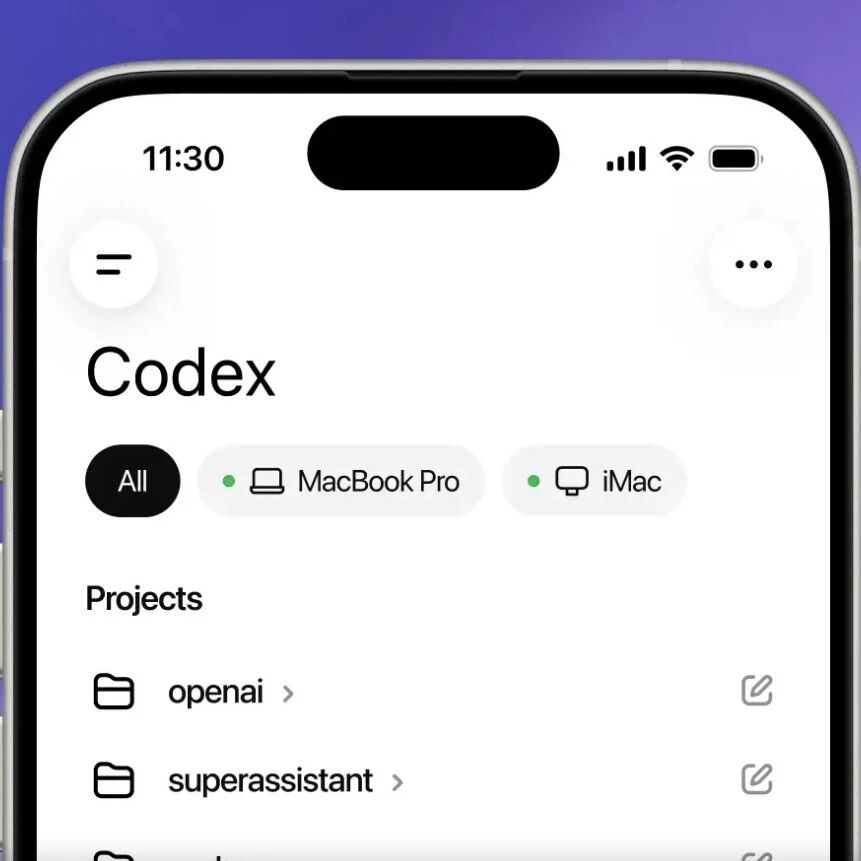
The Complete Guide to Codex on Mobile: Remote Coding Anytime, Anywhere
OpenAI Codex has officially arrived in the ChatGPT mobile app on iOS and Android — even free users can remotely control desktop Codex from their phone to run coding tasks.
OpenAI Codex has officially landed in the ChatGPT mobile app. You can now remotely control the Codex running on your computer from your phone — approving code, handling threads, and checking execution results at any time. Preview versions are live on both iOS and Android, available to all users, free tier included.
That means you can have Codex investigate a bug while you wait for your coffee, make key decisions during your commute, or even turn a passing idea into working code on a walk.
What You Need Before Starting
- A computer running the Codex desktop app (MacBook, Mac mini, or a remote dev environment) that stays online and awake
- The ChatGPT app on your phone (updated to the latest version)
- The same ChatGPT account signed in on both desktop and mobile
- Estimated setup time: 5 minutes
Step-by-Step Instructions
Step 1: Update the Apps
Update the ChatGPT app on your phone to the latest version. Also update the Codex desktop app on your computer to the latest version.
Open ChatGPT on your phone and you will see a new Codex entry point.
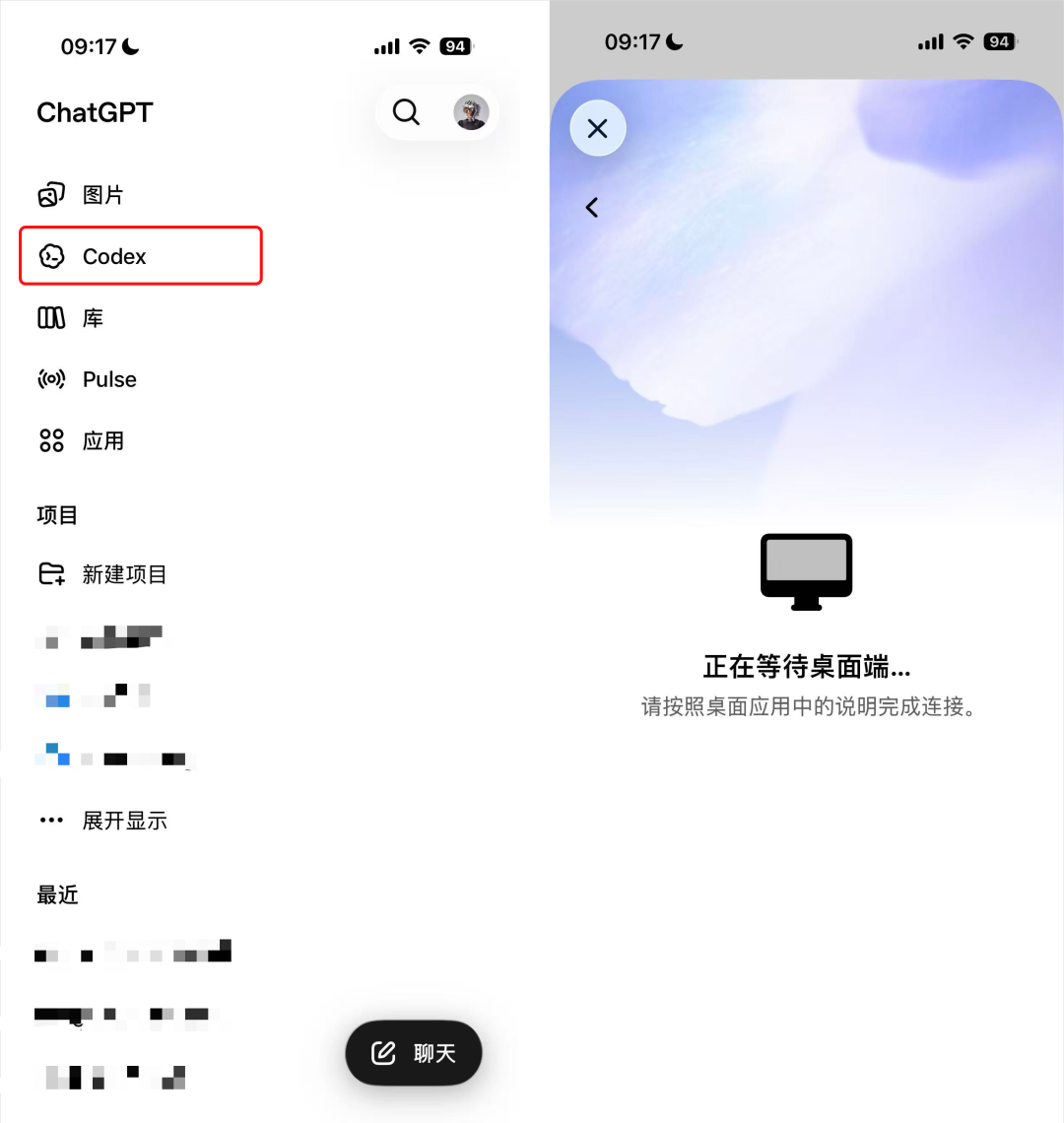
Step 2: Configure the Desktop App
Open Codex on your computer and you will see a new tab called "Set Up Codex Mobile."
Click "Get Started," follow the prompts, allowing and advancing through each step, and a QR code appears at the end.
Step 3: Pair by Scanning the Code on Your Phone
Back in the ChatGPT app on your phone, a floating prompt pops up automatically. Tap to authorize this phone, sign in to your account, and wait for the security setup to finish.
Once setup completes, your computer's name and all of your past Codex conversations show up on the phone.
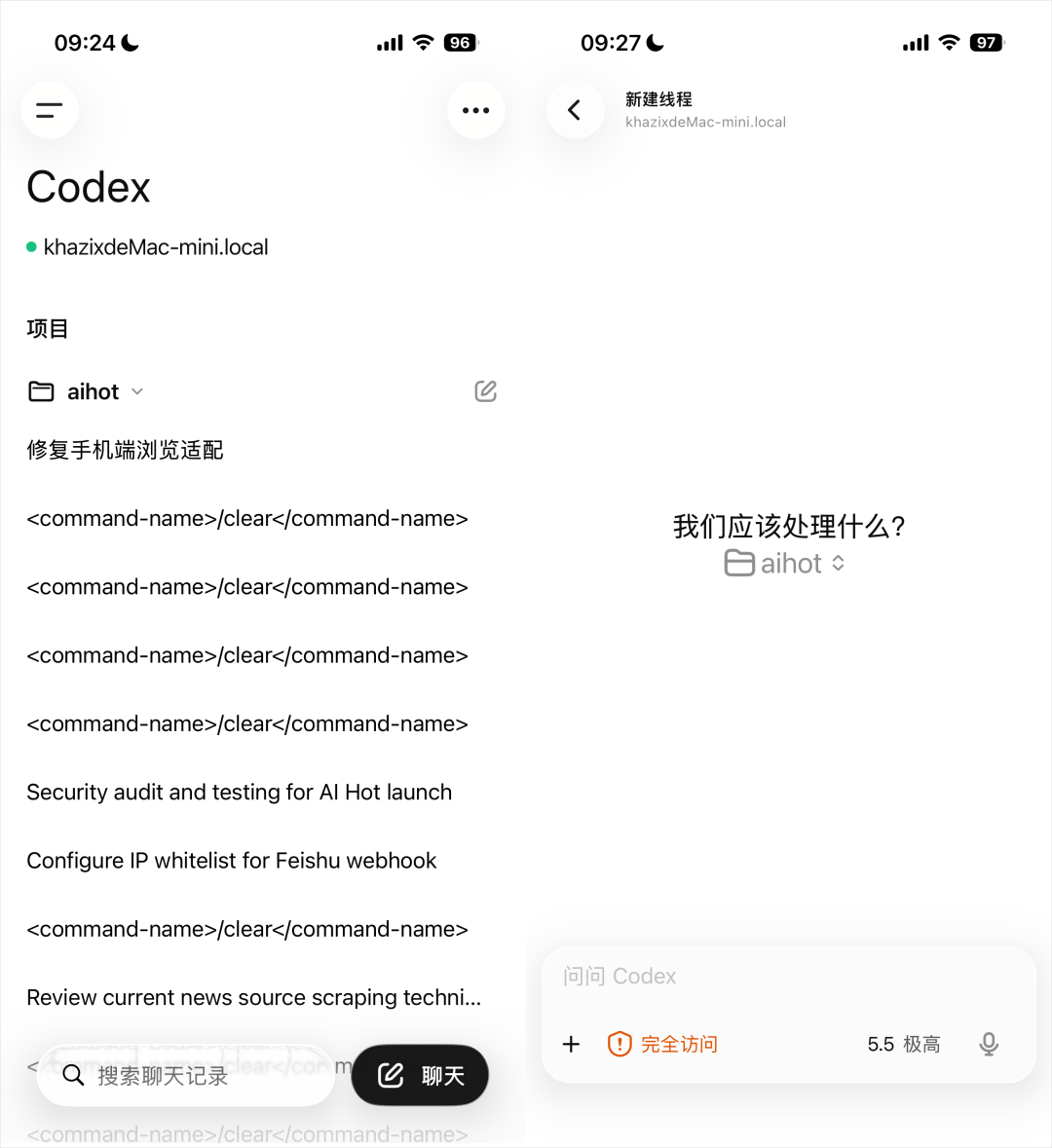
Tip: Keep all three desktop settings (remote access, message sync, auto-approval) turned on so the phone gets full control.
Step 4: Start Working Remotely
Once connected, you can do all of this straight from your phone:
- View all work threads and conversation history
- Hand Codex new tasks or add context
- Approve Codex's execution requests (running commands, modifying files, etc.)
- View screenshots, terminal output, code diffs, and test results
- Switch AI models
All of your files, credentials, permissions, and local configurations stay on the computer running Codex, while updates sync to your phone in real time.
Verify the Setup
After setup, try sending Codex a simple task from your phone, such as "check the file structure of the current project for me." If you can see Codex's reply and execution results on the phone, the setup worked.
Common Issues
- The phone shows "Waiting for desktop": Make sure Codex is running on the computer and signed in to the same account. The phone connection feature is not available on Windows yet — macOS only for now.
- No history visible on the phone: Check that all sync settings on the desktop app are turned on.
- Connection drops: Codex communicates over a secure relay layer, so your computer is never directly exposed to the public internet. If the connection is unstable, check your network and re-pair by scanning the QR code.
Enterprise Features in the Same Update
This update also brings several important capabilities aimed at teams and enterprises:
- Remote SSH: Codex can connect directly to standardized enterprise remote dev environments, and the desktop app auto-detects hosts in your SSH configuration
- Programmatic access tokens: Enterprise users can issue scoped credentials from ChatGPT workspace settings for CI pipelines and internal automation
- Hooks generally available: Scan prompts for sensitive information, run validators, log conversations, and customize Codex behavior for specific repositories
- HIPAA compliance: Enterprise workspaces can use Codex in a HIPAA-compliant way within local environments
Related articles

Claude Artifacts Finally Gets Public Sharing + Real-Time Multiplayer Editing
Anthropic has added public link sharing and simultaneous multiplayer editing to Artifacts. This article explains what the capability is, how to use it, and how it differs from Claude Code Artifacts.

HunyuanOCR-1.5 Hands-On: SOTA End-to-End OCR from a 1B-Parameter Model
Tencent Hunyuan's HunyuanOCR-1.5 packs document parsing, text recognition, information extraction, and image-text translation into a single 1B-parameter VLM, and pushes inference speed up 6x. This guide walks you through running it locally or on vLLM.

WorkBuddy in Practice: An Open-Source Blueprint for Office Agents
A community author spent 7 days compiling an open-source WorkBuddy playbook (GitHub: AlephAITech/WorkBuddyGuide, MIT) covering tutorials, Skills, MCP, automation, and multi-agent practice. This article helps you quickly find the chapters you need.

AnySearch: Turning Search into Infrastructure for Agents
AnySearch, which topped the Product Hunt weekly chart, isn't a search box — it's a unified API that feeds AI agents pre-filtered, deduplicated, structured information. This article breaks down its positioning, integration options, and why it saves tokens.

Claude Sonnet 5 Arrives: Near-Opus 4.8 Performance at 60% of the Price
Anthropic releases Claude Sonnet 5 with adaptive thinking on by default and a new tokenizer. Pricing stays at $3/$15, with a limited-time $2/$10 rate through August 31.

Mandol in Practice: Building Agent Long-Term Memory with Zero LLM Calls
The Institute of Software, Chinese Academy of Sciences, open-sources Mandol, which unifies KV/vector/graph storage via SemanticMap + SemanticGraph — zero LLM calls at retrieval, 5.4x faster retrieval, and best-in-class results on both LoCoMo and LongMemEval.