
Logi Options+: Turn an Old Mouse into an AI Workflow Controller (Zero-Cost Setup)
Use Logitech's free official driver Logi Options+ — Smart Actions, Actions Ring, and per-app settings — to mod any Logitech mouse into a Vibe Mouse, a DIY alternative to the $230 Codex Micro keyboard.

Logi Options+: Turn an Old Mouse into an AI Workflow Controller (Zero-Cost Setup)
Use Logitech's free official driver Logi Options+ — Smart Actions, Actions Ring, and per-app settings — to mod any Logitech mouse into a Vibe Mouse, a DIY alternative to the $230 Codex Micro keyboard.
Doubao for chat, ChatGPT Work for coding, Typeless for voice input — the AIs living inside your computer keep multiplying, and every one of them wants a global shortcut. There aren't enough convenient keys to go around, and conflicts are a daily occurrence. This tutorial shows you how to use Logitech's official driver Logi Options+ (free on macOS / Windows) to turn any Logitech mouse into an AI workflow controller.
Compare it with the Codex Micro keyboard released on 2026-07-16 (OpenAI × Work Louder, priced at $230, with dedicated Accept/Reject command keys, an Agent Key that changes color with task status, a reasoning-effort dial, and a Review/Debug/Refactor joystick) — Codex Micro serves a single development workflow, while ordinary knowledge workers' daily scenarios lie scattered across the browser, Finder, IM, and Excel. This setup is a zero-cost DIY alternative: no new hardware, ten minutes of button remapping, personalized enough to feel like yours.
Before You Start
- What you need: a Logitech mouse (this guide uses the MX Anywhere 3S as the example; any Logitech mouse works).
- Driver: Logi Options+ (Logitech's official driver, free on macOS / Windows).
- Companion software (as needed): ChatGPT Work, Typeless (voice-to-text), any AI browser (Tabbit / Arc), Notion / Feishu.
- Estimated time: 10-30 minutes (10 minutes for the basic mod, plus 20 more for advanced per-app configuration).
- Cost: $0 (no new hardware required).
Default Button Inventory (MX Anywhere 3S)
Before modding, take stock of the customizable buttons:
- Left forward / back buttons (default: page navigation in browsers / file managers)
- Scroll wheel press = middle click
- The button below the wheel = toggle ratchet / free-spin scrolling
Step 1: One-Click AI Combo with Smart Actions
The highest-frequency AI action is really a fixed combo: select content → copy → summon the AI → paste and ask. Logi Options+' Smart Actions (system-level operation automation / mouse macros) can trigger it in one click.
- Open Logi Options+ and go to the "Smart Actions" tab.
- Create a new macro and set the trigger to the button below the scroll wheel (or any button you're used to).
- In the action list, add keystroke sequences in order:
⌘+C(copy)⌥+Space(summon ChatGPT; swap in the shortcut for whichever AI you use most)⌘+V(paste)
💡 Tip: Add a 100-300ms delay between keystrokes so you don't force the paste before the target app has finished switching to the foreground.
Sample Button Assignments
- Left forward button → Typeless voice input
- Right back button → system-level window screenshot
- Middle click → on hold (claimed later by Actions Ring)
- Button below the wheel → AI combo (copy + summon + paste)
Step 2: Five Real Scenarios, Verified
Once configuration is done, the following 5 scenarios can be tested directly.
Scenario 1: Translate a Selected English Article on the Spot
Highlight an English passage → press the function button → GPT translates it directly.
Scenario 2: Summarize Selected PPTs in Finder Without Opening Them
Multi-select files in Finder → press the function button → ChatGPT summarizes the core selling points directly.
Scenario 3: Screenshot + Skill to Split a Bill Automatically
The iCloud 2TB family-sharing cost-split scenario: open the billing page → press the back button to bring up the system screenshot tool and frame the bill → the instant the screenshot completes, press the function button to invoke a prepared accounting Skill → ChatGPT automatically reads the used-capacity ratio and computes each person's share. Say goodbye to the calculator.
Scenario 4: Speak a Few Sentences, Get a Structured Memo
Hold the forward button and just talk (like a walkie-talkie emptying the schedule in your head) → release, and Typeless instantly turns the stream of speech into a structured memo list with a clear timeline and clear priorities, all one-handed without leaving the keyboard.
Scenario 5: Ring Up All Your Everyday AI Apps with Actions Ring
Use the still-unassigned middle click to enable Logi Options+' Actions Ring:
- Enable Actions Ring in Logi Options+.
- Add your frequently used AI apps to the bubble.
- Press the scroll wheel → a ring of bubbles pops up around the cursor → sweep over one and click to switch to that app.
The remaining buttons can be given to Emoji, screenshot, lock screen, notes, and other high-frequency system actions.
Step 3: Advanced — Per-App Settings
Global customization eventually starts to "lack rapport." Logi Options+' per-app settings let the driver swap in a whole new set of button actions automatically whenever you switch to a different app — the same buttons combine into completely different dedicated tricks in different apps.
AI Browsers Like Tabbit / Arc
- Forward button: summon the AI sidebar (
⌥+]) to follow up anytime - Back button: trigger page translation (
⌥+A) - Function button: AI full-text summary
Search, translate, and read each get their own lane, and your reading rhythm never breaks.
Notion / Feishu Docs
- Select a draft and press forward: summon the AI to expand it
- Press back: have the AI poke holes in the passage's logic
- Hold the function button: dictate in plain words and let the AI straighten it into prose
ChatGPT Work
- Forward button = approve request (Enter)
- Back button = reject request (Esc)
- Function button = archive current task (
⇧+⌘+A)
Approving AI requests gets noticeably faster.
Verification Results
Open any AI work scenario and press the configured function button once; it should trigger in sequence: copy content → summon AI → paste and ask. If button behavior changes automatically when you switch to a different app, the per-app settings are in effect.
FAQ
- Can I use a non-Logitech mouse? No. Smart Actions, Actions Ring, and per-app settings are all Logi Options+ features and support Logitech devices only.
- Does it work on both Mac and Windows? Yes. Logi Options+ is a free official driver on both platforms.
- Codex Micro or this setup? Codex Micro ($230) serves a single development workflow with fixed key presets; this setup costs nothing and covers browser / Finder / IM / Excel scenarios with highly personalized buttons. If you're a pure developer with a single workflow and budget to spare, Codex Micro works out of the box; for ordinary knowledge workers, try the DIY route first.
- Keystroke sequence not executing fully? Check whether the target app intercepts global shortcuts, or increase the delay between keystrokes in Smart Actions.
- Why not just buy better hardware? No vendor's factory-preset handful of buttons can perfectly cover every working habit. The person who understands your workflow's pain points best is always you. The best AI hardware may be the next blockbuster the giants have defined for you — or it may be this old mouse you've worn in through daily use, one muscle-memory stroke at a time.
Toolin Editorial Team
Categories
Related articles
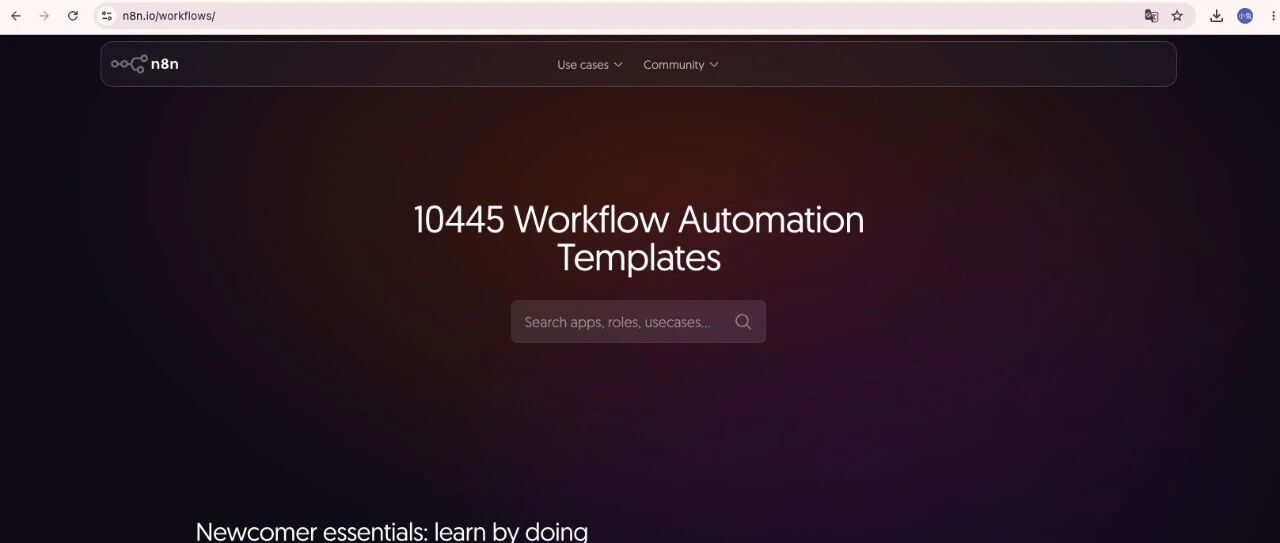
Turning an n8n Workflow into a Codex Skill: A Meta-Skill's Five-Step Pipeline
2026-07-19

Navos 2.0: Tec-Do Upgrades Marketing from a Chatbox to a Loop Agent
2026-07-19

Page Agent: Alibaba's Open-Source In-Page GUI Agent — One Line of Script Lets AI Live Inside Any Web Page
2026-07-18

Using ChatGPT Conversation History Search to Turn Old Chats Into a Searchable Knowledge Base
2026-07-18

Claude Fable 5 Plan Inclusion Changes on 7/20: How Developers Should Allocate Their Quota
2026-07-18

Datadog's Test-Driven Production Migrations with Claude + Cursor: A Reusable Methodology
2026-07-18