
The Official OpenAI CLI: Call AI from the Terminal in One Command
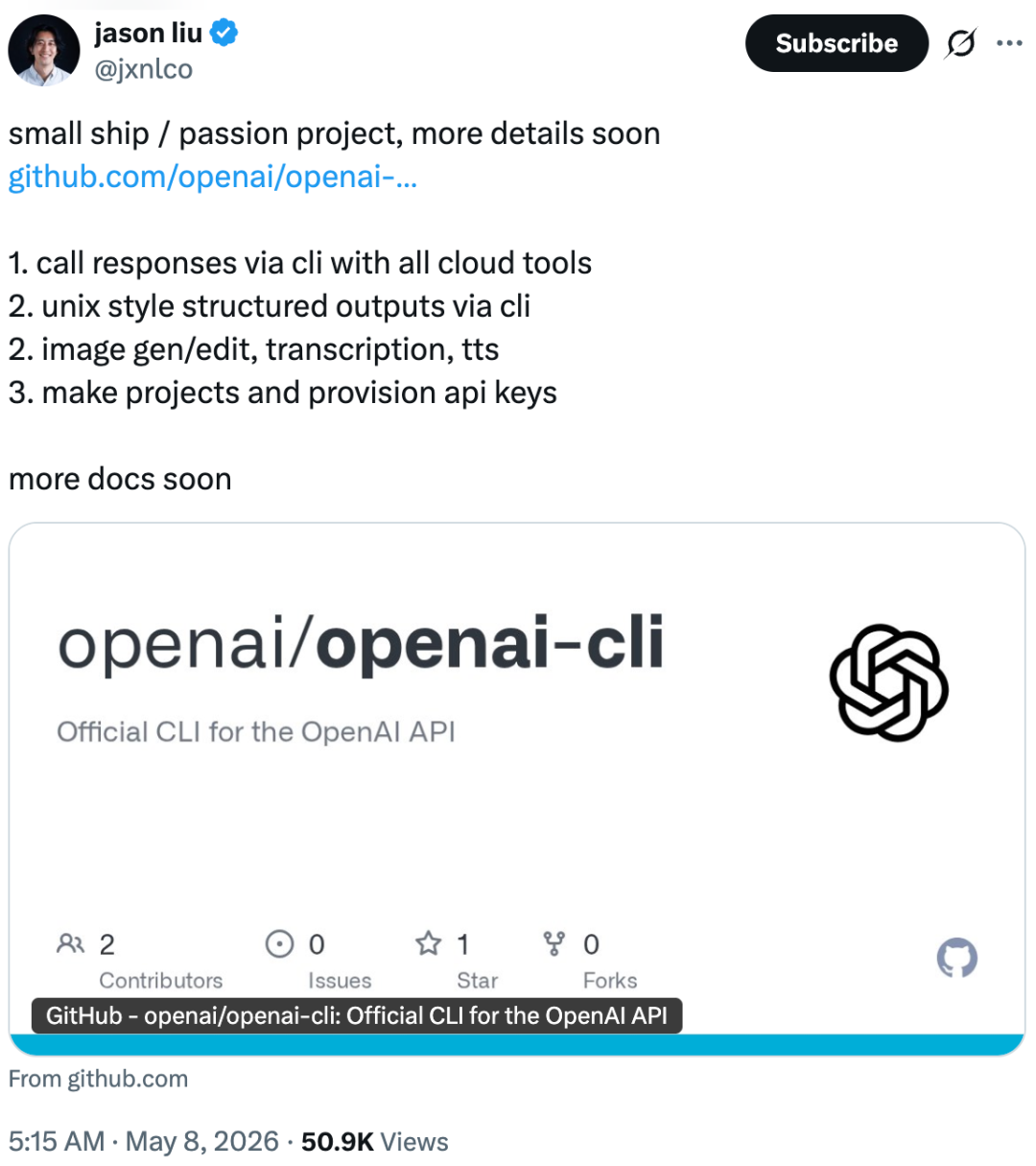
OpenAI has shipped an official command-line tool, openai-cli, for calling GPT models straight from the terminal, pairing with Unix pipes to build automated pipelines for log analysis, text processing, and more.

The Official OpenAI CLI: Call AI from the Terminal in One Command
OpenAI has shipped an official command-line tool, openai-cli, for calling GPT models straight from the terminal, pairing with Unix pipes to build automated pipelines for log analysis, text processing, and more.
OpenAI has released an official command-line tool, openai-cli, that lets developers call GPT models directly with a single terminal command. It supports Unix pipes, image generation, and speech transcription, and it can replace convoluted SDK invocation flows.
What Is openai-cli
Testing OpenAI models from the terminal used to mean either opening the Playground and tweaking things by hand or writing Python/Node.js scripts against the SDK. Wrapping SDK calls back and forth is a hassle, and tuning parameters is worse.
openai-cli turns AI capabilities into a standard command-line tool that joins your daily workflow just like grep or awk.
What You Need Before Starting
- A macOS or Linux terminal environment
- An OpenAI API key
- Estimated installation time: 2 minutes
Installation and Configuration
Step 1: Install
On macOS, install via Homebrew:
brew install openai/tools/openaiThe project is open source — you can also browse the source on GitHub: https://github.com/openai/openai-cli
Step 2: Configure the API Key
Create a project and configure your API key:
openai initJust enter your OpenAI API key when prompted.
Common Use Cases
Scenario 1: Log Analysis
Pipe a log file to the AI for analysis with a Unix pipeline:
cat error.log | openai chat --system "identify potential risks in the logs" > analysis.txtAI capability gets "atomized" — it composes like any ordinary command-line tool.
Scenario 2: Quickly Debugging Prompts
Test different parameter combinations right in the terminal, then write them into real code once the results look right:
openai chat --system "you are a code review expert" --temperature 0.7Scenario 3: Image Generation
Generate images straight from the command line:
openai image generate --prompt "a cat wearing sunglasses writing code"Scenario 4: Speech Transcription
Transcribe an audio file to text:
openai audio transcribe --file meeting.mp3Core Features
| Feature | Description |
|---|---|
| Responses API | Call Responses through the CLI, with support for all cloud-hosted tools |
| Structured output | Unix-style CLI output that composes easily in pipes |
| Multimodal support | Image generation/editing, speech transcription, TTS |
| Project management | Create projects and configure API keys |
Advanced Usage
Wrap openai-cli into automated flows:
# Crontab job: generate a daily AI news digest every morning
0 9 * * * openai chat --system "summarize today's tech news" < /data/news.txt | mail -s "AI digest" [email protected]

# Use inside a Docker container
docker run --rm -e OPENAI_API_KEY=$OPENAI_API_KEY openai-cli chat --system "analyze this code" < main.py
Why It's Worth Watching
The arrival of an official CLI signals that AI invocation is moving toward standardization. For developers:
- Local script automation: AI capability becomes a native command-line tool, far more programmable than the web UI
- Zero-latency debugging: the terminal is your sandbox for quickly trying different parameters
- Infrastructure management: batch operations on fine-tuning jobs and vector database files are far more efficient than the web UI
Toolin Editorial Team
Categories
Related articles
Hooking Doubao Seed 2.1 Pro into Claude Code: Swap Your Main Model in Three Steps
Volcano Ark speaks the Anthropic protocol; three environment variables let Claude Code switch to Doubao Seed 2.1 Pro — verified by fixing real bugs in a complex project.

Doubao Seed-Audio 1.0 Hands-On: Character Dialogue, Sound Effects, and BGM in One Pass
Volcano Engine's Seed-Audio 1.0 upgrades to film-grade all-element direct output — a single prompt generates multi-character dialogue, sound effects, and background music, approaching finished-production sound.

WeChat's AI Assistant "Xiaowei" Hands-On: 12 Scenarios to Map Its Powers and Limits
WeChat's native AI assistant Xiaowei has opened gray-scale testing. Built on Tencent's in-house WeLM model, it can send messages, check bills, and analyze Moments — but no scheduled sending or bulk operations yet.

Alibaba HappyHorse 1.1 Hands-On: The Greasy Look Is Gone, and 1080P Just Got 25% Cheaper
Alibaba releases the HappyHorse 1.1 video generation model with upgrades across five dimensions; 1080P drops from ¥1.2 to ¥0.9 per second, with hands-on comparisons and access links.

Baidu Open-Sources Unlimited OCR: a 500M-Active Small Model Reads 40 Pages in One Pass Without Forgetting
Baidu open-sources Unlimited OCR, an end-to-end OCR model with 3B total / 500M active parameters that sets a new OmniDocBench SOTA and transcribes dozens of pages per inference without forgetting.
Sakana Fugu: the Orchestrator That Doesn't Answer Itself, Just Directs Other Models to Do the Work
Sakana AI releases the Fugu family of orchestrator models, smartly dispatching GPT, Claude, and Gemini to finish tasks, with performance approaching Fable 5 and Mythos Preview.