
OpenAI's Official Codex Workflow Guide: From Screenshots to Web Pages to AI-Run Research
OpenAI updates a dozen-plus official Codex real-world workflow cases covering Computer Use, /goal long-horizon objectives, PPT generation, game development, and other practical scenarios — a step-by-step guide to using Codex efficiently.

OpenAI's Official Codex Workflow Guide: From Screenshots to Web Pages to AI-Run Research
OpenAI updates a dozen-plus official Codex real-world workflow cases covering Computer Use, /goal long-horizon objectives, PPT generation, game development, and other practical scenarios — a step-by-step guide to using Codex efficiently.
OpenAI has published more than a dozen real-world Codex workflow case studies on its website, covering everything from deploying web pages and building apps to managing large projects and 150-hour research tasks, each with a corresponding method. Codex is about to get a substantial price cut, making now the best time to learn it and get hands-on.
Official case collection: developers.openai.com/codex/use-cases
Before You Start
- You need a ChatGPT Pro or Team subscription (Codex opens from the sidebar)
- Know your way around basic terminal operations
- Codex can consume far more tokens than an ordinary ChatGPT conversation; start with small tasks
Computer Use: Letting Codex Operate Your Computer
Computer Use lets the AI operate your computer's interface the way you do — clicking, viewing, and typing to complete tasks across apps.
How to Use It
- In the Codex app, find Computer Use and confirm it is enabled
- Start your message with
@Computer, or mention a specific app such as@Slackor@Messages - Describe the task and the expected result
- When Codex needs access, approve it
- Let it keep executing in the background
Typical Usage
@Computer Play some music to help me focus.
@Computer Please add my interview notes from Notes to my Feishu doc.
@Computer Please check my WeCom and set reminders for everything I need to finish before the end of today.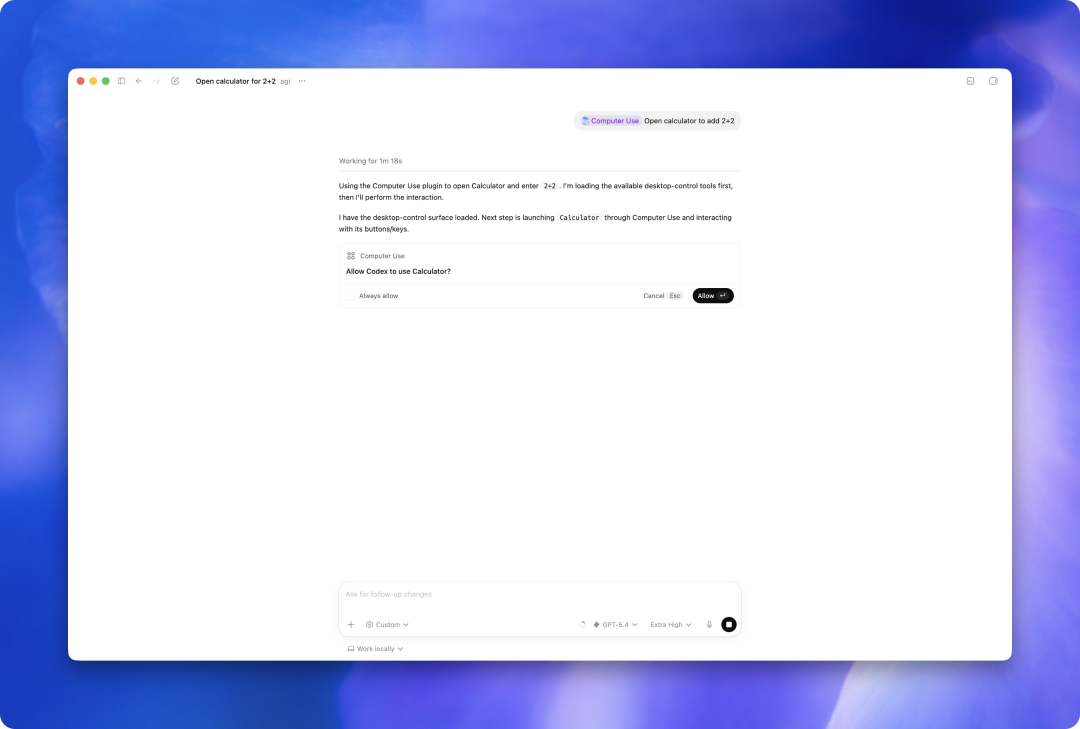
Caveats
- Make sure the Mac won't lock while it runs, or enable the "operate while locked" option in Codex
- Don't run two Computer Use threads controlling the same app
- After each thread ends, you can ask Codex to summarize and refine, turning the workflow into a repeatable pattern
/goal: Give Codex a Long-Running Objective
Normally, getting work out of an AI means standing over its shoulder. /goal solves exactly that: give Codex a long-term objective and let it keep working toward that direction on its own.
When to Use It
- Project migrations: moving a game to a new tech stack, a mobile app to a new platform, a codebase to a new framework
- Prototyping: building a new app or feature from scratch, with PLAN.md spelling the goal out clearly
- Prompt tuning: with a test set in hand, have Codex study failure cases, revise the prompt, rerun the eval, and iterate until the score climbs
How to Write a Good Goal
- Give one clear objective and one done condition
- Tell it which files, docs, or plans to read first
- Fix which command will prove progress
- Have it work in stages, keeping a brief progress log along the way
- Check status anytime with
/goal - Pause, resume, or clear it when the run finishes, gets stuck, or needs a new direction
$$slides + $$imagegen: Making Slide Decks with Codex
The most soul-grinding part of deck-making is layout. Codex ships with two skills: $$slides reads and writes .pptx files directly via PptxGenJS, and $$imagegen handles generating the artwork.
Reference Prompt
Use the $$slides and $$imagegen skills to edit this deck as follows:

- If present, add the logo.png file to the bottom-right corner of every slide
- On slides X, Y, and Z, shift the text to the left and use image generation to create an illustration on the right (style: abstract, digital art)
- Keep text as text wherever possible, and simple charts as native PowerPoint charts
- Render the updated presentation to slide images, inspect the output, and fix layout issues before delivering
- When creating a batch of related images, save the reusable prompts or generation instructions
Building Web Pages from Screenshots
Hand Codex a screenshot or design mock and it can build a responsive interface from it, while following the project's existing framework and conventions instead of starting its own. Paired with $playwright, it can compare the page against the screenshot across different screen sizes in a real browser and adjust repeatedly.
Reference Prompt
Implement this UI in the current project based on the screenshots and annotations I provide.

Requirements:
- Reuse the existing design system components and markup
- Map the screenshot onto this repository's utility and component patterns
- Match spacing, layout, hierarchy, and responsive behavior closely
- Respect the repo's routing, state, and data-fetching patterns
- Make the page responsive on both desktop and mobile

Verification:
- Use $playwright-interactive to check whether the UI matches the reference, and iterate as needed
Building Games with Codex
Games are the scenario that stress-tests everything Codex can do. Before writing any code, have it produce two documents:
PLAN.md -- break the game down into: player goals, core loop, controls, win/lose conditions, difficulty growth, visual direction, tech stack, and milestone order.
AGENTS.md -- spell out the tech stack, conventions, and how to verify.
Game name
<game genre>

Tech stack:
- Frontend NextJS (deployed on Vercel)
- Rendering with <fill in tech>
- Backend Fastify + WebSocket
- Database Postgres

Conventions:
- Verify every finished feature with the build / test commands
- Follow PLAN.md when building new features
- Use playwright to test the visuals
- Use imagegen for assets, storing prompts into .prompts
Install every skill AGENTS.md mentions: $$imagegen, $$playwright, $openai-docs, plus Context7 MCP to pull rendering-framework docs if needed. The more detailed the plan, the more presentable the first version comes out.
Running Research with Codex
Codex can serve as a long-term research assistant. You supply the direction and the judgment; it implements, gathers evidence, scores, and iterates.
Typical case: with a protein-folding hypothesis in hand, Goal Mode gives it three things — a scientific direction, a runnable baseline model, and an auto-scoring benchmark. In the official case, Codex ran for more than 150 hours straight and produced an experimental architecture called SimplexFold.
FAQ
- Where do I open Codex? In the ChatGPT sidebar, available to Pro/Team/Enterprise users
- Does it consume a lot of tokens? Far more than ordinary conversations; start with small tasks
- Which apps does Computer Use support? In theory all desktop apps, driven by UI element recognition
- Is Codex about to get cheaper? According to foreign media, OpenAI is considering steep fee cuts to compete for customers
More cases: developers.openai.com/codex/use-cases