
Qwen Voice Input Hands-On: A Free New Entry Point to AI Office Work
The Qwen desktop app has launched a voice input method with hold-to-talk voice input and double-tap AI commands. It can tidy up text, look up data, and generate PPTs and spreadsheets -- completely free, with deep AI office capabilities built in.
Qwen Voice Input Hands-On: A Free New Entry Point to AI Office Work
The Qwen desktop app has launched a voice input method with hold-to-talk voice input and double-tap AI commands. It can tidy up text, look up data, and generate PPTs and spreadsheets -- completely free, with deep AI office capabilities built in.
The Qwen desktop and web apps have launched a voice input method. It is not a simple speech-to-text tool -- it is an entry point that connects your mouth to the full suite of Qwen AI office capabilities. Hold to speak and it tidies up your words; double-tap to summon it and it gets work done -- looking up data, making PPTs, organizing meeting minutes, replying to messages, all done by voice. Best of all, it is completely free.
What Is the Qwen Voice Input Method
The Qwen voice input method is built into the Qwen desktop app, but it works globally in any application. You do not need to switch to the Qwen client -- whether you are writing a document in Word, reading research in your browser, or replying to messages on DingTalk, you can summon it at any time.
Two core operations:
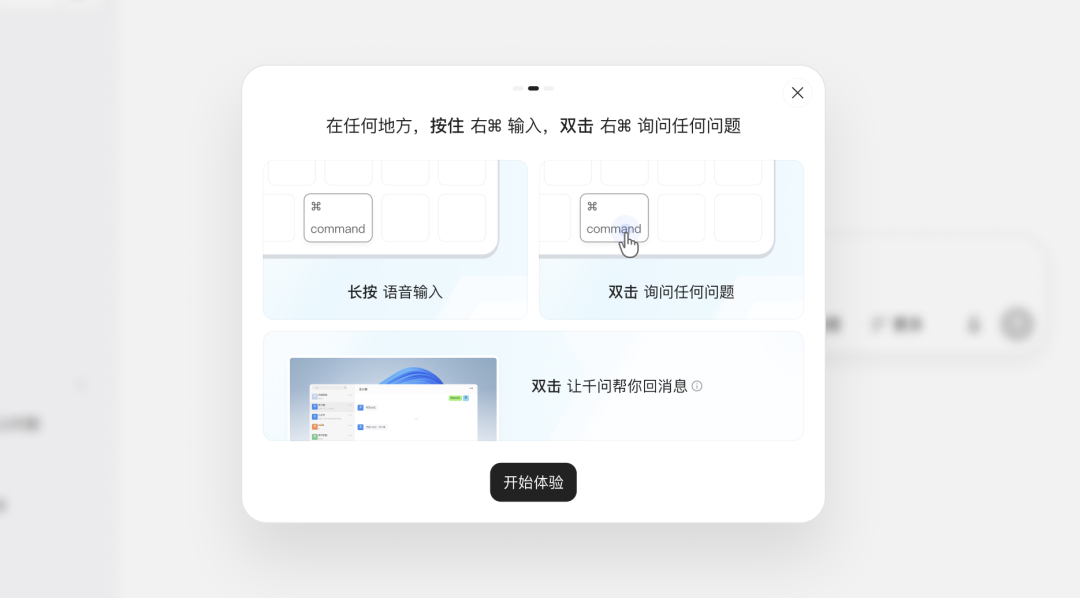
- Hold the shortcut key: voice input -- the AI automatically strips filler words, corrects slips of the tongue, and produces structured output
- Double-tap the shortcut key: voice commands -- assign tasks to the AI (research, write documents, generate PPTs, and more)
Shortcut settings: Win uses the right Alt key, Mac uses the right Command key, and both are customizable.
Core Capability: More Than Speech-to-Text
Smart text cleanup
Filler words and slips of the tongue in your speech -- "oh wait", "um", "but anyway" -- are automatically filtered out and corrected by Qwen. What you get is clean text that is ready to use as-is.
Real-world test: I casually dictated some feedback about a delayed project plan, full of verbal padding and self-corrections, and Qwen's output was ready to send without any manual touch-ups.
Mixed Chinese-English recognition
It is particularly good at recognizing dictated content that mixes Chinese and English. For example, dictate a piece of code logic and Qwen correctly picks up every English term (token, validateToken, expired, userId, edge case, etc.), automatically outputting them as logically structured points.
Paragraph reordering
If you tack a final "put the data section up front" onto the end of your dictation, Qwen understands the instruction and reorders the paragraphs automatically. What used to take mouse plus keyboard is now done with your mouth.
Real-World Use Cases
Scenario 1: Build an outline while in a meeting
During a topic-planning meeting, hold the shortcut to summon Qwen and speak your scattered, fragmentary ideas out loud; release, and a structured topic outline comes out.
Scenario 2: Look up data without switching windows
When you need data mid-article, double-tap to summon the voice command and say "help me find the background on OpenAI's latest funding round" -- Qwen pops the results up in a small window without breaking your writing flow.
Scenario 3: Turn one ramble into a weekly report
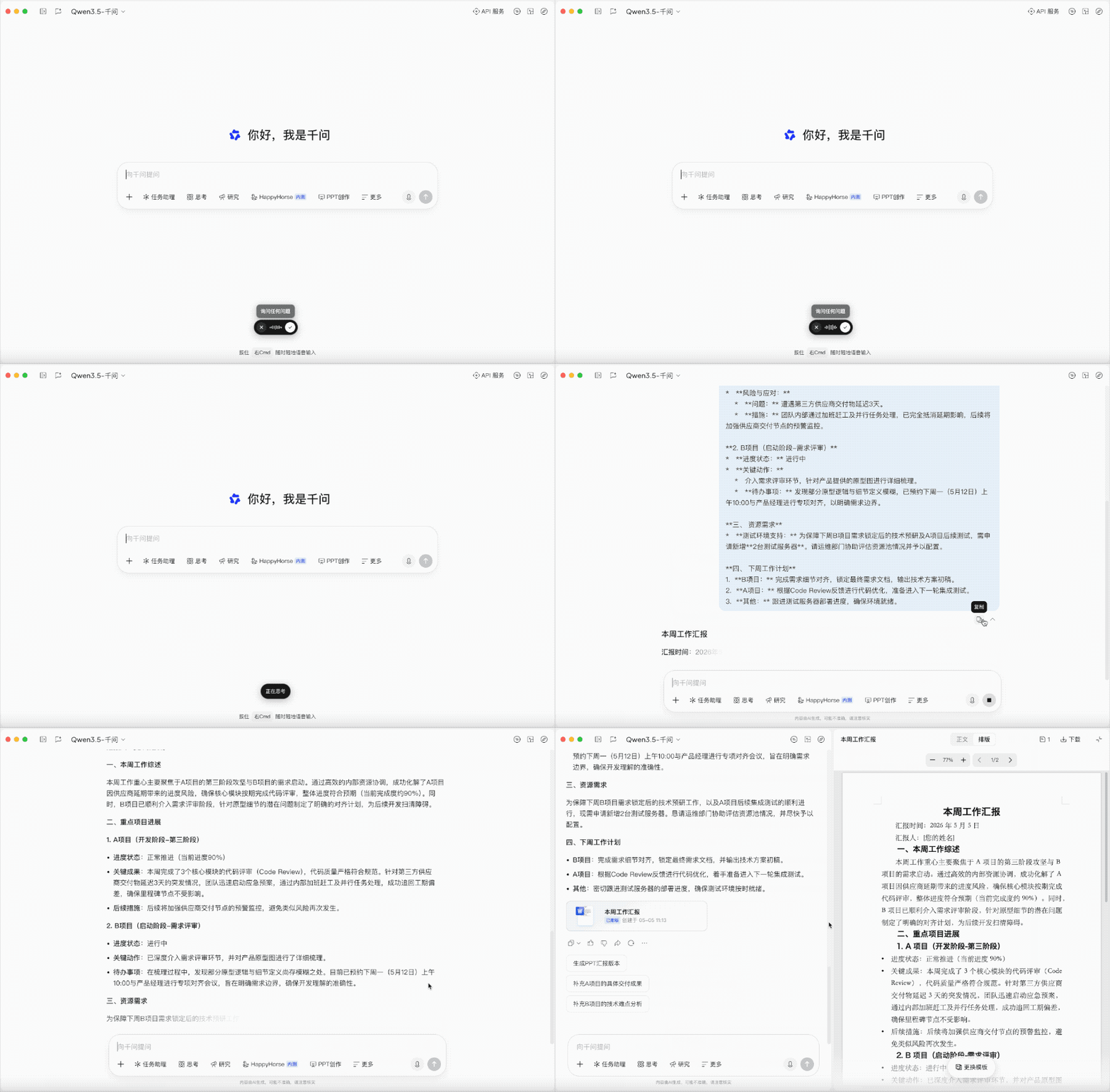
After a double-tap I casually spoke a week's worth of work progress (with plenty of verbal padding), and Qwen automatically organized it into a structured, professional weekly report Word document.
Scenario 4: Reply to messages for you in chat apps
In WeChat, DingTalk, or Feishu groups, double-tap and let Qwen reply for you. It supports "context awareness": it can tell which app you are currently in and see what is on screen, adjusting its reply style accordingly.
Scenario 5: Generate PPTs by voice
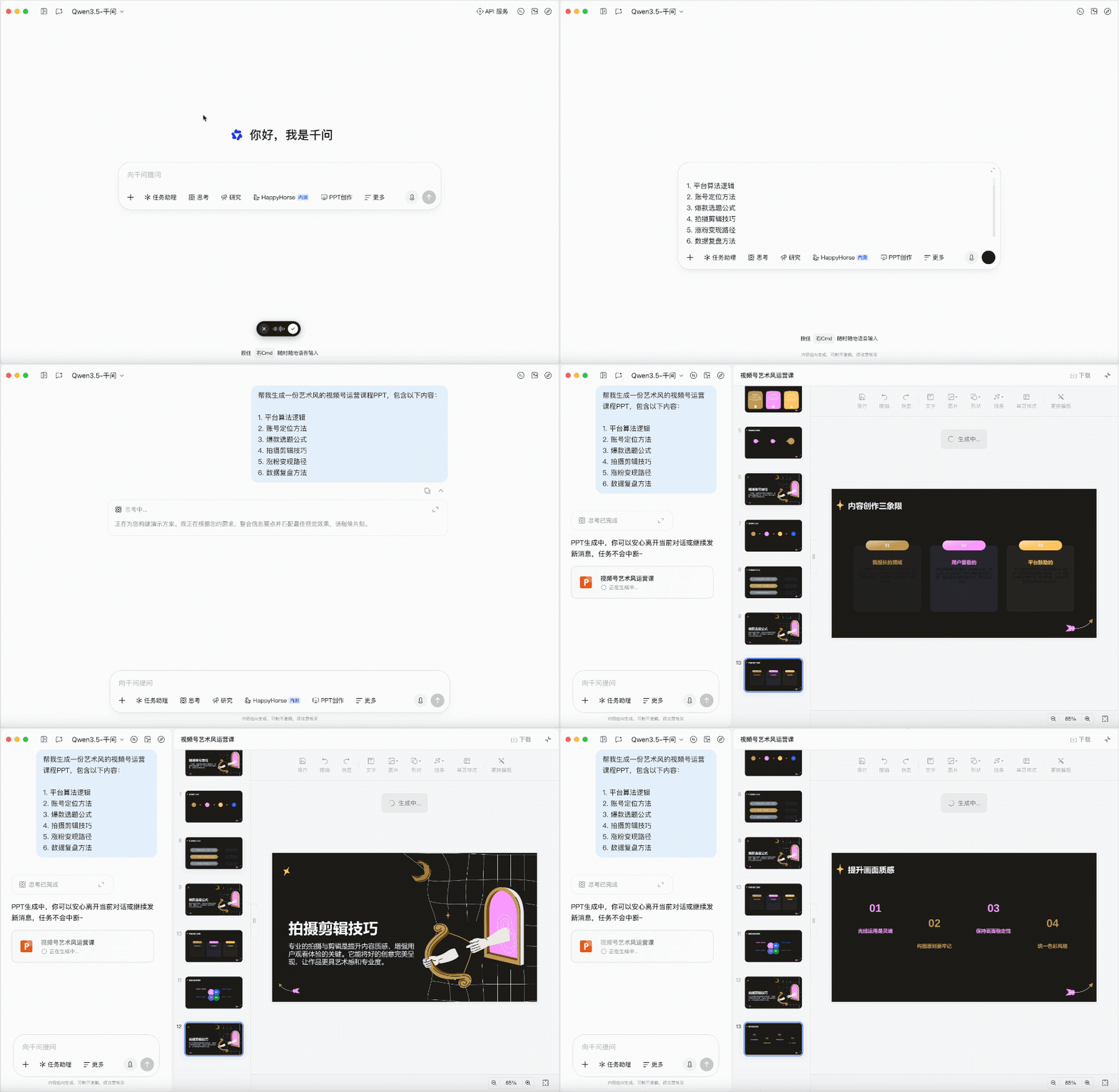
Tell Qwen "make me a PPT for a WeChat Channels operations course" and it does not assemble templates from a stock library -- it uses the large model's coding ability to dynamically generate complex layouts. If you are not satisfied, just keep refining it through more rounds of conversation.
Scenario 6: Generate Excel spreadsheets by voice
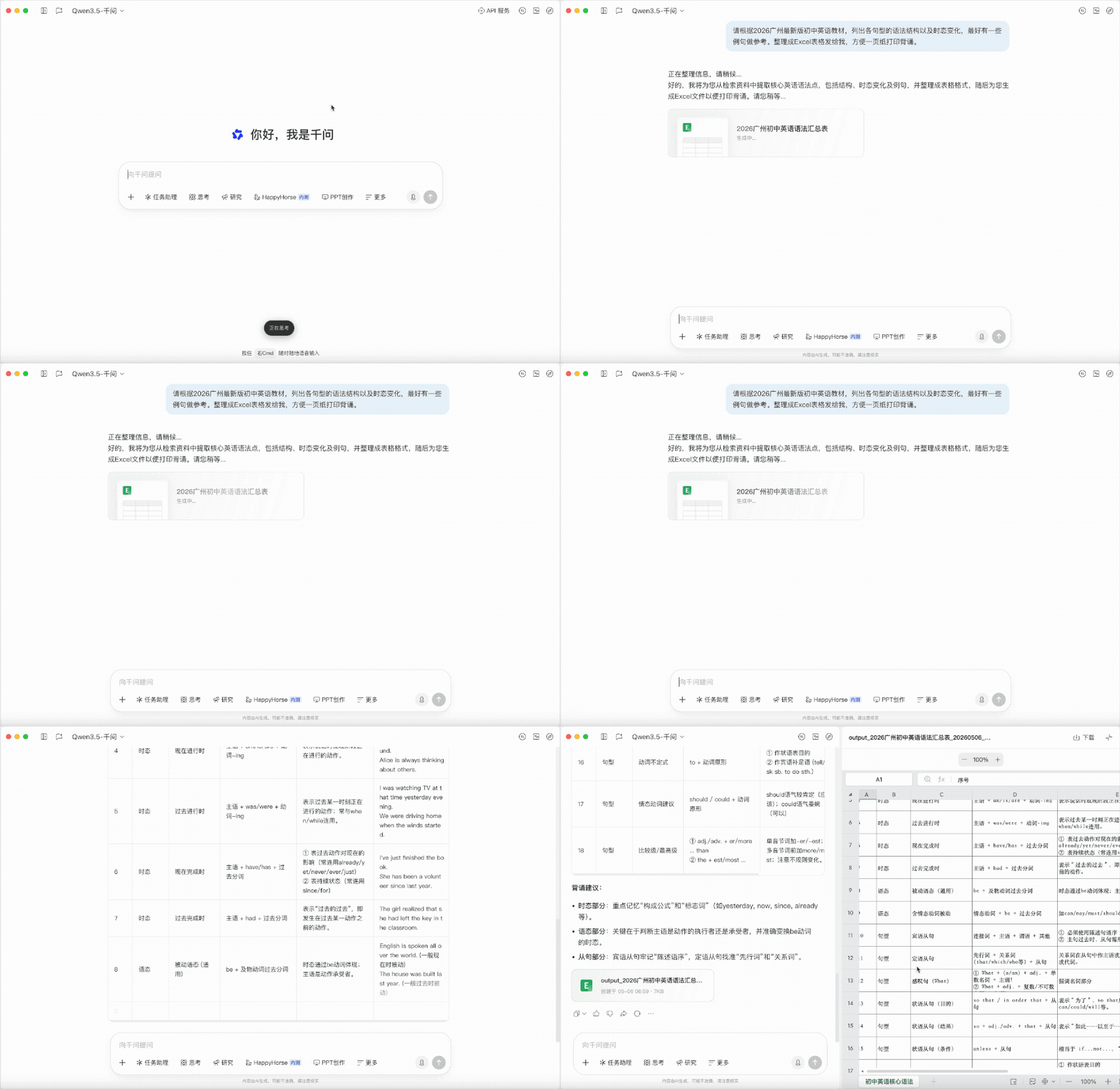
Casually say "put together a middle-school English grammar structure table based on the latest textbooks" and Qwen produces a proper Excel spreadsheet, with column names, row heights, and example-sentence fills all done automatically.
Scenario 7: Meeting minutes
Double-tap to summon it when a meeting starts; when it ends, say "organize what was just said into meeting minutes" and the cleanup is done automatically.
Download and Use
- Client download: https://www.qianwen.com/download
- Web version: https://www.qianwen.com/
Completely free, no subscription needed.
Comparison with Other Voice Input Methods
| Feature | Qwen Voice Input | Typeless | Doubao Input |
|---|---|---|---|
| Price | Free | approx. 1000 CNY/year | Free |
| Filler removal | Yes | Yes | Yes |
| Logic restructuring | Yes | Yes | Basic |
| AI task delegation | Yes (PPT/spreadsheets/documents) | No | Limited |
| Context awareness | Yes | No | No |
| PPT/Excel generation | Yes | No | No |
The biggest differentiator of the Qwen voice input method is this: it does not just help you type faster -- it connects voice input with AI office capabilities (PPTs, spreadsheets, documents, search, analysis). You say one sentence; it translates the intent into instructions the AI can execute, then dispatches the corresponding Agent to get it done.
Known Limitations
- You have to keep holding the shortcut key to use voice input; there is no one-toggle always-on mode
- It is built into the Qwen desktop app, so Qwen has to be open first
- The mobile experience is not fully covered yet
Toolin Editorial Team
Categories
Related articles
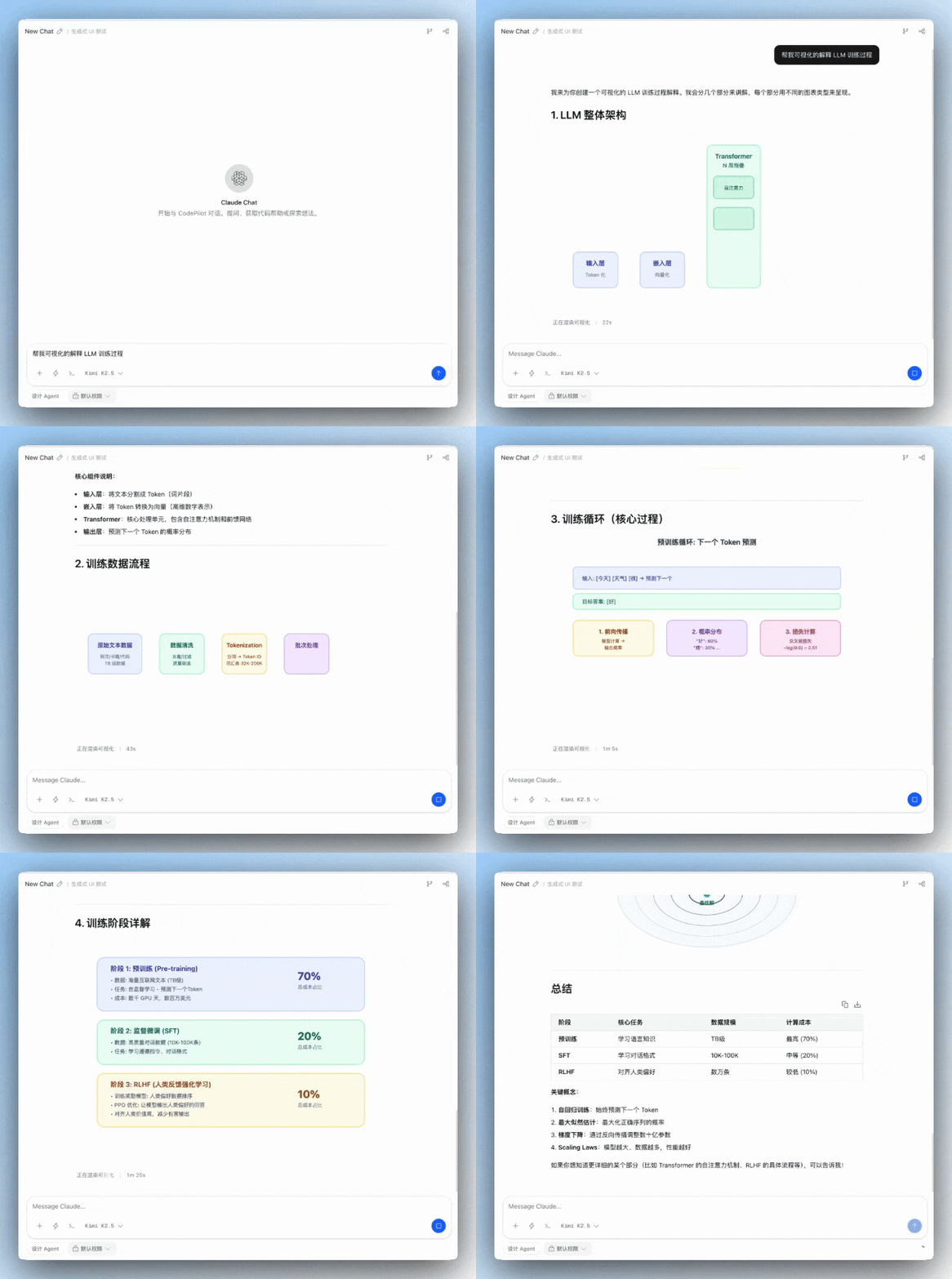
How to Stream Interactive Charts Inside AI Conversations
Code Pilot recreates Claude's generative UI interaction, streaming interactive charts, widgets, and architecture diagrams — and it works with Chinese models like Kimi K2.5.

A Must-Have OpenClaw Security Plugin: The Skill Vetter Guide
OpenClaw Skills carry poisoning risks. Skill Vetter reviews a plugin's safety before installation, guarding against malicious code threats.
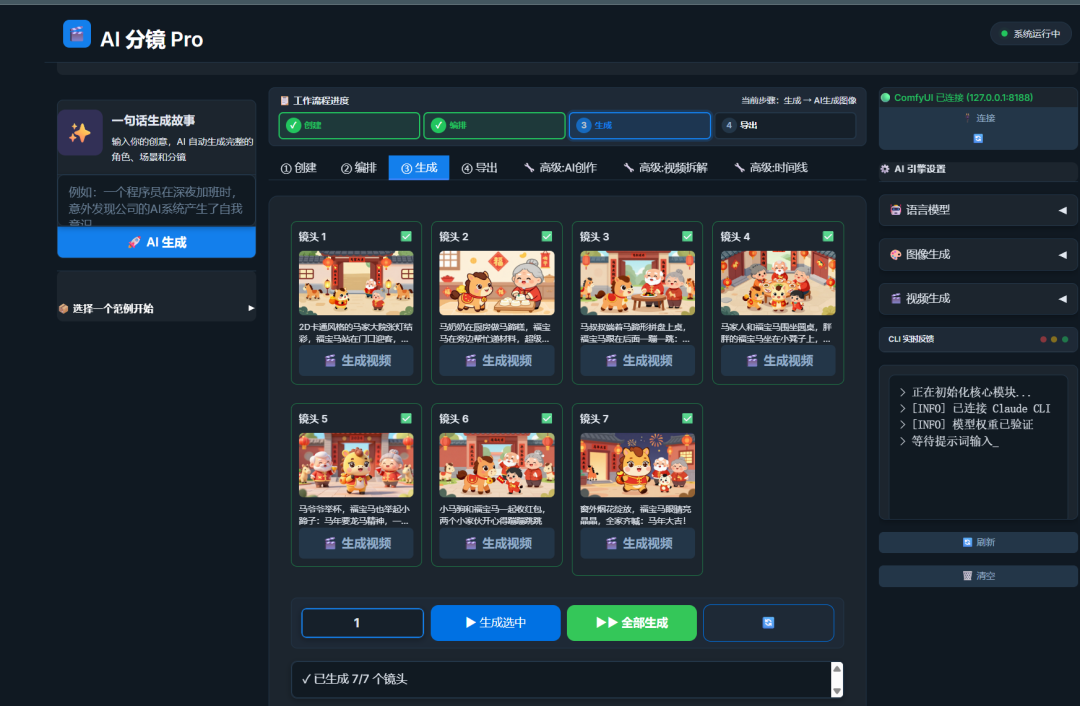
Hands-On Tutorial: Generate an AI Comic Story from a Single Sentence (Open Source)
A step-by-step guide to using an open-source AI comic platform to create high-quality comics in one place, from script generation and character locking to panel drawing.

Clawdbot: Your First 7×24h Local AI Employee
Clawdbot is an open-source local AI assistant that runs on a Mac mini or VPS, with long-term memory and the ability to act proactively — not just a chatbot, but a personal butler that gets things done.