
Baidu DuMate, A Practical Guide: From Installation to Office Automation
A full walkthrough of DuMate, the general-purpose office agent from Baidu, covering installation, skills, app connections, and automation — get up and running in 3 minutes and hand your daily office chores to AI.

Baidu DuMate, A Practical Guide: From Installation to Office Automation
A full walkthrough of DuMate, the general-purpose office agent from Baidu, covering installation, skills, app connections, and automation — get up and running in 3 minutes and hand your daily office chores to AI.
DuMate is the general-purpose office agent from Baidu, available on Mac, Windows, and mobile. Its core idea is straightforward: you state the need, it breaks down the task, calls the tools, and delivers the result — running the entire chain of "request → authorize → execute → deliver" end to end.
If you are tangled up every day in repetitive work like daily reports, data cleanup, and idea filing, and you do not write code, this tutorial takes you from zero to one. Baidu claims the Harness framework cuts credit consumption by about 75%, and your bill is itemized line by line.
Before you start
- Account needed: a Baidu account (phone number login is enough)
- Download: visit
dumate.cnin your browser and pick the version for your platform - Time expected: 3 minutes to install, 5-10 minutes to run your first task
- Supported platforms: Mac / Windows / mobile
Step 1: Install and sign in to the client
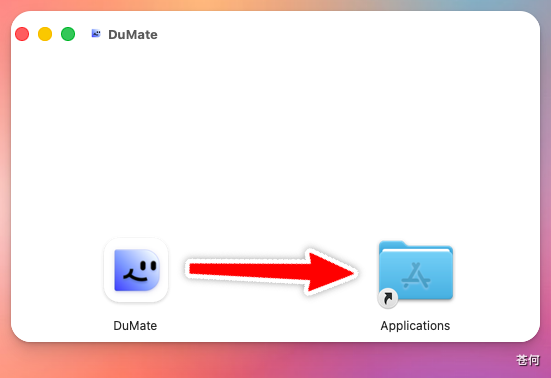
Using Mac as an example: after downloading you get a dmg file; double-click to open it and drag the DuMate icon on the left into the Applications folder on the right to finish the install.
Sign in with your phone number on first launch, and you land in the main interface.
💡 Tip: The mobile and Windows versions follow a similar flow — just pick the matching installer on the official site.
Step 2: Get to know the main interface and workspace
The interface has two parts: a task bar on the left (new task, skills, connected apps, automation) and a large main conversation area in the middle. The conversation area supports natural language, voice input, and file uploads, and multiple tasks can run in parallel in the background.
Before starting a conversation, tap "Set up workspace" and assign DuMate a dedicated folder. This follows the principle of least privilege: within the authorized directory it can read, write, and create; delete operations trigger a second confirmation.
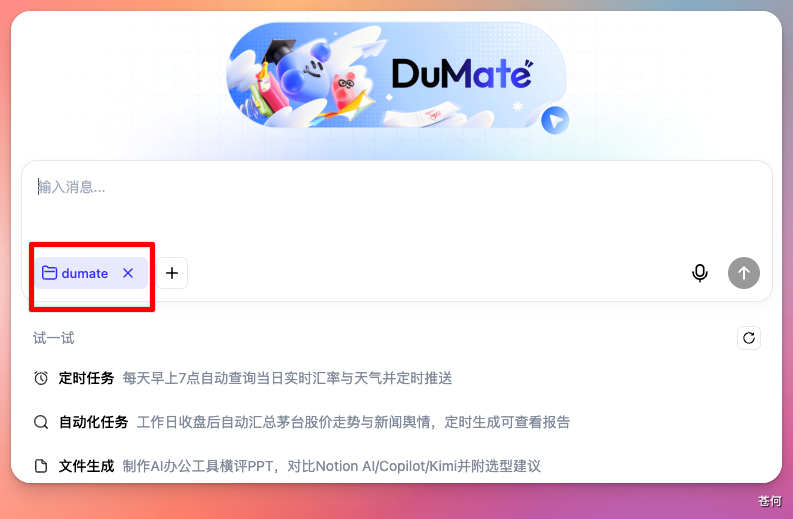
💡 Tip: The built-in security sandbox plus "ask before deleting" is the detail that makes it worth using long-term — it keeps the AI from touching files it should not, without your knowing.
Try entering an image-generation request and the right panel shows three things in real time: task progress (checking off steps), task files (intermediate artifacts and final deliverables), and capabilities invoked (such as the Baidu AI image generation Connector) — every step out in the open.
Step 3: Browse the Skill plaza and install ready-made Skills
The Skills page has a built-in "Skill plaza" where you can install Skills from Baidu's own suite in one click: Baidu Search, Miaoda, Famou, Baidu Netdisk, and more. Self-made Skills can also be installed by dragging in an archive file or a URL.
For example, invoking the "Baidu Miaoda Skill" to build a small game gets you a live, accessible URL within minutes; mini tools you previously built with Miaoda can continue to be iterated on right inside DuMate.
Step 4: Connect apps to work across them
The "Connected apps" page supports the browser, Feishu (Lark), DingTalk, GitHub, Trip.com, and more. Taking Chrome as an example: tap "Connect" → choose one-click install → jump to the Chrome Web Store and tap "Add to Chrome" → return to DuMate and tap "Start connecting."
Once Trip.com is connected, type "find me flights from Wuhan to Beijing tomorrow" and DuMate pulls live data — not only listing flights but also recommending which one is the better deal and which time slot is cheaper.
Step 5: Run scheduled tasks with automation
The automation module supports scheduled tasks such as daily report summaries, daily reminders, and data scraping. Just say "summarize ten of the latest AI news items every morning at eight" and DuMate recognizes the scheduling intent and creates the task, with name, execution time, and status all at a glance.

A real-world case: DuMate + Feishu as an idea library
Structure the ideas scattered across your notes app. Paste the following prompt (excerpted) into the DuMate chat box:
You will act as my "idea collection assistant." In Feishu, whenever I send you any idea, thought, observation, requirement, question, material, or scattered note,
you should automatically recognize its core content, structure it, and write it into my "Idea Collection" base table, without any extra prompting from me.
When logging an entry, automatically extract a title and summarize the core content... The trigger phrase is: I have an idea xxx.
DuMate returns an authorization link; once you click to authorize, it creates the table automatically and reports back the field structure. From then on, send DuMate any idea over Feishu and it will be archived automatically, categorized along dimensions like product ideas, technical ideas, design ideas, and life observations.
FAQ
- How are credits consumed? Tap the avatar in the bottom-left to open Settings → credit usage, where the bill and the breakdown of every conversation are laid out clearly.
- Can it hook into IM? Yes. Settings support connecting platforms such as Feishu — just scan the QR code to link Feishu.
- Will it delete files recklessly? Delete operations trigger a second confirmation, and the built-in security sandbox limits what it can access.