
CC Switch: An Open-Source Gem That Switches Models for 6 Agent Tools in One Click
An open-source desktop tool with 50K GitHub stars that switches models in one click across 6 agents including Claude Code and OpenClaw, with usage tracking and failover built in
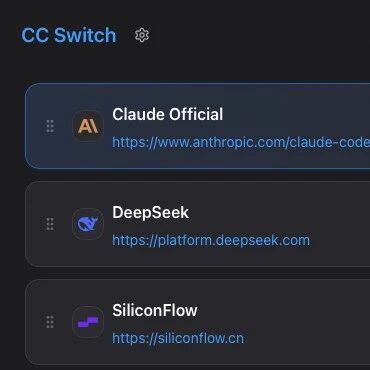
CC Switch: An Open-Source Gem That Switches Models for 6 Agent Tools in One Click
An open-source desktop tool with 50K GitHub stars that switches models in one click across 6 agents including Claude Code and OpenClaw, with usage tracking and failover built in
If you use agent tools like Claude Code or OpenClaw, you have definitely experienced the pain of switching models by editing config files by hand -- hunting down settings.json, filling in base_url, writing auth_token, changing model name, and being one slip away from an error. CC Switch exists to end all of that.
CC Switch is an open-source desktop app with 50K stars on GitHub, available on Windows, Mac, and Linux. Its core capability is simple: it switches the models behind 6 agent tools -- Claude Code, Codex, Gemini CLI, OpenCode, OpenClaw, and Hermes -- in one click, without touching a single line of configuration code.
Preparation Before You Start
- What you need: the CC Switch desktop client (open source and free)
- Technical requirements: none -- everything is done through a graphical interface
- What to have on hand: an API key from at least one model provider (Zhipu, MiMo, DeepSeek, Qwen, Kimi, and so on all work)
Step 1: Download and Install CC Switch
Open the GitHub Release page and download the installer for your operating system:
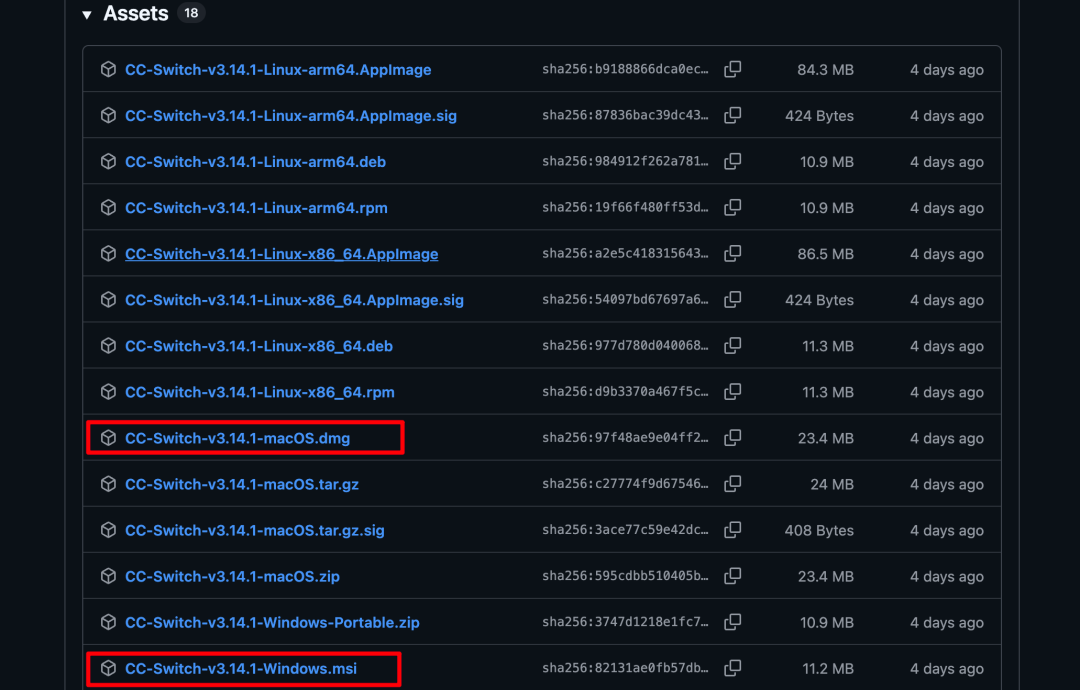
On Windows download the .exe, on macOS the .dmg, and on Linux the matching package. Double-click to install; on first launch you will see a desktop app that looks like Claude in style but with a different color scheme.

Step 2: Add a Model Provider
- On the main screen, click the plus sign below the icon of the corresponding agent (e.g., Claude Code)
- Pick one of the 40+ built-in providers (presets are included for Zhipu, MiMo, DeepSeek, Qwen, Kimi, MiniMax, Doubao, and more)
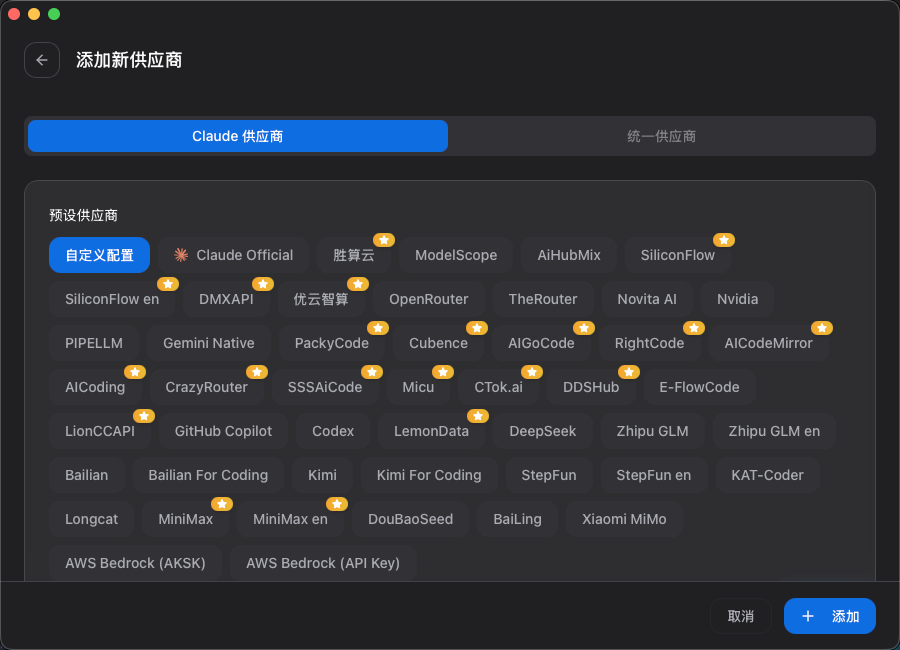
- Once you have chosen a provider, every field except the API key is pre-filled automatically
- Enter your API key, then scroll down to review the model versions CC Switch configured automatically (edit them manually if you are not happy with them)
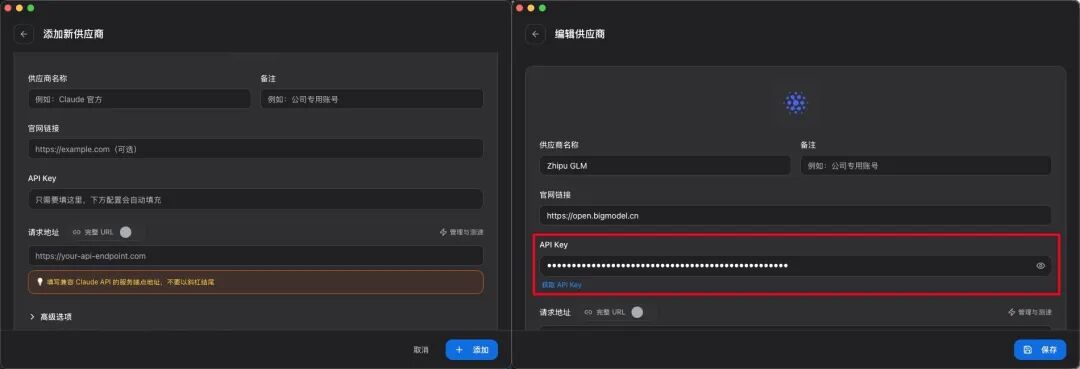
If you are not sure about the model name, click "Fetch model list" in the top-right corner to see every model the provider supports.
Step 3: Save and Activate
Click "Save" in the bottom-right corner, then click "Enable" in the model list on the home screen. You do not need to restart your terminal or close the current Claude Code session -- the switch takes effect immediately.
The whole process is just three steps: pick a provider -> enter the API key -> choose a model. Format compatibility, config file paths, and all the rest are handled automatically by CC Switch.
Advanced Feature: Usage Tracking and Cost Management
CC Switch has usage tracking built in, so you can check your API balance and your Coding Plan quota consumption in real time.
- In the model list, click "Configure usage query"
- Turn on "Enable usage query"
- If you are on the API channel, choose "Official"; if you are on a Token Plan, choose the corresponding model provider
- After saving, you will see real-time consumption and balance on the home screen
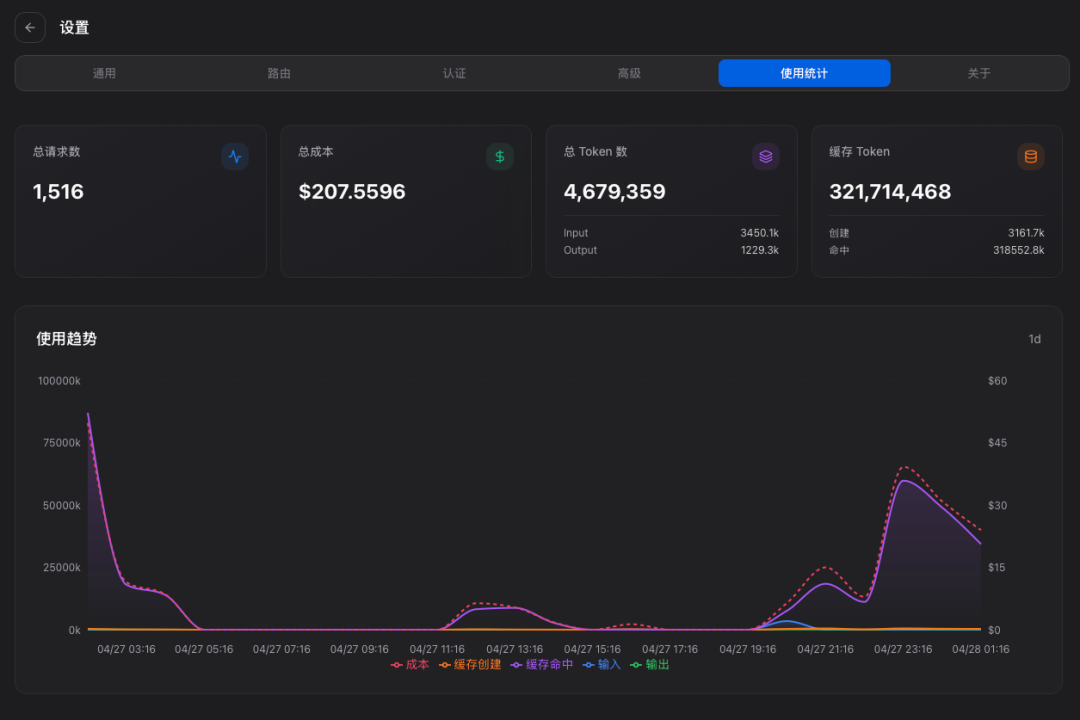
This feature is perfect for cost management. Run everyday small tasks on a cost-effective model and bring in the flagship model for the big jobs -- switching costs practically nothing.
Advanced Feature: Local Proxy Failover
If you hand your agent a big task before bed and worry that a quota running out or a network outage in the middle of the night will kill it, CC Switch's local proxy service has you covered.
- Go to "Settings" -> "Routing service" and turn on the local routing switch
- Enable routing for the corresponding agent (e.g., Claude routing)
- Turn on "Automatic failover" and add backup providers to the queue
- Drag to reorder on the home screen; CC Switch prefers the providers higher up the list and automatically fails over to the next one when one goes down
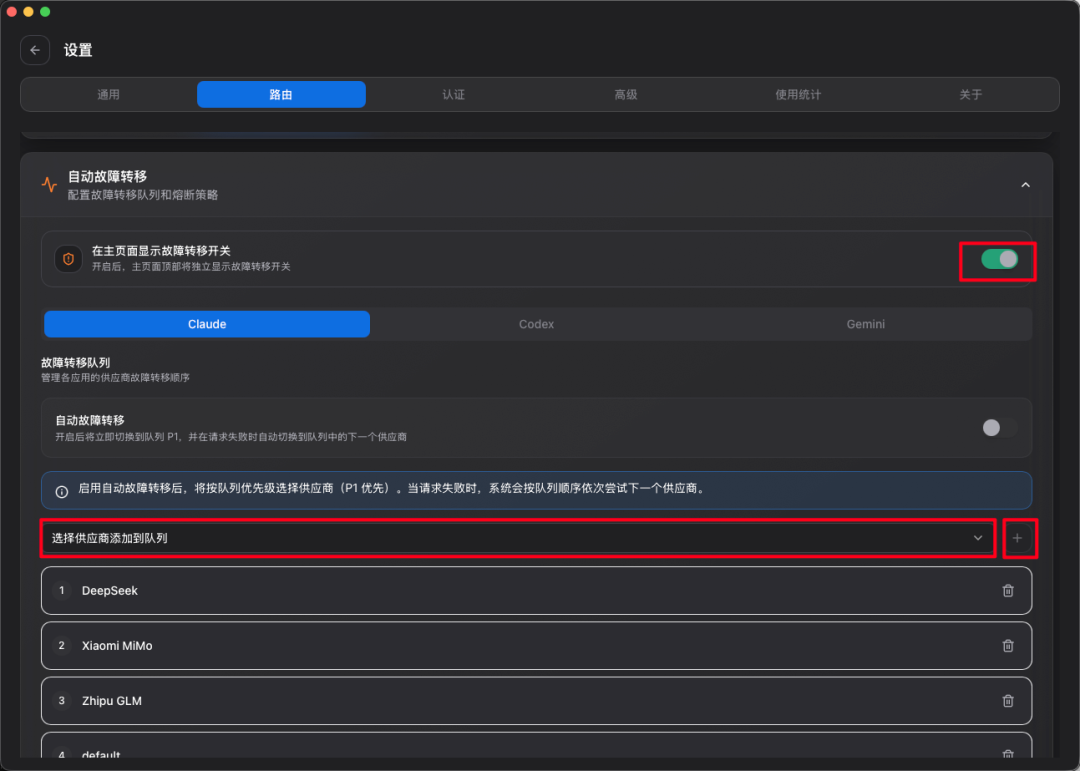
Note: if you use official Claude models, we recommend leaving routing off -- compatibility is still shaky at the moment. Failover between Chinese models is stable.
Verify the Result
After installation, you can verify that it works in the following ways:
- Click the CC Switch icon in the top-right corner of your desktop to confirm which model is currently active
- Send a message in Claude Code and watch whether the reply comes from the model you selected
- Try hot-switching to another model in CC Switch; the next round of conversation should use the new model immediately
FAQ
-
Q: What if hot-switching throws an error? A: Do not switch while the model is still generating a reply; wait for the current reply to finish before switching.
-
Q: Is my data safe? A: CC Switch is a fully open-source project. All data (API keys, configuration, usage, and so on) is stored in a local SQLite database at
~/.cc-switch/cc-switch.db, and nothing is uploaded. -
Q: Which providers are supported? A: 40+ provider presets are built in, covering mainstream Chinese providers such as Zhipu, MiMo, DeepSeek, Qwen, Kimi, MiniMax, Doubao, and StepFun.
-
Q: Where is the official user manual? A: https://github.com/farion1231/cc-switch/blob/main/docs/user-manual/zh/README.md
Related articles
Understanding New Concepts Through Fables: A Prompt Technique from Anthropic
A method from the lead of Claude's personality alignment team: have AI explain any new concept through a fable, with an improved prompt template included

Hands-On Methods for Running 4 High-Frequency Office Scenarios with an Agent
From viral-article breakdowns to business-trip itineraries, from knowledge management to short-video production — build zero-code automation workflows with bit-Agent's "explore-then-solidify" pattern.

OpenAI Codex Advanced Guide: 7 Tips from the Official Team
A member of the official Codex team shares how to push Codex to its limits, combining durable threads, voice input, steering, automations, and goal setting.