
AI Desk Card: An E-Ink Display That Lets AI Take Over the Sticky Notes by Your Screen
An open-source Skill that turns a 4.7-inch e-ink display into an AI-driven desk information hub — it auto-syncs your calendar, GitHub PRs, and weather, and the AI decides what to display.
AI Desk Card: An E-Ink Display That Lets AI Take Over the Sticky Notes by Your Screen
An open-source Skill that turns a 4.7-inch e-ink display into an AI-driven desk information hub — it auto-syncs your calendar, GitHub PRs, and weather, and the AI decides what to display.
Many people stick sticky notes on their monitor bezel -- today's to-dos, what time meetings are, the next action for some project. But once written, a note goes static: if the schedule changes, the note does not. The open-source project AI Desk Card replaces sticky notes with a smarter approach: a 4.7-inch e-ink display plus an AI Agent, letting the AI decide what should be shown beside your screen and when to swap it.
What It Is
AI Desk Card is an open-source Skill (a skill plugin) that you install into an AI Agent such as Claude Code or Codex, paired with an M5Paper e-ink display. Hardware costs about 600 CNY.
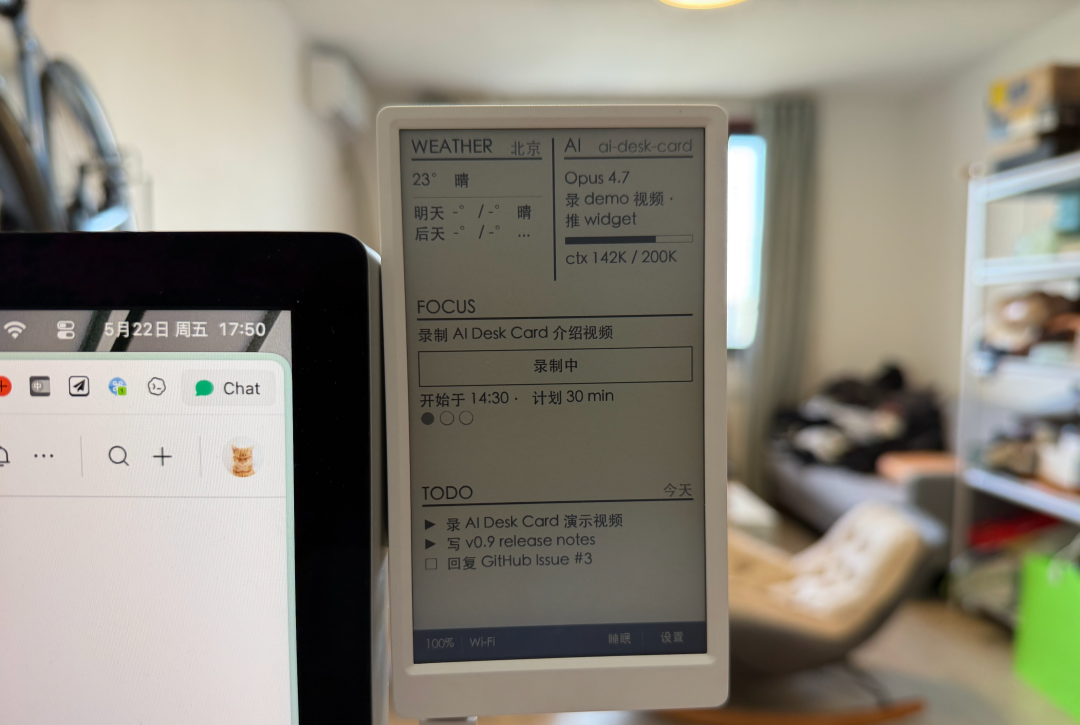
GitHub: https://github.com/op7418/ai-desk-card
The core idea: instead of you configuring what to display, the AI decides what content to push based on your calendar, GitHub, and work state.
Four Real-World Scenarios
Scenario 1: Auto-Updating Schedule and To-Dos
Assign different slots on the screen to your calendar and to-dos. Data comes from Feishu Calendar, which the AI Agent reads directly through the Feishu CLI.
Tell the AI "add a coffee on Thursday afternoon at 3", and it writes the event into Feishu and refreshes the screen in one go. After you finish a task, say "XX is done" and that line gets crossed out.
Scenario 2: An Electronic Business Card While the Screen Is Off
Using the e-ink display's physical property of retaining its image after power off, the project adds a Quiet Hours mode. After 11 PM it automatically switches to an electronic business card (avatar, bio, QR code) and then goes into deep sleep.
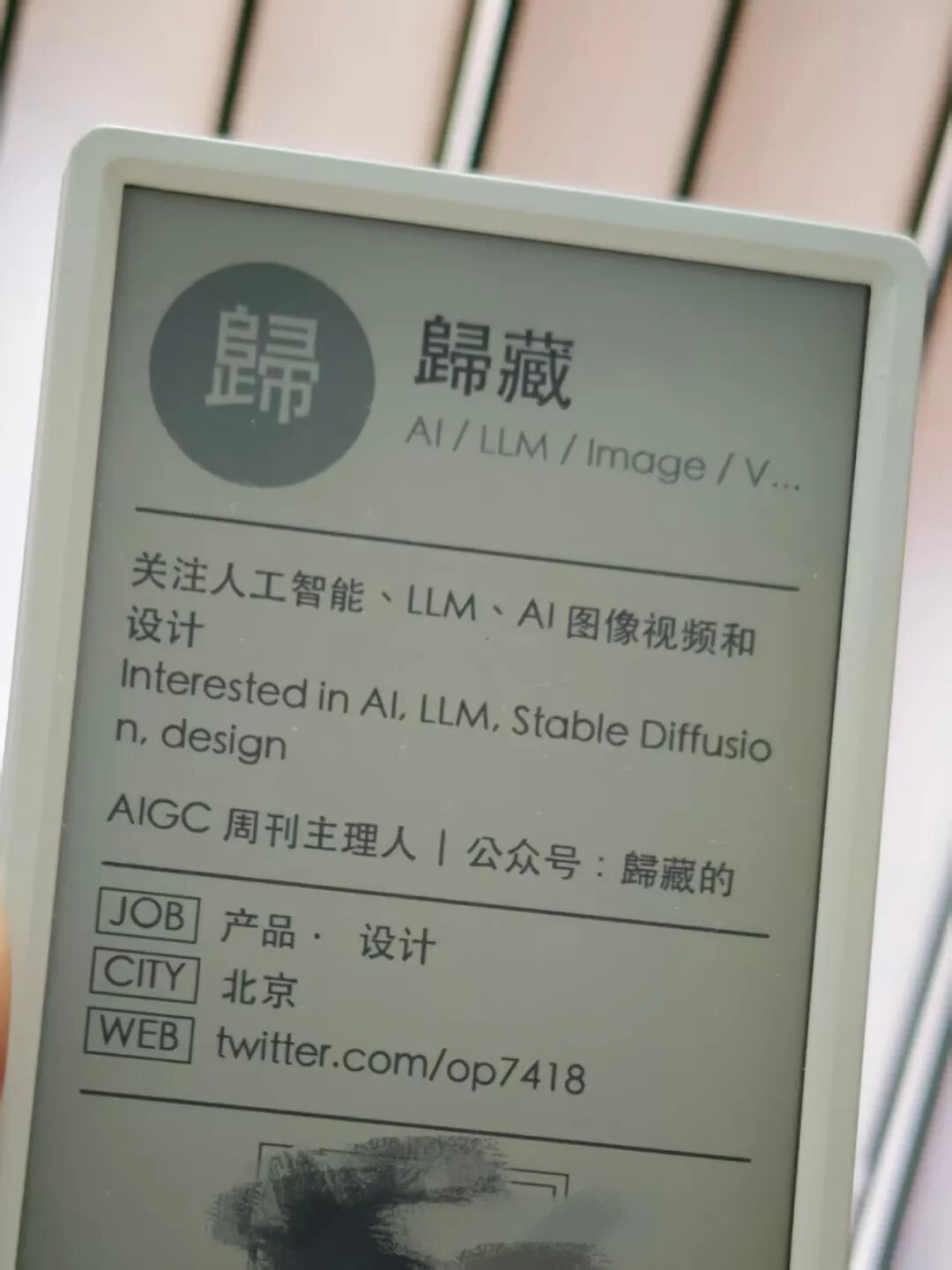
It draws no power at all; lifted off the monitor, it works as a business card you can hand to new friends. When you are back at your desk in the morning, the AI wakes up automatically and switches back to work mode.
Scenario 3: GitHub Activity Monitoring
The bottom slot permanently hosts a pr-queue widget. A new PR, someone @-mentioning you in an Issue, CI going down — the AI pushes all of it to the display.
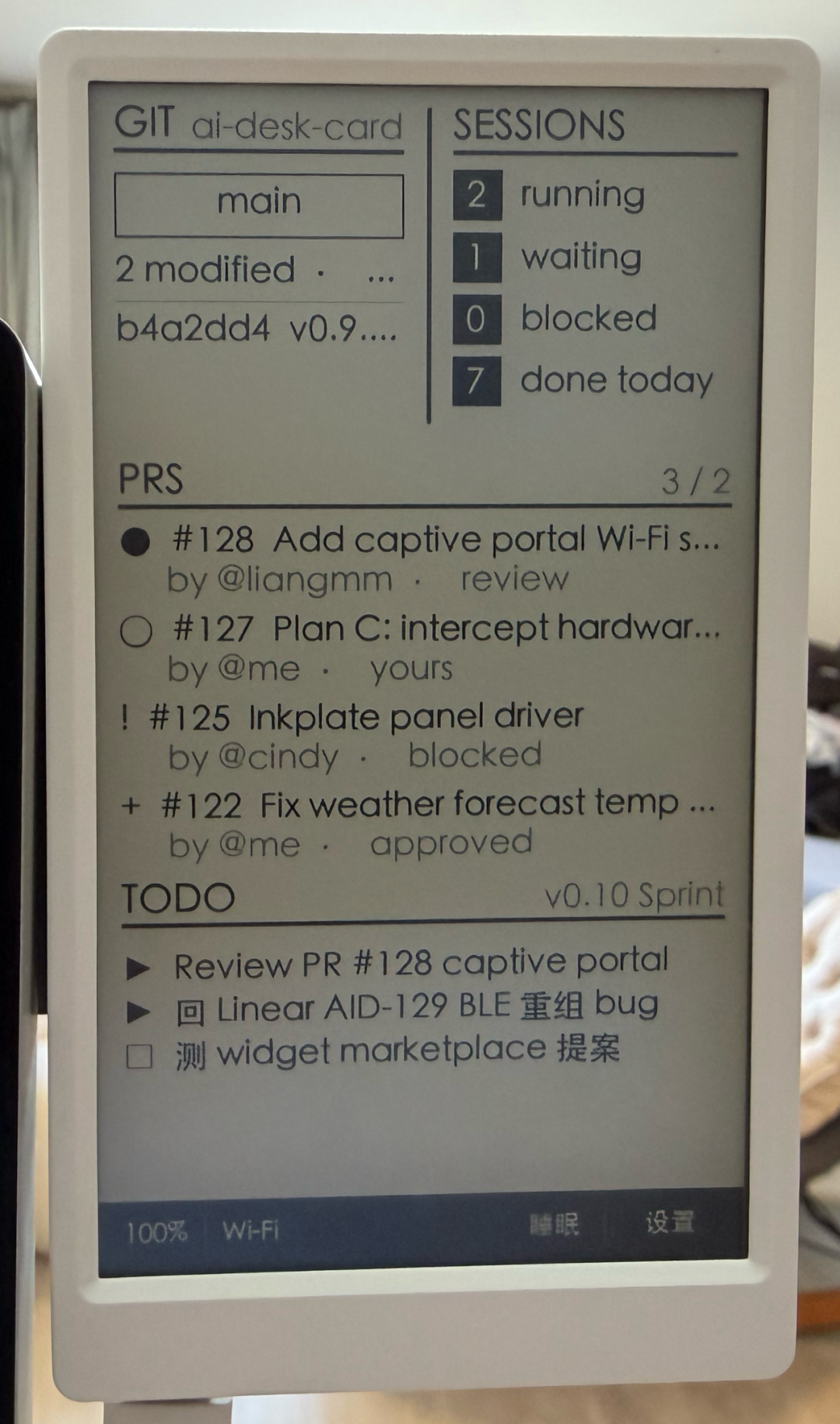
Even smarter is context awareness: while you are writing an article, the PR queue demotes itself automatically; switch back to development mode and the PR queue returns to the prime spot.
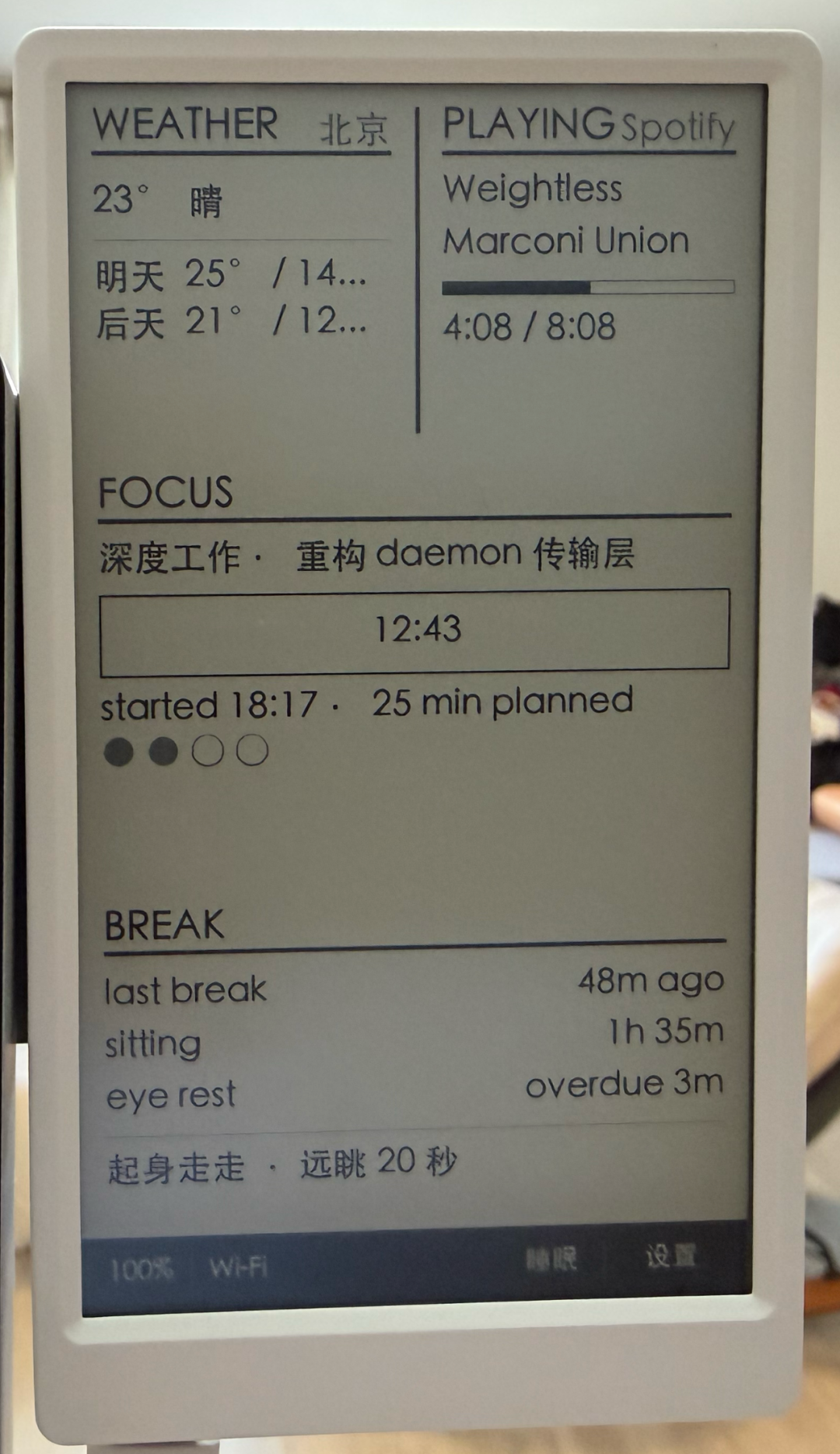
Scenario 4: Break Reminders and Weather
Low-priority but useful information gets pushed to the edge of your vision. For example, after a long stretch without keyboard activity, the screen gently shows "time to get up and walk around". The e-ink display emits no light, pops no windows, and does not vibrate — it just quietly exists.
What You Need Before Starting
You need the following:
- An M5Paper V1.1 e-ink dev board (about 600 CNY)
- A macOS computer (for compiling the firmware and running the AI Agent)
- Claude Code or Codex
- A Wi-Fi network
Installation Steps
Step 1: Tell the AI Agent to Install It
In Claude Code or Codex, enter:
Help me install ai-desk-card: https://github.com/op7418/ai-desk-cardThe AI will automatically:
- Detect and install PlatformIO (the build tool)
- Detect the USB connection and prompt you to plug in the M5Paper
- Compile the firmware and flash it to the device (about 1 minute)
- Ask for the Wi-Fi password and write it into the device
- Ask which cards you want to see and how often to refresh
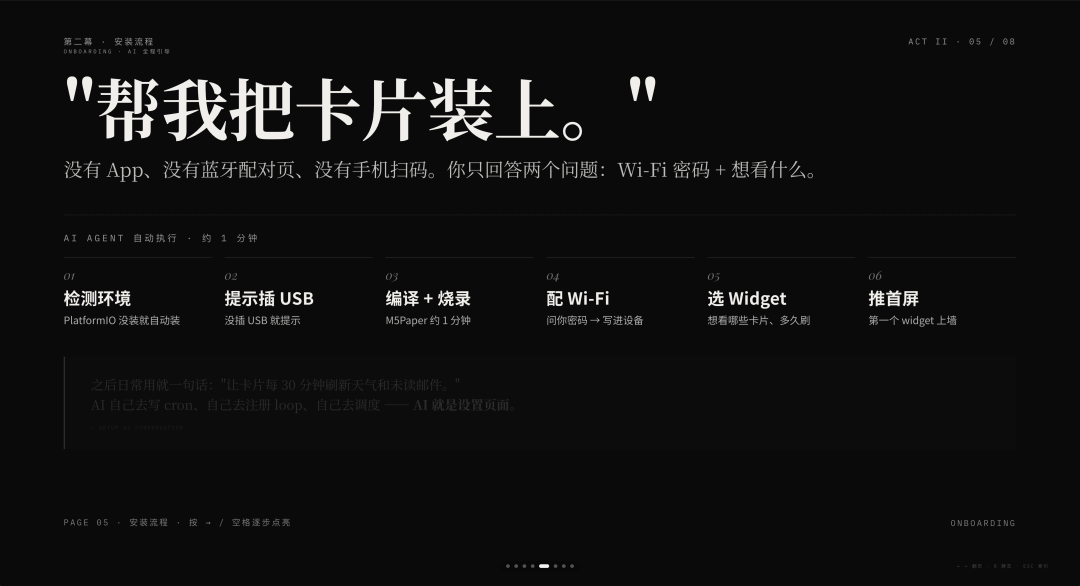
During the whole process you only answer two questions: the Wi-Fi password and what to display.
Step 2: Set Up Scheduled Tasks
One sentence is all it takes:
Refresh weather and unread email on the card every 30 minutes, from 8:00 to 22:00 on weekdaysThe AI writes the cron job, registers the loop, and schedules execution by itself.
Technical Architecture
AI Desk Card's design runs opposite to traditional IoT devices: 16 widget templates are preset on the server side, and the AI Agent only fills them with JSON data.
For example, the pr-queue widget's visual layout is written on the rendering side; the AI only needs to send a request like this:
{
  "slot": "bottom",
  "type": "pr-queue",
  "data": {
    "items": [
      {"repo": "codepilot", "title": "Fix scroll jitter", "status": "review"}
    ]
  }
}
The server uses Python + Pillow to render the JSON into a pixel image and pushes it to the e-ink display.
The reason for this design: e-ink rendering is limited (a full-screen refresh takes 2 seconds, Chinese fonts run several megabytes), so having the AI generate UI directly is too heavy. So the UI is prepared in advance, and the AI only decides what to fill in, which slot it goes to, and when to switch.
Application Scenarios
- Independent developers / open-source maintainers: glance up at the PR queue and Issue status while writing code
- Content creators: calendar + to-dos synced automatically, no window switching
- Team managers: key metrics and meeting reminders permanently on the desktop
- Anyone who wants fewer context switches: hand the "look up and it's there" information to the AI
Roadmap
The author plans to support more hardware: M5Paper S3, Inkplate, Waveshare e-ink displays, and even an adaptation layer for old Kindles. Home Assistant integration is also planned, pushing smart-home status to the desk card.
Toolin Editorial Team
Categories
Related articles
Reasonix: Slash DeepSeek API Costs to 20%
A terminal coding harness built for DeepSeek: its prefix-cache design pushes the cache hit rate to 99.82% and cuts input token costs to 1/5.

Codex Self-Distillation: One Prompt to Eliminate Repetitive Work
An OpenAI employee shares a Codex self-distillation prompt that automatically identifies repetitive workflows and packages them into Skills, Subagents, or Automation.

Advanced Codex Playbook: Let an AI Agent Work Around the Clock for You
A member of the OpenAI Codex team shares his complete workflow — long-lived threads, Heartbeats scheduled tasks, Goal mode, and a local knowledge base — to turn Codex from a tool into a full-time AI employee.

BARKOD: Turning 70 Years of Ugly Barcodes into Artwork
Free online tool BARKOD turns ordinary barcodes into beautifully designed SVG artwork with 37 templates, and the exported graphics can still be scanned normally.
Understanding New Concepts Through Fables: A Prompt Technique from Anthropic
A method from the lead of Claude's personality alignment team: have AI explain any new concept through a fable, with an improved prompt template included