
Codex Computer Use Lands on Windows: A Hands-On Guide
OpenAI Codex now officially supports operating Windows PCs, with complete setup steps, limitation notes, and how to control it remotely from your phone
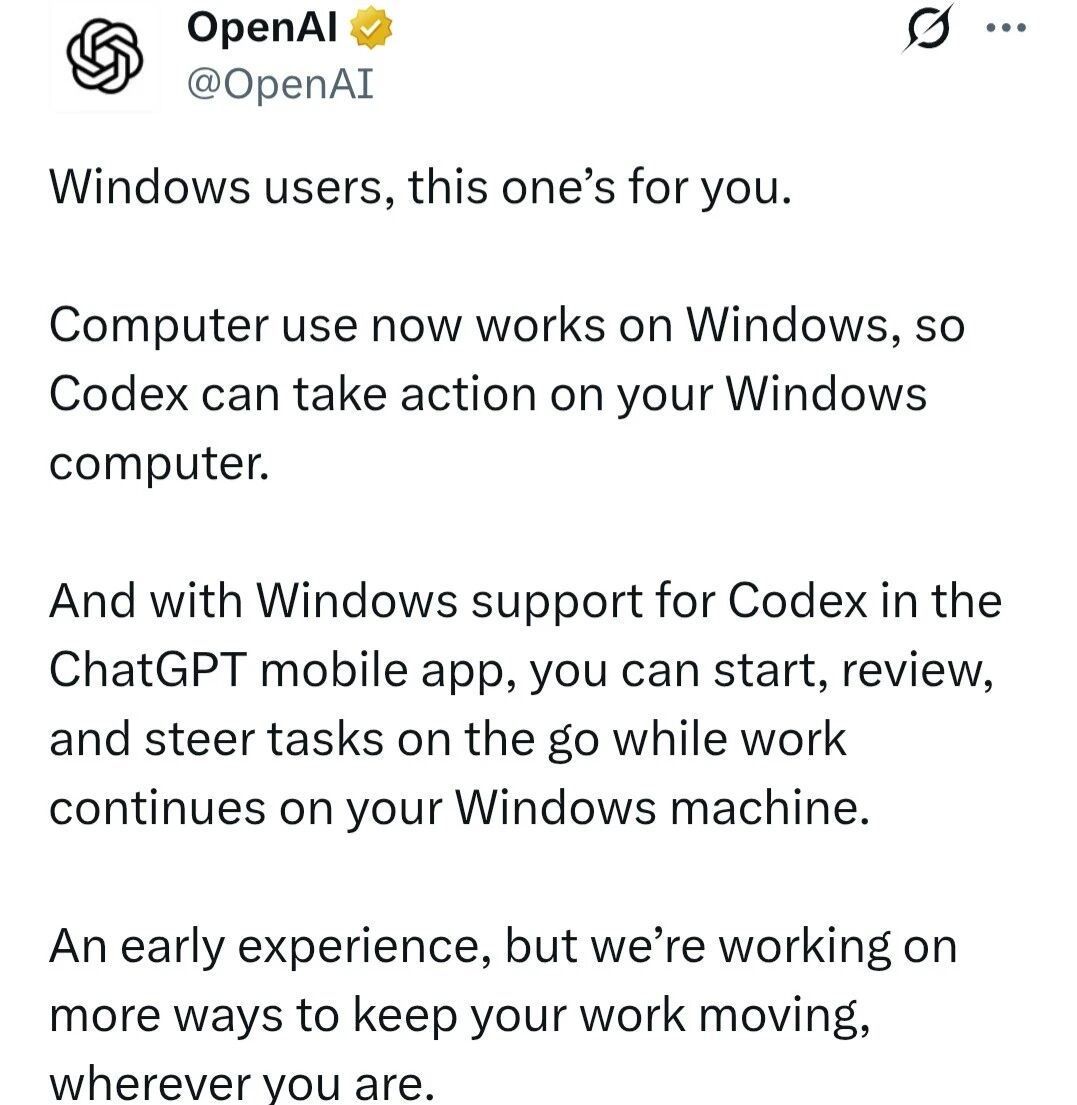
Codex Computer Use Lands on Windows: A Hands-On Guide
OpenAI Codex now officially supports operating Windows PCs, with complete setup steps, limitation notes, and how to control it remotely from your phone
Codex's Computer Use feature — letting AI see your screen and click and type through software like a human — has finally arrived on Windows. It's two months later than Mac, and there are still some feature limitations, but for Windows users this is a substantive milestone. This article gives you the complete setup steps and everything you need to know.
What Is Computer Use
Computer Use is Codex's core capability: giving AI "vision" so it sees your screen and clicks, types, and operates software like a human. You just watch it work and tap an approval at the key moments.
Two months after launching on macOS, the feature finally landed on Windows in late May 2026.
Setup Steps
Step 1: Update Codex
Open the Microsoft Store or run the following command to update Codex to the latest version (26.527 or higher):
winget upgrade OpenAI.CodexIf automatic updates are already on, it may already be installed.
Step 2: Install the Computer Use Plugin
- Open Codex
- Click your avatar in the lower-left corner -> Settings
- Find the Computer Use tab
- Click install plugin
Step 3: Grant Permissions
Once installation finishes, the system pops up a dialog requesting two permissions — click "Allow" for both:
- Screen recording permission: Lets Codex see your screen
- Accessibility permission: Lets Codex control your mouse and keyboard
Permission note: The accessibility permission is fairly sensitive — Codex uses it to move the cursor and simulate keyboard input. If you're not using it for a while, you can temporarily turn it off under Windows Settings -> Privacy & security -> Accessibility.
Step 4: Start Using It
With permissions sorted, go back to the Codex conversation interface, type @Computer Use or @AppName (for example @Chrome, @Excel), then describe what you want the AI to do.
Example:
@Chrome Open GitHub, search for the "openai/codex" repository, and copy the latest Release notes to meCodex will then take over your Chrome and operate the browser itself to finish the task.
Limitations of the Windows Version
Compared with the macOS version, the Windows version of Computer Use currently has the following limitations:
1. Strictly Foreground Operation
This is the biggest difference. While the Windows version runs, the cursor gets moved by the AI and keyboard input is taken over. You can't use the computer at the same time; you have to wait for the task to finish before doing anything.
Well-suited scenario: Have Codex go do something that takes a few minutes — you make a cup of coffee and come back to inspect the results.
2. Cannot Operate Administrator-Privilege Windows
When a UAC dialog pops up ("Do you want to allow this app to make changes to your device?"), Codex stops and waits for you to confirm manually; it cannot click "Yes" automatically.
3. Cannot Automatically Operate Terminals
Codex also can't automatically operate terminal windows on Windows; you'll need to step in yourself.
4. No Background Operation
Unlike macOS, where you can leave Codex grinding away in the background, the Windows version needs the foreground session kept active.
Advantages of the Windows Version
- Uses native PowerShell and Windows Sandbox — no need to install WSL
- Actually friendlier for pure Windows users
Controlling Windows Remotely From Your Phone
Codex now also supports controlling your Windows PC remotely from a phone.
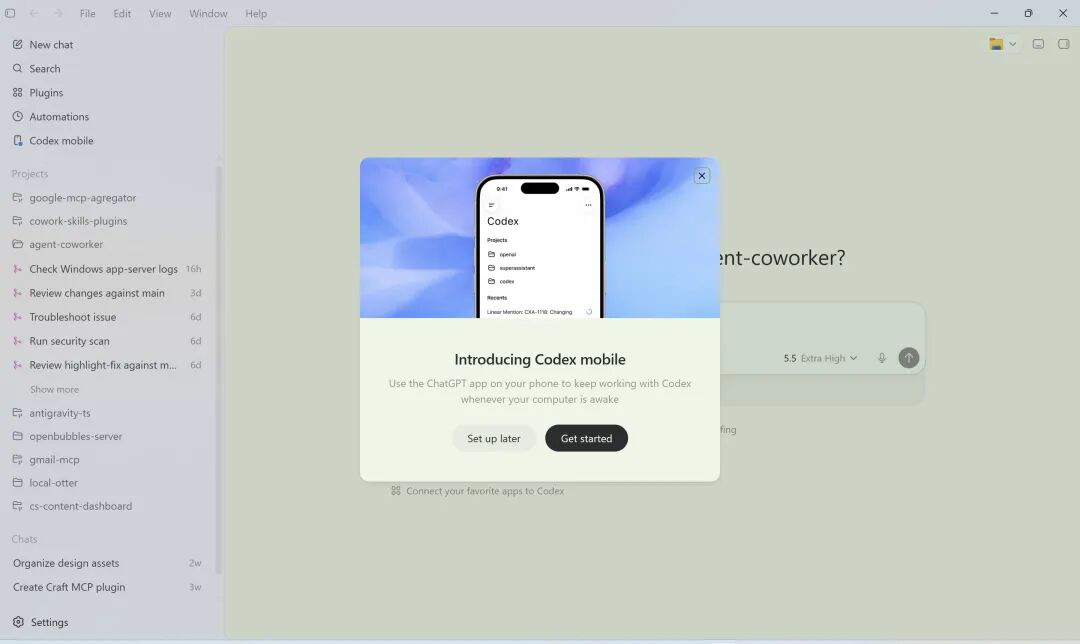
Connection Steps
- Open Codex on the Windows PC and make sure you're logged in
- Open the ChatGPT app on your phone (iOS or Android)
- Go to the device list and select your Windows PC
- Tap connect
The phone acts as a "control panel": check progress, give instructions, approve operations. The actual code reading, test execution, and file changes all happen on the local computer. Conversations on the phone sync automatically to the desktop Codex app, so no context is lost.
Practical Tips
- Task granularity control: Since the Windows version runs in the foreground, break big tasks into 3-5 minute chunks
- Permission management: Turn off the accessibility permission in system settings when not in use
- Mac users: If you depend heavily on background automation, the Mac experience is still better for now
- Windows users: Foreground Computer Use already solves plenty of real problems, and later versions will gradually close the gaps
From the official launch of the Windows version of Codex in March to Computer Use and remote control both arriving in May, that's a major version iteration every two months. OpenAI hasn't given up on Windows users — the upcoming background operation and Appshots features are worth looking forward to.