
CapCut AI Assistant Hands-On: Editing Video with Natural Language
CapCut has launched an AI Assistant feature. Batch editing, BGM addition, watermark removal, copywriting, and more can all be done through natural language, dramatically lowering the barrier to video creation.

CapCut AI Assistant Hands-On: Editing Video with Natural Language
CapCut has launched an AI Assistant feature. Batch editing, BGM addition, watermark removal, copywriting, and more can all be done through natural language, dramatically lowering the barrier to video creation.
The CapCut app has launched an "AI Assistant" feature. You don't need to remember which menu each function is buried in — just say what you need the way you'd chat with a colleague, and the AI Assistant understands the intent and carries out the operations automatically. From importing footage to exporting the final cut, the whole process runs on natural-language interaction.
Feature Coverage
The AI Assistant covers three major categories:
Basic editing (batch operations)
- Common editing operations such as splitting, transitions, and speed changes
- Batch processing is supported, so there's no need to handle clips one by one by hand
Assets
- BGM addition: just say the song name to set the music, e.g. "add Tanya Chua's 'Red High Heels'"
- Calling up and adding stickers and effects
AI features
- Smart copywriting: writes intro copy and adds the voiceover automatically
- One-click video creation: analyzes your footage, picks the BGM automatically, and generates beat-synced cuts
- Smart enhancement: automatically beautifies the video
- Generate assets from a single sentence
How to Use It
Before You Start
- Update the CapCut app to the latest version
- Have your video footage ready
Step 1: Open the AI Assistant
After importing footage, enter the multi-track editing screen and find the assistant icon at the bottom-left of the track area (it's quite prominent). Tap it, then type text or long-press the voice button and speak to issue a command.
Step 2: Give editing commands in natural language
Enter a prompt like "Help me edit a complete celebrity red carpet vlog", and the AI Assistant will automatically do the following:
- Analyze the footage content and the request
- Recommend suitable BGM
- Intelligently generate beat-synced cuts based on the music's rhythm
- Select highlight moments from the footage
- Deliver the first cut
The whole process takes less than a minute.
Step 3: Remove watermarks with AI
If the footage contains a logo or watermark, tell the AI Assistant "remove the watermark that appears in the frame". It will jump to the removal screen, where all you have to do is paint over the area by hand.
Note: watermark removal currently supports only footage under 30 seconds and costs 300 credits per use.
Step 4: Generate copy and voiceover
Have the AI Assistant write a piece of intro copy (you can specify the length, e.g. "within 100 characters"), confirm it, tap "Add text and read aloud", and choose a voice you like from the voiceover library — and just like that, a short video with narration is done.
Tip: Generated subtitles come with punctuation by default, which you may need to remove manually from the copy. If the video feels flat, you can have the AI Assistant add BGM to enrich the mood.
Overall Hands-On Impressions
What it does well:
- Accurate natural-language understanding — no need to describe feature names precisely
- Fast first cuts, with results in under a minute
- AI watermark removal handles larger logos cleanly
- Fast copy generation (a dozen or so seconds), usable with light polishing
Things to watch out for:
- Watermark removal doesn't recognize small logos in the top-right corner of the frame very well
- Subtitles come with punctuation and need manual adjustment
- Currently available only in the app
Who It's For
- Casual users unfamiliar with professional editing software: get basic editing done purely with natural language
- Short-video creators who need to turn footage around fast: a big efficiency boost from raw material to finished video
- Content teams that process footage in bulk: batch operations save enormous amounts of repetitive work
Professional editors won't be replaced, but once AI takes over the basic editing work, they can pour more energy into creative planning and narrative pacing.
Related articles
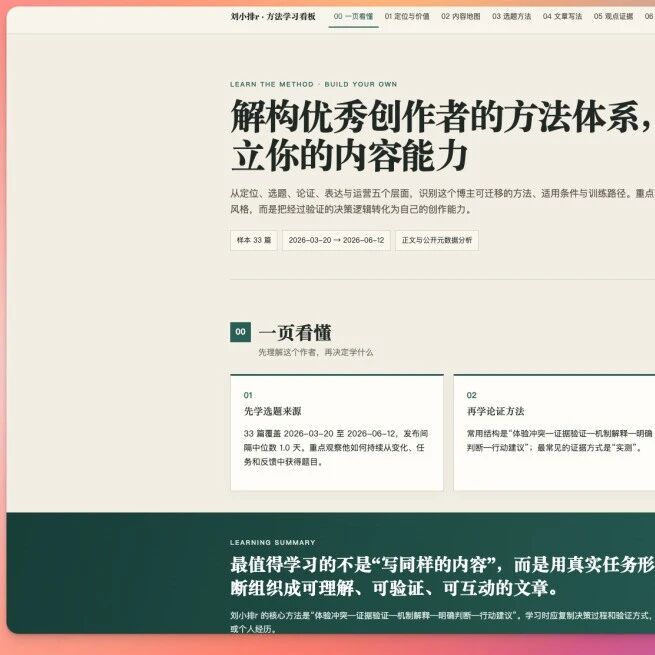
Office Raccoon Desktop 2.0: Decoding Any Blogger's Methodology in 10 Minutes
Office Raccoon 2.0 supports custom Skills and Quick Bar quick actions; it can scrape and analyze WeChat official-account articles and output reusable writing frameworks

Spark Medical LLM V3.5: The AI Clinical Assistant with a 91% Physician Adoption Rate
iFlytek Spark Medical V3.5 hits 91% adoption on generated medical records and cuts writing time 52%, taking first place in both IDC and MedBench, with overall capability surpassing GPT-5.5

Google Gemini Live Translate: Listen and Translate Across 70+ Languages
Google launches Gemini 3.5 Live Translate for real-time speech translation across 70+ languages, preserving your pace and tone with only seconds of delay, now live in Google Translate and Meet.

Claude Fable 5: A Hands-On Guide to Anthropic's Strongest Model
Anthropic ships Claude Fable 5 and Mythos 5 in dual editions — 80.3% on SWE-bench Pro, API pricing at $10 per million input tokens, free for a limited time until June 22.

OpenAI's Official Codex Workflow Guide: From Screenshots to Web Pages to AI-Run Research
OpenAI updates a dozen-plus official Codex real-world workflow cases covering Computer Use, /goal long-horizon objectives, PPT generation, game development, and other practical scenarios — a step-by-step guide to using Codex efficiently.
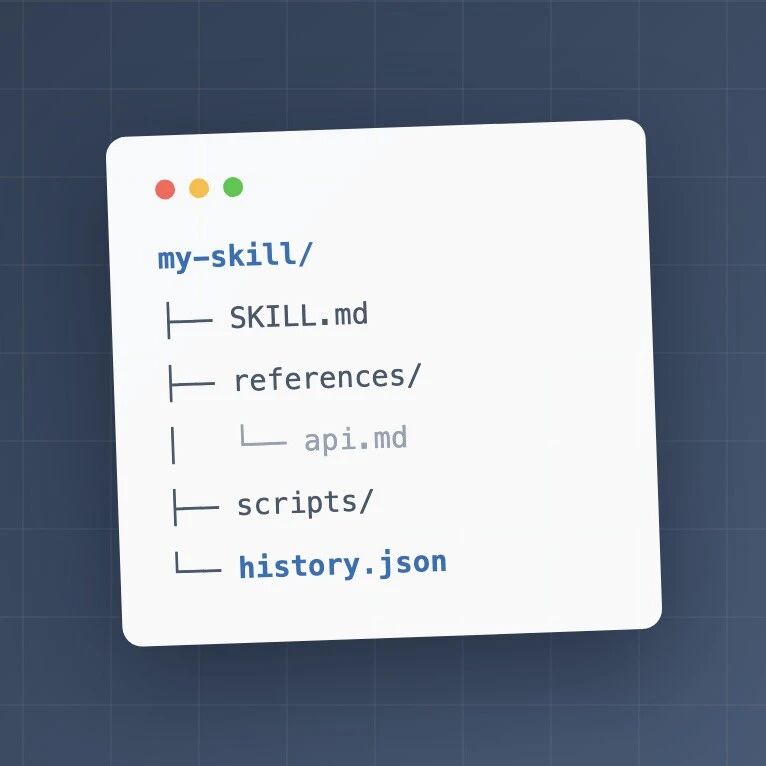
7 Field-Tested Lessons for Writing Great Claude Skills
Skill-writing lessons straight from Anthropic: trim the context, accumulate a pitfall list, script the stable steps — double your AI collaboration efficiency.