
Hands-On with WeChat's "Xiaowei" AI Assistant: 12 Entry Points Covering Chat, Content, and Documents
WeChat's native AI assistant Xiaowei is in gray testing. Its main model is the in-house WeLM; it can search chat history, summarize official-account articles, and invoke local-life services, with a second confirmation required for sensitive operations.

Hands-On with WeChat's "Xiaowei" AI Assistant: 12 Entry Points Covering Chat, Content, and Documents
WeChat's native AI assistant Xiaowei is in gray testing. Its main model is the in-house WeLM; it can search chat history, summarize official-account articles, and invoke local-life services, with a second confirmation required for sensitive operations.
WeChat's native AI assistant Xiaowei is in gray testing. It is not a standalone app; it is woven into WeChat's existing high-frequency scenarios — chats, official accounts, Channels, images, and documents can all be put to Xiaowei. The underlying main model is WeChat's in-house WeLM (a Well-read Pre-trained Language Model), with some answers completed in combination with DeepSeek. This article maps out the 12 entry points and what each can do, to help you decide where to start once your gray-testing slot arrives.
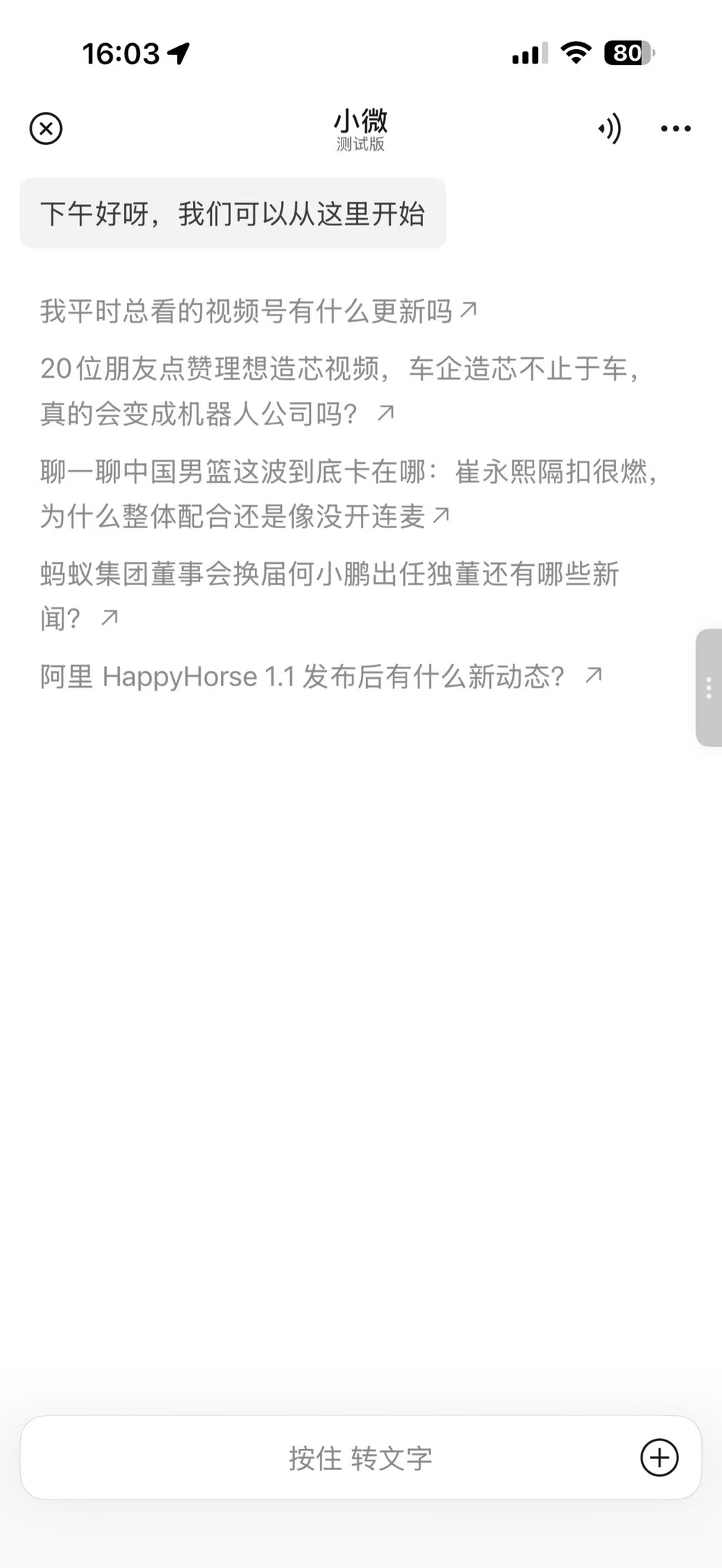
Xiaowei's main page lives behind the pair of green eyes at the top-left of the WeChat home screen; voice input is the default at the bottom, switchable to text, photo upload, camera, and file upload.
The Biggest Difference from Chatbots on the Market
Chatbots extend high-frequency use cases inside a chat box; WeChat's approach is to fold AI naturally into its existing high-frequency scenarios. Xiaowei shows up in nearly every information-consumption scenario in WeChat:
- You can ask Xiaowei in one-on-one chats and group chats
- You can ask Xiaowei about official-account articles and Channels videos
- Images, PDF, TXT, Word, PPT, and Excel can all be put to Xiaowei
For heavy WeChat users with large friend lists and sprawling chat histories, finding information scattered across chat logs has always been a core need. Chat history now has intelligent retrieval, and even the treasure hidden in File Transfer Assistant can be dug out.
Entry Type 1: The Green Eyes at Top Left (Main Entry)
Tap the green eyes at the top-left of the WeChat home screen to enter the main interface. This entry serves as Xiaowei's main gateway; questions related to information inside WeChat and WeChat feature invocations can mostly start here.
Features covered in hands-on testing:
- Social information retrieval: Moments updates, official-account updates, article search and summarization
- Native WeChat operations: sending red packets, checking to-dos, system settings
- Local-life service invocation: mini-program capabilities such as navigation, ride-hailing, and nearby services
- AI creation: image generation, image editing
- AI app generation: create a mini tool from a single sentence
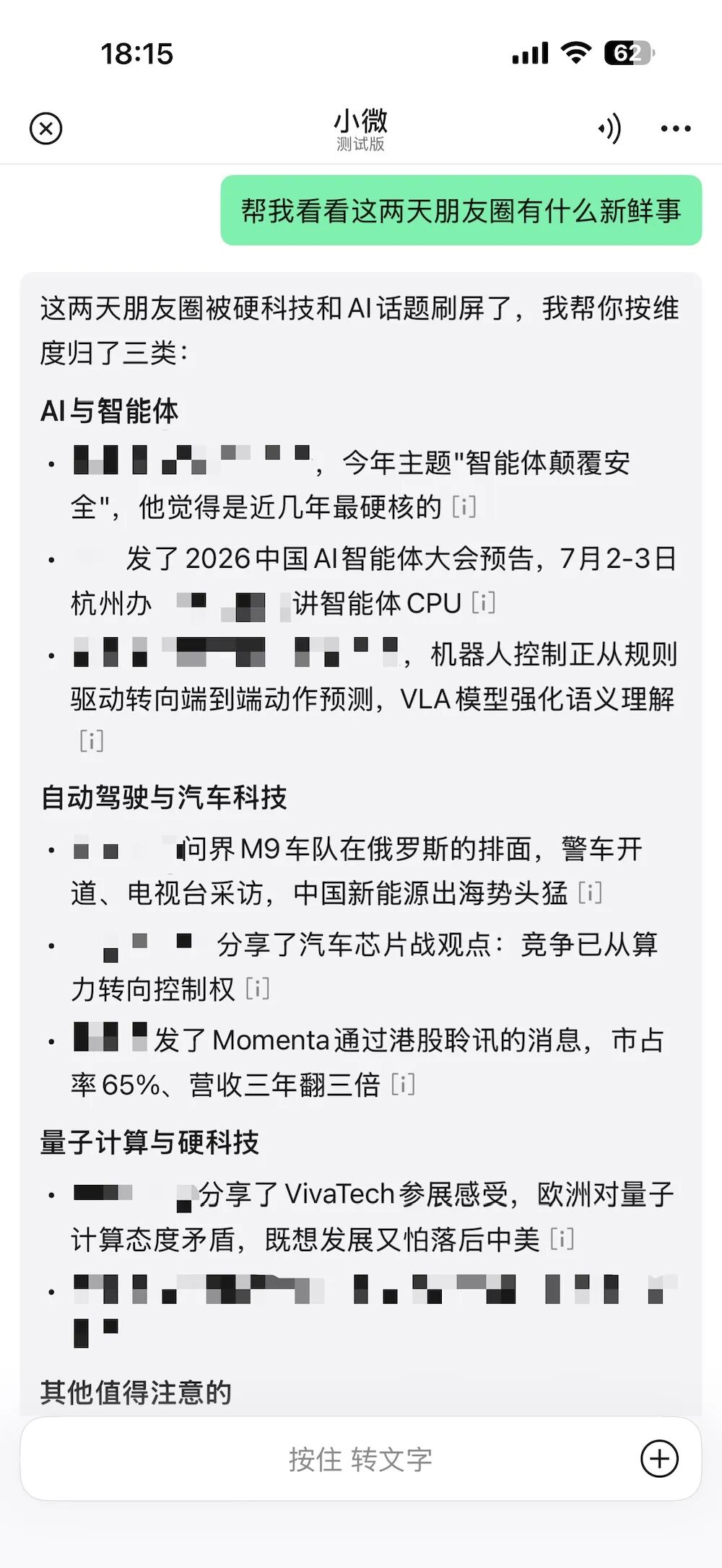
Xiaowei does not dump Moments posts out one by one; it first groups them by theme (AI and agents, autonomous driving, quantum computing, and so on), and a follow-up like "where did everyone go for fun" further breaks them down into outdoors and nature, city business travel, and overseas travel.
💡 Tip: Ask "what articles has the Zhidongxi official account published recently" and Xiaowei returns article cards with summaries; keep going with "which one is worth reading" or "summarize the key points for me" and it reads further. Heavy official-account readers can switch from "skimming headlines first" to "letting Xiaowei screen first."
Entry Type 2: The Chat Interface (With Context)
There are three spots inside the chat interface:
- Long-press entry on chat messages
- The "+" button at the bottom right of a one-on-one chat
- The "+" button at the bottom right of a group chat
The value of these three entries is that they carry the chat context — the home-screen entry cannot directly access a specific friend's or group's content, but once inside a chat, Xiaowei can understand and analyze based on the current conversation.
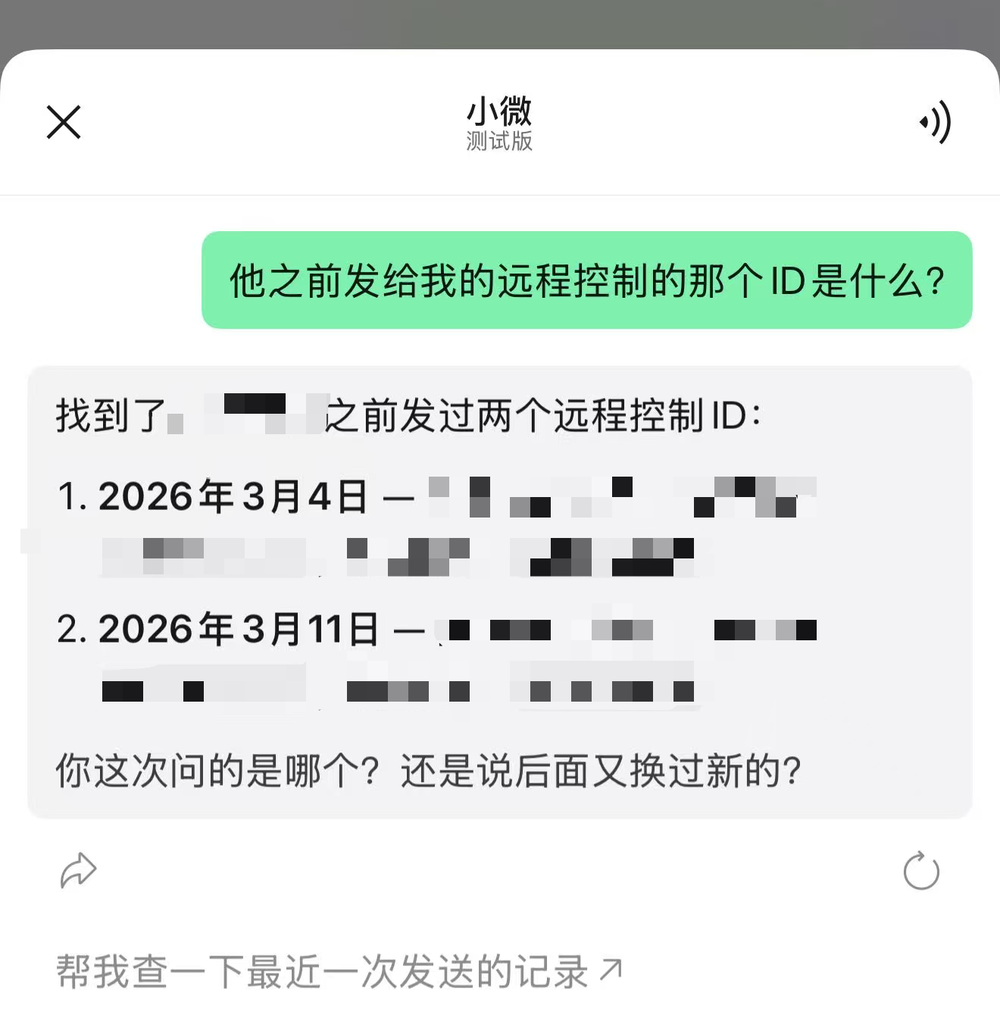
Ask directly "what was that remote-control ID he sent me" and Xiaowei pulls two relevant records from chat history, gives the send times, and extracts the device ID and verification code on the spot. Compared with keyword-dependent traditional search, this context-based way of asking is clearly more direct.
Things you can do in group chats:
- Query "who mentioned me"
- Filter for "key messages"
- Draft replies based on the group conversation
- Summarize the group chat topic
- Extract to-do items from chat history and present them as cards
💡 Tip: For users with many work groups and huge message volumes, "organizing to-dos" is more practical than simply summarizing chat logs — just ask "what to-dos do I currently have."
Entry Type 3: Official Accounts / Channels (Before-You-View Summaries)
The entries for official-account articles and Channels appear when sharing — open an article or video, tap share, and you will see "Ask Xiaowei."
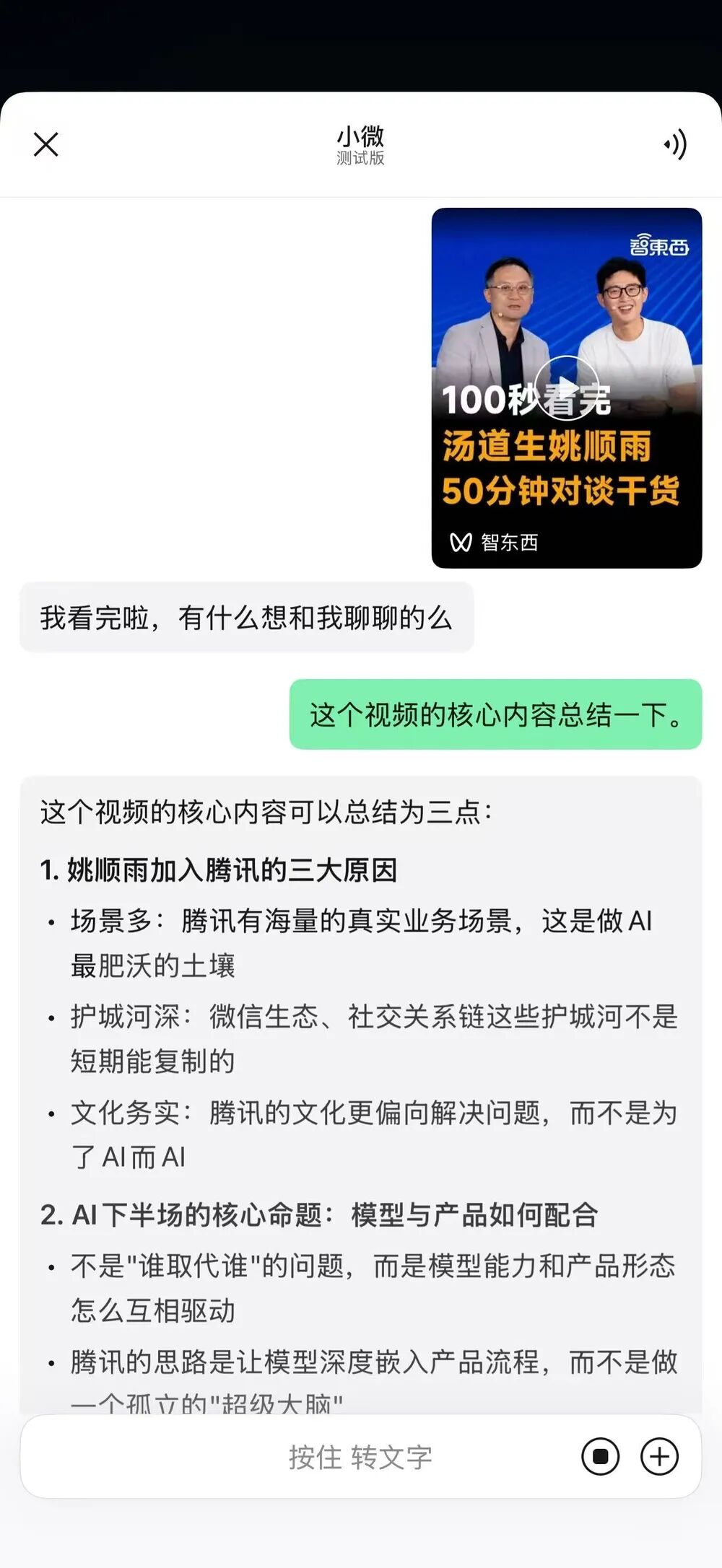
Send a 50-minute conversation video to Xiaowei and it summarizes the three big reasons for joining a certain company, plus the problem of model-product coordination in AI's second half. It amounts to gaining a "before-you-watch summary."
Entry Type 4: Documents (Images / PDF / TXT / the Office Trio)
Document-type entries lean workflow:
- Long-press an enlarged image to ask Xiaowei
- After opening files such as PDF, TXT, Word, PPT, or Excel, tap share to call Xiaowei
Available functions include image understanding (ask directly about image contents) and document processing (reading, summarizing, organizing). Often you do not need to read a file closely right away — you just want to know whether it is worth your time. With Xiaowei doing the first screening pass inside WeChat, file processing costs drop considerably.
💡 Tip: Document capabilities still need more complex testing (long PDFs, multi-sheet Excel files, PPT chart recognition, and so on); what can be confirmed at this stage is that the file entry is already connected.
Bonus Ability: Build a Mini Tool with One Sentence
Xiaowei's settings also include a "Mini Tools" entry: describe what you need in natural language and it generates a simple app. What gets generated is not a standalone web page but a mini tool running directly inside the WeChat ecosystem.
In the beta, mini tools cannot yet be shared with other users, publishing is not open, and auto-reading group content or real-time multi-person voting is not supported. Given that the underlying layer is the WeChat mini-program system, if sharing, collaboration, distribution, and even payments open up in the future, the room for imagination extends well beyond personal use.
The Boundary on Sensitive Operations
When operations involve payments, contacts, or message sending, Xiaowei does not complete the final step on the user's behalf — essentially all of them require a second confirmation.
For example, when sending a red packet, Xiaowei automatically identifies the contact and generates a confirmation message for a "100-yuan regular red packet." After the user replies "correct," it merely prompts "the red packet information is set; you can go to the red packet page to confirm and send." For a platform with more than a billion users that carries both a social graph and a payments system, this design is not hard to understand.
Use Cases
- Heavy WeChat users: retrieve key information scattered across chat logs and File Transfer Assistant; stop scrolling through histories
- Heavy official-account / Channels readers: let Xiaowei screen first, then decide whether to open the original
- Work-group users: group to-do extraction, key-message filtering, reply drafting
- File processing: complete the first-pass summary of PDF / Office files inside WeChat
Xiaowei may not yet be the strongest AI assistant, but it is currently the AI that comes closest to WeChat's own form. And for the AI version of WeChat, Xiaowei is very likely just the beginning.