
Baidu DuMate Hands-On Guide: A Homegrown Codex That Lets You Run Office Work by Voice
From installation to automation, a complete breakdown of Baidu DuMate's request -> authorize -> execute -> deliver pipeline: cross-app work, scheduled tasks, and the credits bill, all explained in one article.

Baidu DuMate Hands-On Guide: A Homegrown Codex That Lets You Run Office Work by Voice
From installation to automation, a complete breakdown of Baidu DuMate's request -> authorize -> execute -> deliver pipeline: cross-app work, scheduled tasks, and the credits bill, all explained in one article.
Baidu DuMate is the general-purpose office agent that Baidu promoted heavily at its 2026 Create developer conference, positioned as something like a "homegrown Codex." It bundles "request -> authorize -> execute -> deliver" into a single pipeline, letting users who don't write code drive AI through cross-app, scheduled, file-level office tasks in natural language, and it claims its Harness framework cuts credit consumption on similar tasks by 75%. This tutorial walks the full onboarding path from installation and interface orientation to two real-world scenarios, aimed at developers and office workers who want to offload repetitive work like daily reports, idea capture, and cross-app data lookups.
Preparation
- Device: Mac or Windows desktop client, or mobile (this article uses Mac for the demo)
- Account: phone number registration is enough; the free tier works
- Download: visit
dumate.cnin a browser and pick the version for your platform - Optional connections: app accounts such as Feishu (Lark), DingTalk, Chrome, or Trip.com (for cross-app tasks)
- Estimated time: 3 minutes for basic setup, roughly 20 minutes to run through both hands-on scenarios
1. Install in 3 Minutes
- Download the Mac dmg installer from
dumate.cn. - Double-click to open it and drag the DuMate icon on the left into Applications on the right.
- Launch, sign in with your phone number, and complete verification.

The Mac installer screen: dragging DuMate into Applications completes the install.
2. Get to Know the Interface: Four Core Modules
The main screen splits into a task sidebar on the left and a conversation area in the middle. The four modules in the left sidebar determine what you can ask DuMate to do:
- New Task: the main conversation area. Submit requests in natural language, with voice, file upload, and parallel multi-tasking supported (tasks keep running in the background, no babysitting required).
- Skills: the skill marketplace ships built-in skills such as Baidu Search, Baidu Miaoda, and Baidu Netdisk, and also supports custom imports via archive file or URL.
- Connected Apps: hook up local or curated apps such as Chrome, Feishu, DingTalk, GitHub, and Trip.com so the agent can work across apps.
- Automation: scheduled tasks, for example "summarize the ten latest AI news stories every morning at eight," with intent recognized and the task created automatically.
The four modules in the left sidebar (New Task, Skills, Connected Apps, Automation) are the entry points to the agent's capabilities.
Workspace and the Principle of Least Privilege
Click "Set Workspace" in the dialog box to assign the agent a dedicated folder. Inside the authorized folder, DuMate has full read, edit, and create permissions; delete operations trigger a second confirmation. This detail makes long-term use safe — the biggest fear with AI tools is having them touch something they shouldn't without your knowledge.
Workspace settings follow the principle of least privilege, and deletions require a second confirmation.
Visualizing Task Execution
Submit a request (say, generating a set of crocheted pet plushie images) and the agent shows three things at once in the right panel:
- Task progress: each subtask gets checked off in real time
- Task files: intermediate artifacts and final deliverables
- Capabilities invoked: a list of the Connectors used (such as Baidu AI image generation)
Everything each step is doing is laid out in plain sight, which makes follow-along debugging smooth.
💡 Tip: invoke the Baidu Miaoda Skill from the skill marketplace and the agent can build a mini game outright and return a live URL; apps you previously built in Miaoda, like a "WeChat-article-to-Xiaohongshu-image assistant," can keep being iterated on inside DuMate.
3. Hands-On Scenario 1: An Idea-Collection Assistant with DuMate + Feishu
Capturing scattered ideas into a Feishu Bitable is a workflow many people want but never find time to build. With DuMate, a single prompt does it.
Step 1: Enter the Role Prompt
Paste the following prompt into a new task:
You will act as my "idea collection assistant." In Feishu, whenever I send you any idea, thought, observation, requirement, question, material, or scattered note — regardless of length or how fully formed it is — you must automatically recognize its core content, structure it, and write it into my "Idea Collection" Bitable, with no extra prompting from me. When recording, automatically distill a title and summarize the core content, polish the wording appropriately without changing the meaning, and intelligently fill in the relevant fields based on the content, such as idea title, detailed description, category, tags, source, use case, priority, recorded time, keywords, and so on; fill in fields you can infer and leave uncertain ones blank rather than fabricating information. Flag duplicate or highly similar ideas to avoid recording them twice. The trigger phrase is: I have an idea xxx.
Paste the role prompt into the dialog box, and the agent automatically requests authorization and builds the table.
Step 2: Authorize and Verify
- DuMate returns a Feishu authorization link; click through to Feishu and grant the app access.
- After a short wait, DuMate returns the field structure of the new table (idea title, category, tags, priority, and so on).
- Send the agent any idea in Feishu (for example, "I have an idea: turn the daily RSS feed into a mini program").
The agent automatically archives the message into the idea library and classifies it by dimension — product, engineering, design, personal life, and so on.
💡 Tip: when you're out of ideas, have the agent pull a few random entries from the idea library — far more efficient than scrolling through your notes app.
4. Hands-On Scenario 2: Generate a Profile Page from Your GitHub
- Type into the dialog: "Based on my GitHub profile at
github.com/<your-username>, build a GitHub profile page." - The agent pulls your repo list, README, contribution calendar, and other data, then generates a preview in the right panel within seconds.
- Follow up with "add a dark mode toggle and group the repos by language," and it iterates on what it has already built.
The agent hosts the page at a shareable live URL. Under the hood, the whole flow taps the app-generation capability of the Baidu Miaoda Skill.
Once the Baidu Miaoda Skill is invoked, a playable, accessible mini app can be generated in minutes.
5. Going Further: Cross-App Work and Automation
Connect Chrome and Trip.com
- Go to the "Connected Apps" page, select Chrome, and click "Connect."
- Choose "Method 1" for one-click install; it redirects you to the Chrome Web Store, where you click "Add to Chrome."
- Back in DuMate, click "Start Connecting" to finish the bridge.
- Connect Trip.com the same way, then ask the agent "check tomorrow's flights from Wuhan to Beijing" — it pulls live data and tells you which flight is the better deal and which time window is cheapest.
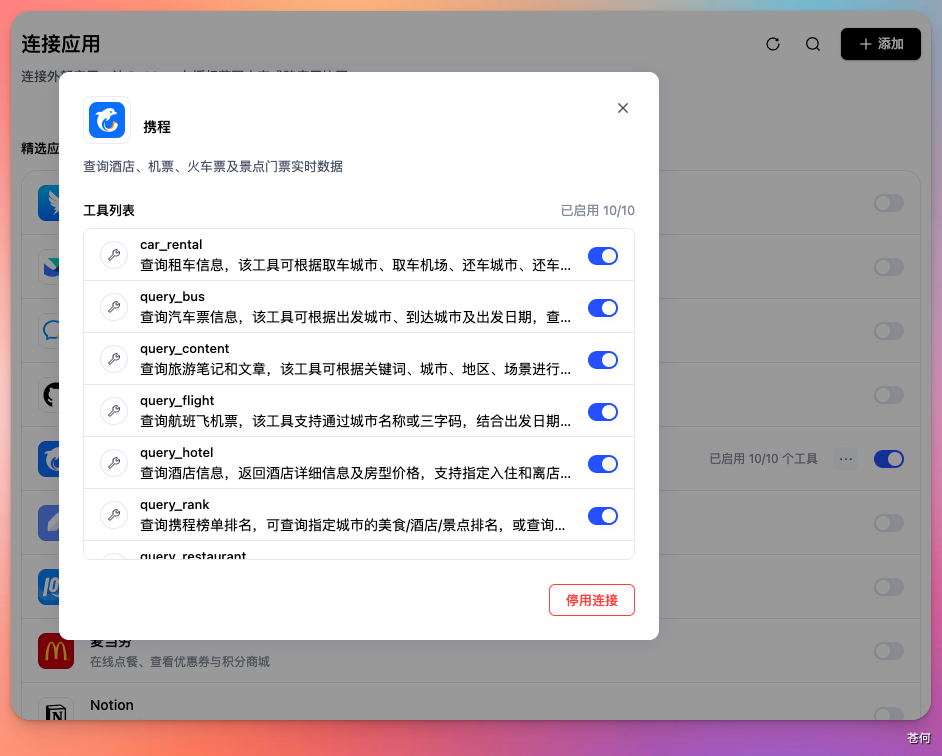
Once Trip.com is connected, the agent can pull live flight data and offer value-for-money suggestions.
Set Up a Scheduled Task
Say "summarize the ten latest AI news stories every morning at eight" directly in the conversation, and the agent recognizes the scheduling intent, creates the task, and shows its name, execution time, and status. The "Automation" page lets you view, edit, and pause these tasks.
The Automation page centrally manages all scheduled tasks, with editable execution times and trigger conditions.
6. Credits and Memory: A Transparent Bill Is What Matters
Tap the avatar in the bottom-left corner to enter settings:
- Credit usage: a full itemized breakdown and credit bill for every conversation. Built on the Harness framework, DuMate consumes roughly 75% fewer credits per task than the conventional approach.
- Memory: you can set a separate style profile for yourself and for the agent, with built-in long-term memory plus a data flywheel — the more you use it, the better it knows you.
- IM integration: you can attach the agent to IM platforms such as Feishu; scan a QR code to connect.
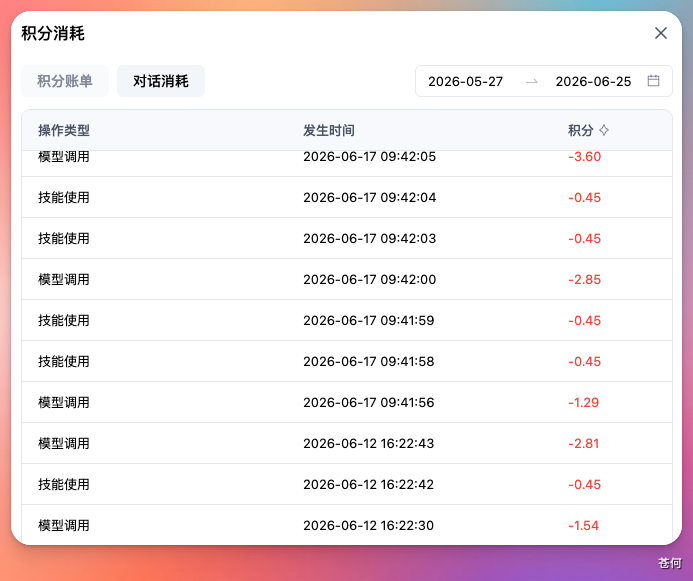
The credit bill is itemized per conversation; billing transparency is the foundation for long-term use.
Verify the Results
After running both hands-on scenarios, you should have:
- A Bitable that automatically archives ideas from Feishu, with fields filled in automatically
- A live GitHub profile page that supports further natural-language iteration
- A scheduled task that pushes AI news automatically at eight in the morning
- A cross-app workflow with Chrome and Trip.com connected
FAQ
- What if the agent touches files it shouldn't? DuMate uses least-privilege access plus a workspace sandbox, and confirms before deleting; it's wise to keep sensitive directories outside the workspace.
- Cross-app connection fails: the Chrome extension must be fully "Added to Chrome" from the Web Store before you click "Start Connecting" — doing it in reverse order gets you stuck.
- Credits burn faster than expected: check the per-conversation breakdown on the "Credit usage" page; for long-context tasks, switch to shorter prompts or split the task.
- Scheduled task didn't run: check that the DuMate client is running in the background; on mobile, make sure the OS hasn't frozen the app.